Fingerprint and NFC
Staff can clock on and off at a Windows PC by touching a fingerprint scanner or holding an NFC tag to a reader. Both use the free Microkeeper Timesheets app. A fingerprint can't be shared, so nobody can clock on for someone else; NFC tags on a key ring are just as quick.
| Required plan | Standard Enterprise |
|---|---|
| Required access | To assign fingerprints and tags: NFC tags, Fingerprints, Facial |
Navigate to Menu > HR > NFC & Fingerprint to assign fingerprints and tags to staff.
Before you set up fingerprint or NFC clocking
- A Windows PC with a reliable internet connection.
- A fingerprint scanner, or an NFC reader with a tag for each employee. See Pricing.
- Each employee's Employee Clocking, on their profile, set to NFC / Fingerprint. See Clocking Options.
Install the Microkeeper Timesheets app
- Download the app for 64-bit Windows (Download x64).
- Download the app for older 32-bit Windows (Download x86).
- Run the download and follow the setup wizard.
- Plug in the fingerprint scanner or NFC reader.
- Open the app. To find it easily, right-click it and pin it to the Start menu.
Connect the app to your business
- In the app, click the menu at the top right, then Settings.
- In Username, enter your business username. Find it in Menu > Settings > General > Global, under Developers.
- To charge every clock-on at this PC to one Job, enter the Job's ID in Job. To find it, navigate to Menu > Manage > Jobs and hover over the number in the Job's ID column. See Jobs.
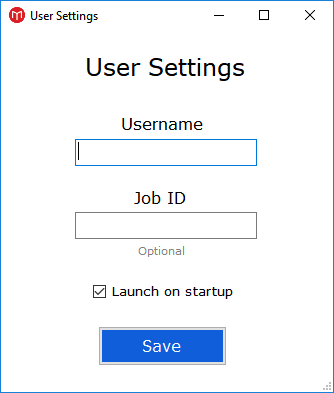
To let staff from more than one Microkeeper business clock on at the same PC, enter each business username separated by @, such as "org1@org2". Switch back to one username while you enrol fingerprints, because fingerprints can't be assigned while more than one business is set.
Enrol a fingerprint or NFC tag
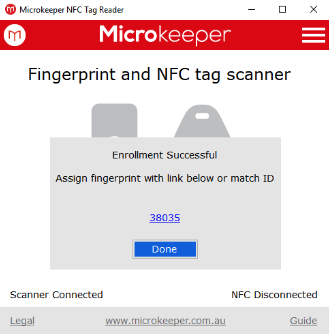
For a fingerprint, click the menu, then Enroll Employees. The employee places the whole pad of their index finger in the centre of the scanner's window and holds it there, without rolling or sliding, until the light blinks. The app then shows Enrolment Successful with a match ID.
For an NFC tag, hold the tag to the reader. The app shows NFC tag added with a match ID.
Assign the fingerprint or tag to an employee
- Navigate to Menu > HR > NFC & Fingerprint, or follow the link the app shows with the match ID.
- Under Pending Allocations, find the match ID in Pending NFC tags or Pending Fingerprints.
- Choose the employee and click Set.
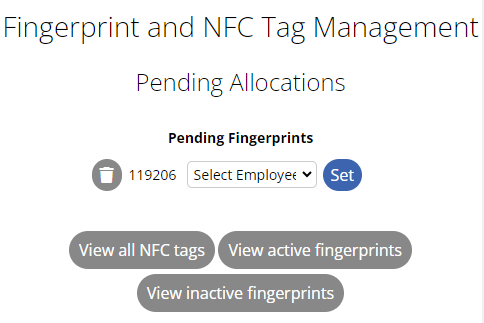
The same page lists every tag and fingerprint: click View all NFC tags, View active fingerprints or View inactive fingerprints. Use Reassign Tag to give a tag to someone else, and Deactivate to stop an old fingerprint working.
Clock on and off
Keep the app open on the PC. The employee touches the scanner or holds their tag to the reader, and the app shows them clocked on or off. If it can't, it shows an error. On their timesheet, these clock-ons show the fingerprint or NFC icon.
Look after the fingerprint scanner
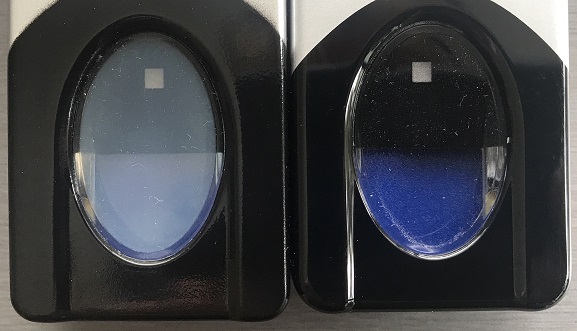
A clean, undamaged window reads fingerprints reliably. To clean it, press sticky tape on the window and peel it off, or wipe it gently with a cloth dampened with warm water. Never use cleaning products, paper or anything abrasive, never spray or drip liquid on it, and don't poke the window. Other cleaning methods void the warranty.
A cloudy window has usually been damaged by a cleaning product and can't read fingerprints. You can replace it with the Fingerprint Scanner Lens DIY Repair Kit.