Time and Attendance Options
Microkeeper offers multiple options for employees to record their worked hours. In this guide we will take you through the different ways employees can clock their hours and also their best use cases.
Clocking Options Overview
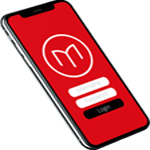 | 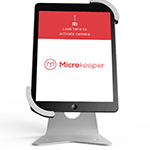 | 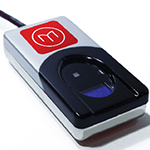 |
| App and Browser | Facial Recognition | Fingerprint Scanner |
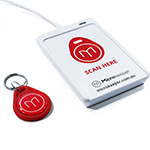 | 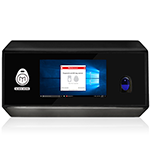 | 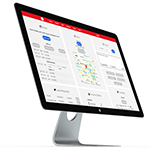 |
| NFC Scanner | Clocking Station | PC Restricted Console |
| No. | Clock option | Security | Speed | Buddy Clocking | Offline Capture | Battery Backup |
| 1 | Employee Console |  |  | Possible | No | NA |
| 2 | PC Restricted Console | | | Possible | No | NA |
| 3 | GPS Console |  | | Possible | No | NA |
| 4 | GPS Location Restriction |  | | Possible | No | NA |
| 5 | Landline Clocking | |  | Possible | No | NA |
| 6a | Fingerprint Scanner |  | | Prevented | No | No Battery |
| 6b | NFC Scanner |  |  | Possible | No | No Battery |
| 7 | Facial Recognition |  | | Prevented | Yes | Battery |
c
Offline Capture will still work if internet goes down.
Buddy Clocking prevents staff from clocking each other on.
How to select a Clocking Option for an Employee
Each employee can clock on/off with a different method of your choice.
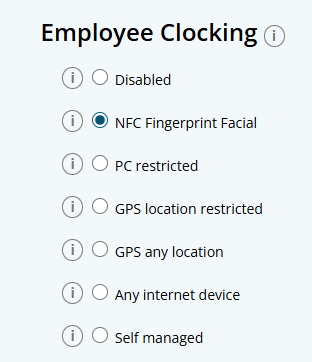
These options can be configured in the Employee Clocking settings in the Employee Profile.
Navigate to Menu > Settings > Employee > click the Edit button for the employee you want to configure > Employee Profile - Employee Clocking.
Employee Console Clocking via App or Browser | |||
|---|---|---|---|
| Fast & Easy The Employee Console can be used on any internet enabled device or with the Microkeeper mobile app found on Google Play and Apple's App Store GPS Tracking Switch on location tracking and easily mark a GPS position at any time your employee clocks on or off. Location Restriction Map your work locations and turn on location restriction to make sure employees only clock on or off if they're within a certain range of distance to the workplace. | ||
| Security | Speed | Buddy Clocking | Online Capture |
| | Possible | No |
Employee Console Clocking
The most basic method is to allow employees to clock on from any computer or smartphone they like.
Pro
- They have the freedom to use a PC, smartphone or any internet enabled device
- They can clock their hours from anywhere with an internet connection
- Easiest to set up and maintain
Recommended for:
- For small businesses who generally work together
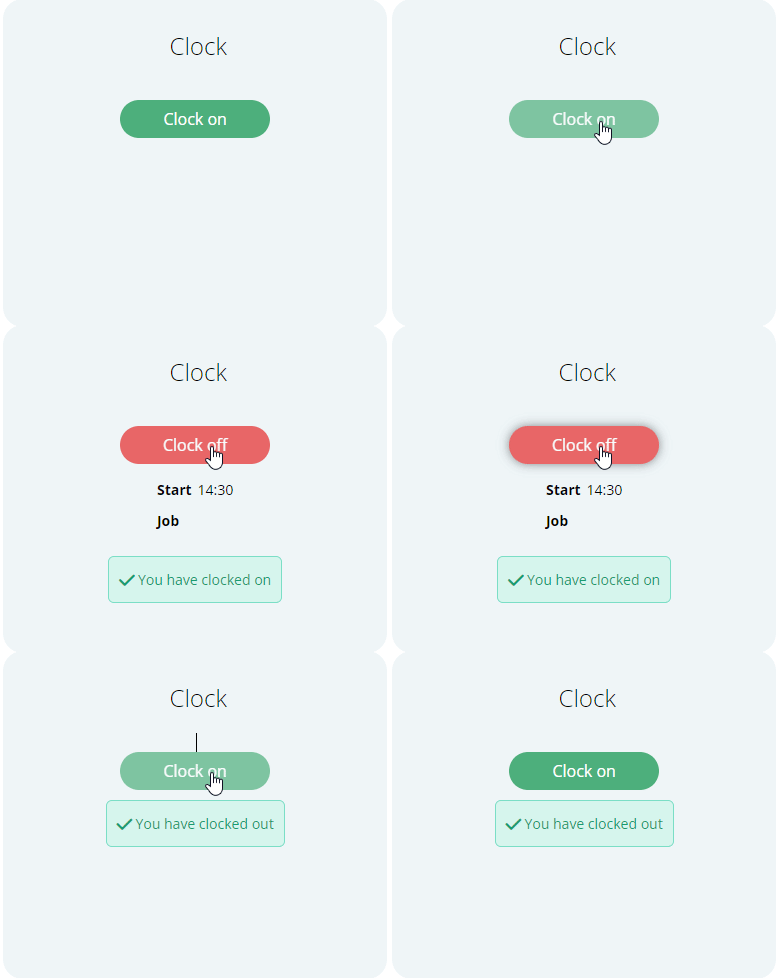
Employee Console Clocking with GPS enabled
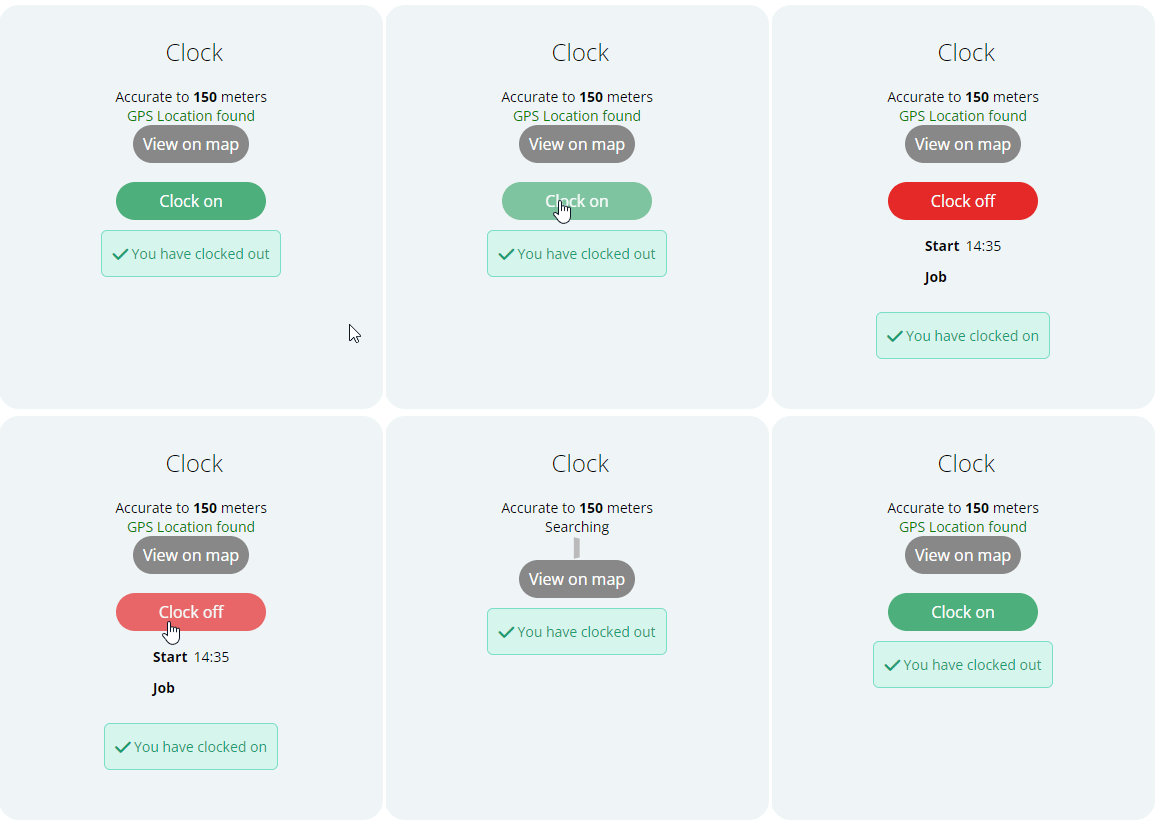
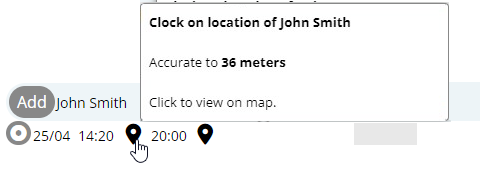
This option will allow employees to clock on/off with any GPS enabled internet device such as a mobile phone. This gives your employee the flexibility to clock on/off from wherever they like.
Pro
- You know where they are clocking on/off from
- They can clock their hours from anywhere with an internet connection
- Easy to setup and maintain
Recommended
- For employees who frequently start work at different locations
- Great for delivery drivers, sales reps, etc.
Employee Console Clocking with GPS Location Restrictions enabled
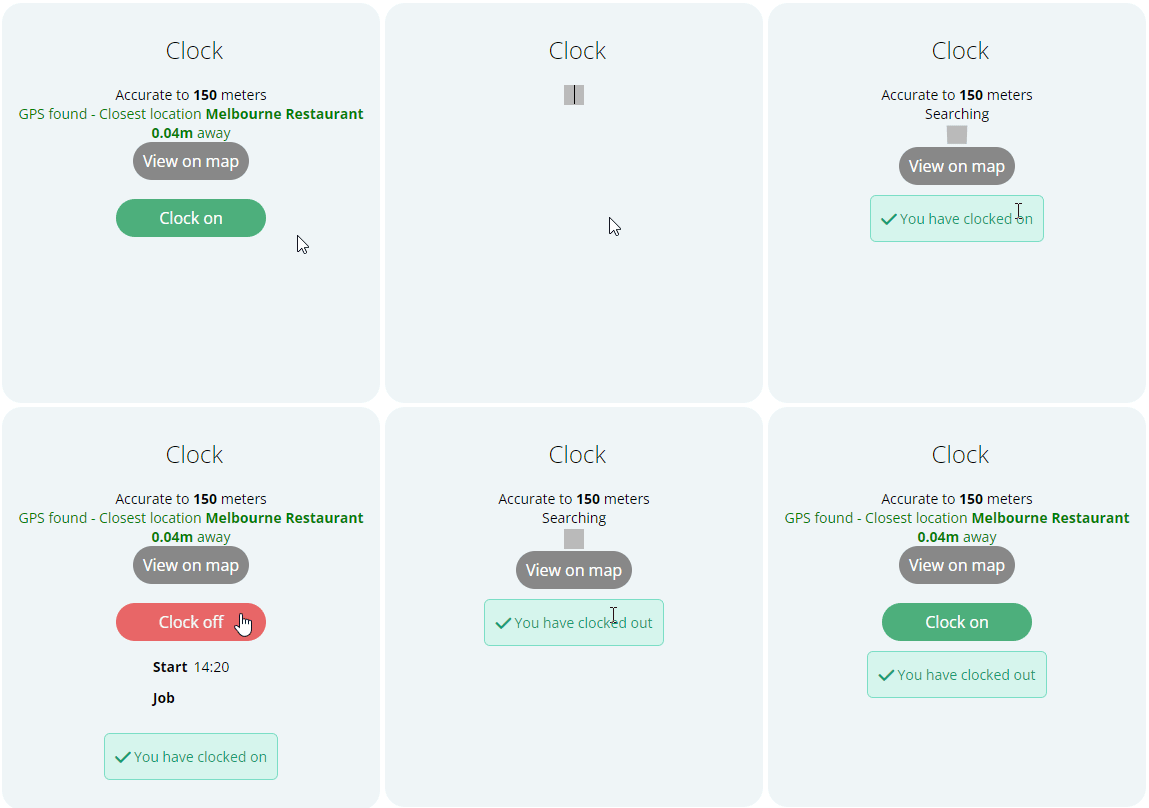
Employee Console Clocking can be set up to only allow employees to clock in within the radius of the defined Locations.
Pro
- Employees can only clock on/off at work locations
- They can clock their hours from a smart phone
- Easy to setup and maintain
Recommended
- For businesses with multiple locations, changing locations, on site locations, etc.
- Great for trades, delivery drivers, backup option, etc.
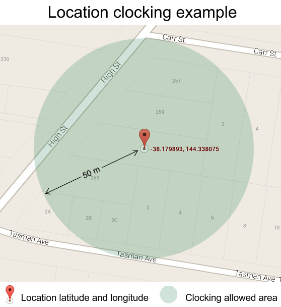
See the Locations guide for more information.
Facial Recognition via iPad | |||
|---|---|---|---|
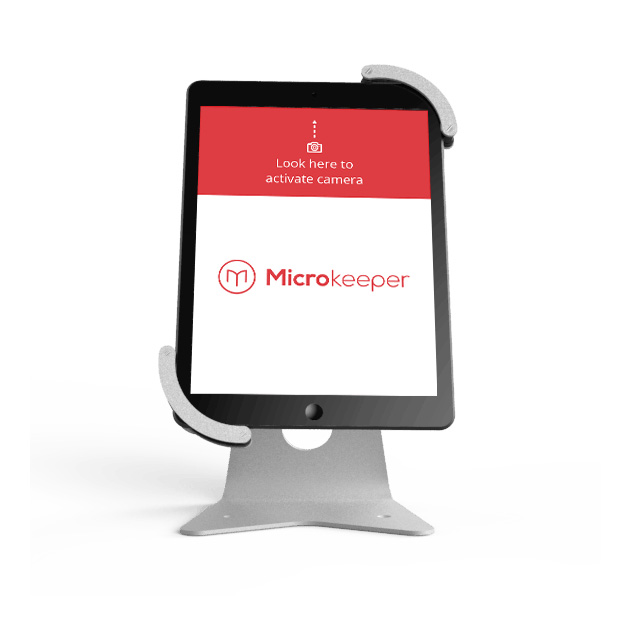 | Timesheets Via iPad Our facial recognition time clock system is integrated through the Noahface app Offline Access In case of data, network or power outages, your clock on data will automatically get stored on your iPad with a universally accepted timestamp. True Facial Recognition A facial recognition time clock is a great, touch free time tracking solution in environments where fingerprint scanning is impossible or impractical. | ||
| Security | Speed | Buddy Clocking | Online Capture |
| | Prevented | Yes |
Employee's can clock on/off with facial identity verification.
The data gets captured by Noahface which communicates directly with Microkeeper's cloud based servers.
Pro
- Fast, clearing up bottleneck situations (e.g. at the end of shifts).
- Data gets saved on device, reliable and accurate recording in case of internet connection or power outages.
- Employees username and password can't be stolen or shared.
- Can work in dirty, dusty environments.
- Easy to setup and maintain.
Recommended
- For situations with high volume of employees
Fingerprint Scanner | |||
|---|---|---|---|
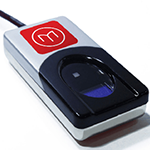 | No More Passwords With fingerprint time attendance software, everyone literally carries their credentials on their fingertips. Biometric Time Clock There is no need to worry about privacy concerns or biometric time clock laws: images of employees' fingerprint aren't recorded or stored. Handle High Volumes A fingerprint time clock system can handle hundreds of staff members within minutes. | ||
| Security | Speed | Buddy Clocking | Online Capture |
| | Prevented | No |
Fingerprint scanners are the fastest and most secure way for your employees to clock on/off.
The fingerprint scan solution is our own in-house software that communicates with Microkeeper's cloud based servers.
Pro
- An employee can only clock on/off from computers with a fingerprint scanner
- Employees username and password can't be stolen
- Quick and accurate method
- Very secure
Recommended
- High volume of employees
- For a range of full time, part time and casual
- Where speed and efficiency is a key goal
- Security is a main concern
NFC Scanner | |||
|---|---|---|---|
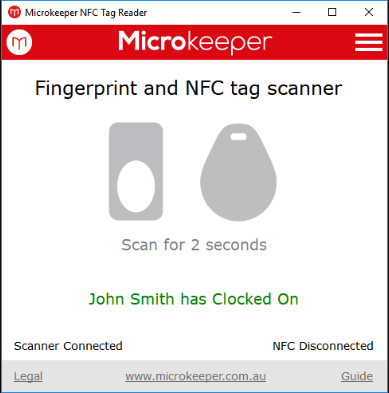
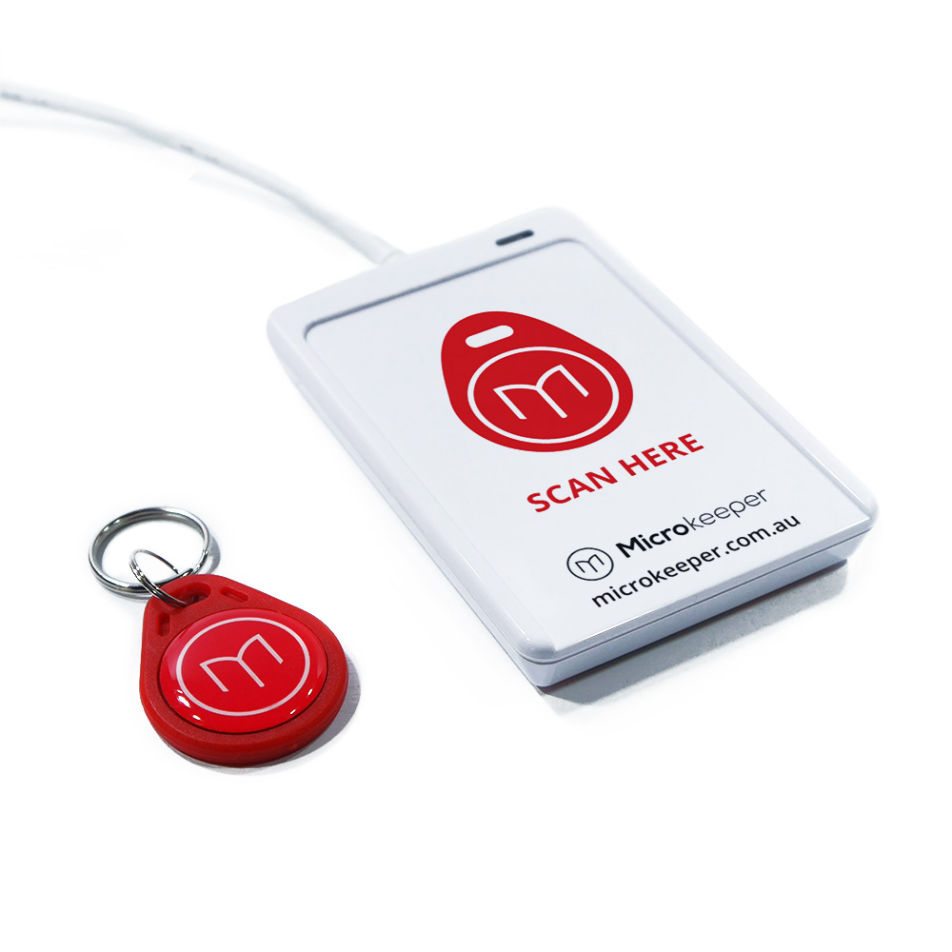 | Simple Setup The NFC scanner plugs into a USB port and will work with any Windows device. Biometric Time Clock There is no need to worry about privacy concerns or biometric time clock laws: images of employees' fingerprint aren't recorded or stored. Handle High Volumes A fingerprint time clock system can handle hundreds of staff members within minutes. | ||
| Security | Speed | Buddy Clocking | Online Capture |
| | Prevented | No |
NFC Scanners are a very fast solution for your employees to clock time and attendance data. When clocking hours, employees are each issued a key ring that contains an NFC tag.
Upon holding the tag close to the NFC reader, the employee is instantly recognised and authenticated.
Pro
- Fast, clearing up bottleneck situations (e.g. at the end of shifts).
- Data gets saved on device, reliable and accurate recording in case of internet connection or power outages.
- Employees username and password can't be stolen or shared.
- Can work in dirty, dusty environments.
- Easy to setup and maintain.
Recommended
- High volume of employees
- For a range of full time, part time and casual
- Where speed and efficiency is a key goal
PC Restricted Console | |||
|---|---|---|---|
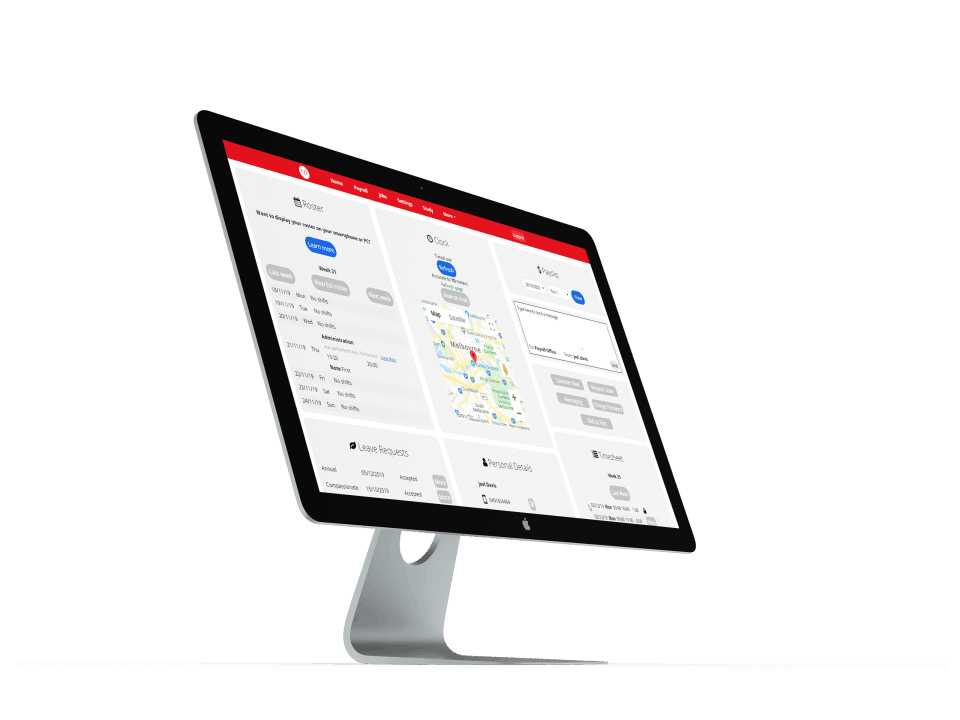 | Network Restriction This method allows you to only allow clocking data from a specific IP address Device Friendly Allow clocking events from any device that allows a web browser Cost Effective Instantly allow restricted clocking with any computer device | ||
| Security | Speed | Buddy Clocking | Online Capture |
| | Possible | No |
This option allows you to restrict which Network you want to allow your employees to clock on/off from.
How to add an accepted IP Address or Domain
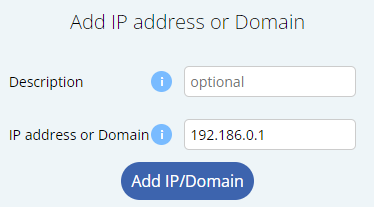
Navigate to Menu > Settings > General > Security
Note: You must be on the PC you want to activate
Enter the IP address or Domain that staff should be allowed to clock hours from.
Click the Add IP/Domain button confirm the configuration.
Managing your accepted IP Addresses and Domains
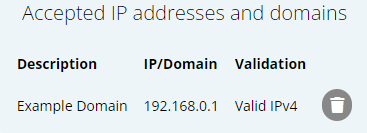
All the configured addresses will be listed under the Accepted IP addresses and domains list.
Any addresses can be deleted at any time by clicking the Rubbish Bin icon.
Pro
- Employees are restricted to the Network that you designate
- Cost effective method
Recommended
- For employees working at computers
- Full and part-time employees
| Clock facility on employee console - PC Active | 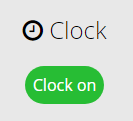 |
Clock facility on employee console - PC Inactive | 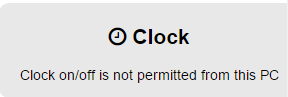 |
Landline Clocking
Employee's can call in on a landline to clock on/off with identity verification.
Pro
Smart phone access not required.
Clocking of hours from anywhere with landline connection.
Call in phone number restriction
No software install required
Recommended
Worksite with access restrictions
Large percentage of workforce with no Smart Phone access.
Work sites with no internet or low mobile phone reception
An employee will call a special line provided by Microkeeper from either an employer-designated phone line (recommended), or any number.
They will then be prompted to give their Employee ID from the Employee Profile, and the Day and Month of birth to verify their Identity.
The employer designated phone line can also be able to be associated with a Job for Job tracking purposes.
Note: Additional charges incurred, please contact Microkeeper to discuss
Missed Clock On
Menu > Control Panel
Sometimes employees will forget to Clock On or Off for their shift.
So in these circumstances, there is a way managers can clock them On or Off instead.
In the Control Panel, on the right side of the page is a Clock Status section detailing Employee's Clocking.
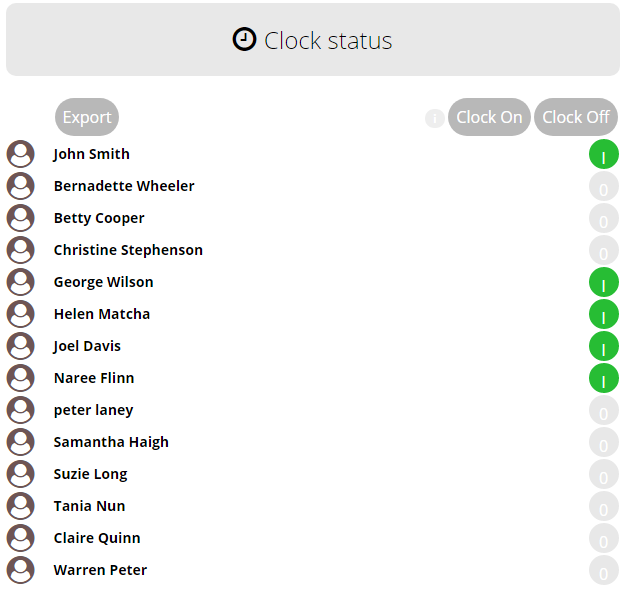
To clock an employee on, click Clock On. Tick the employees you wish to Clock on, and click Clock.

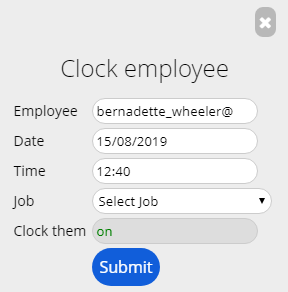
Then enter the time at which the employee began their shift, and click Submit.
Cleaning & Maintenance
It is important to maintain your equipment to ensure it continues to run perfectly.
Please ensure to clean your fingerprint scanners regularly.
We recommend a microfiber cloth and the use of dedicated 'computer screen' wipes.
Alternatively, Windex can be used - but please ensure to spray the cleaning solution onto your cloth, do not spray cleaning solutions directly onto the fingerprint scanner or other hardware.
Spray the cloth then wipe your hardware.