Skills and Documents
A skill is anything every employee in a Group must complete: a certificate with an expiry date, a policy to read and sign, or an induction. You set each one up in Skill Config, and staff complete it from their Employee Console.
| Required plan | Standard Enterprise |
|---|---|
| Required access | HR - Config, or Settings |
| To use the AI Chat Assistant | Enterprise |
This guide covers how to:
- Add a skill or document.
- Choose who completes it, and how important it is.
- Ask for a document, a response or an expiry date.
- Draft the Instructions to staff with the AI Chat Assistant.
- Make a Role require a skill.
- Follow how staff complete a skill.
Add a skill or document
- Navigate to Menu > Settings > Skill Config.
- Click Add Document.
- Choose a Template to start from, or leave it blank.
- Enter the Title, such as "Responsible Service of Alcohol (RSA)", and click Add Document.
- The skill opens in the editor. Write the Instructions to staff, and set the skill up in the settings beside them, as below. Each setting saves as you change it, and the instructions save a few seconds after you stop typing, or when you click Save.
- Set Skill Status to Active, and click Back.
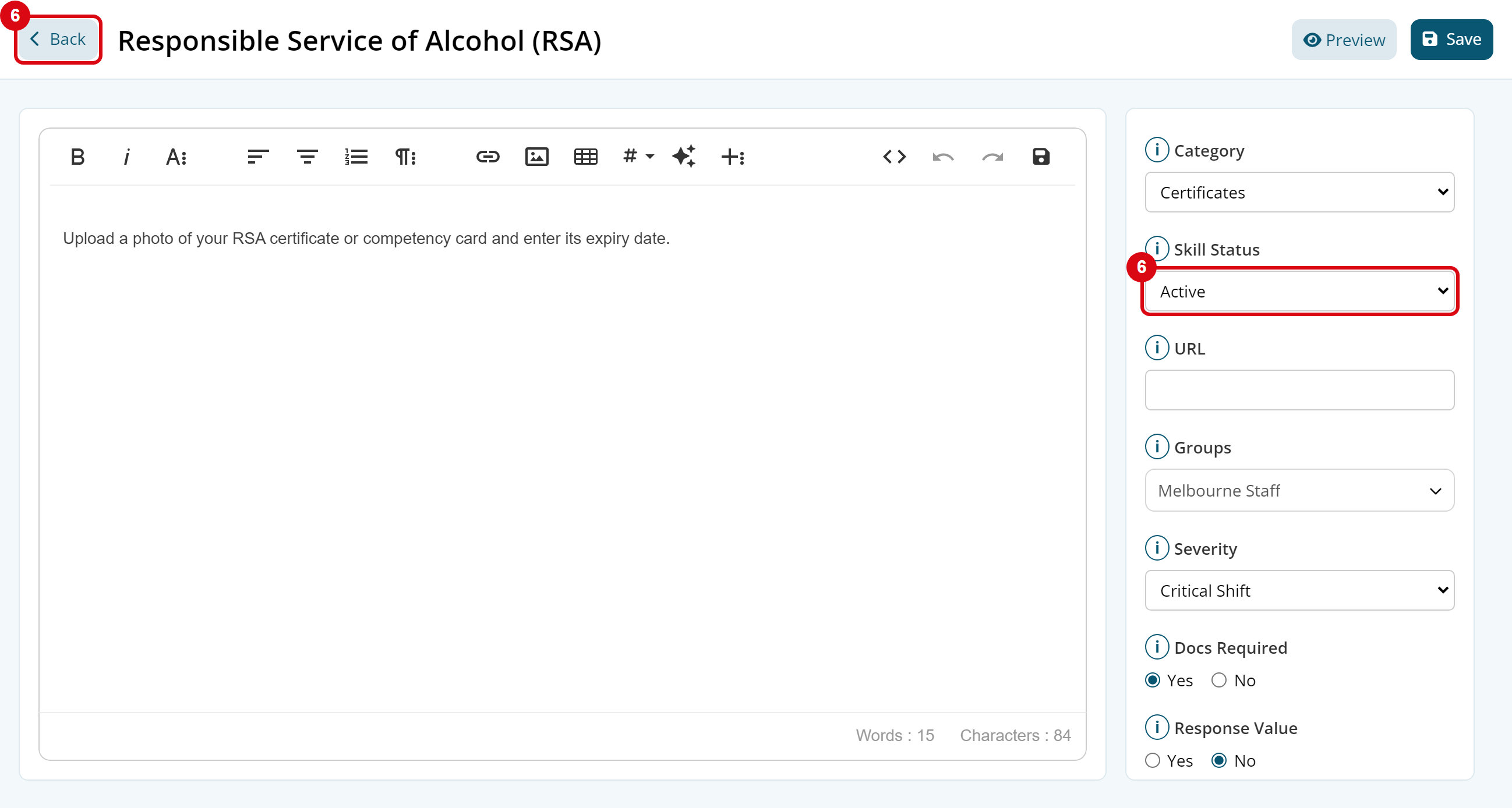
A new skill is a Draft, which staff and managers can't see. Once it's Active, staff in its Groups can complete it. Archived skills are kept, but no one can complete them.
| Category | For |
|---|---|
| Policies | Documents staff read and sign, such as a Code of Conduct |
| Certificates | Licences and qualifications, such as an RSA or First Aid Certificate |
| Inductions | Site and safety inductions |
| Offboarding | What staff complete when they leave |
| Contracts | The same contract for everyone in a Group, which each employee signs, such as your casual employment agreement. For a document with each employee's own terms, use a Personal File |
The skill list on Skill Config has a tab for each category. Click Preview to see a skill as staff do, or Notify to see who hasn't completed it in Skill Review.
Who completes a skill
In Groups, choose each Group of staff who complete it, or leave it empty for All Staff. An employee in any of the Groups completes it. For example, an RSA for the staff at a restaurant, and a food handler certificate for the Group of cooks. See Groups.
How important a skill is
Severity decides what happens until the skill is complete:
| Severity | What happens | Example |
|---|---|---|
| Critical Global | The employee can't clock on at all until it's complete | Working With Children Check |
| Critical Shift | The employee can't clock on to a shift at a Location or in a Role that requires it | RSA for bar shifts, a site induction |
| Important | Required for employment, but doesn't stop clocking on | Code of Conduct |
| Optional | Useful to have | A driver licence |
A skill waiting for a manager's approval isn't complete yet, so a critical one still stops the employee clocking on. To approve it straight away, set Auto Approve to Yes.
Ask for a document, a response or an expiry date
| Setting | What it does |
|---|---|
| Docs Required | Yes asks staff to upload a document, such as a photo of their certificate or their police check. With No, they read the instructions and sign |
| Response Value | Asks staff to type a response, such as their licence number. Say what to enter in the Instructions to staff |
| Declinable | Yes lets staff decline the skill, for one they don't have or don't need |
| Auto Approve | Yes approves the skill when it's submitted. No sends it to a manager in Skill Review |
| URL and Attachments | A website or files staff need to complete the skill, such as an online course or a form. Click Attach file to add each file. Staff must open each one before they can submit |
| Instructions to staff | What staff do to complete the skill, or the policy or contract they sign, shown above their steps. Employee Profile Variables, such as {firstname}, show each employee's own details, and are kept in the copy they sign |
Expiry dates
- Date: staff enter the date on their certificate. Choose an Expiry Limit longer than the certificate lasts, as staff can't enter a date beyond it.
- Auto: the skill expires the Expiry Limit after it's completed, such as an induction every 12 months.
- No: the skill never expires. Choosing No Limit as the Expiry Limit also sets Expiry to No.
Expiry Reminder is how long before the expiry date the skill shows as expiring. It moves back to the employee's Action Required list, and shows as Expiring in Skill Review.
Draft skill instructions with the AI Chat Assistant
On the Enterprise plan, the AI Chat Assistant in the Instructions to staff editor drafts instructions, a policy or an induction, or rewrites or formats what you've written.
- In the editor's toolbar, click the AI Chat Assistant.
- Ask for a draft, such as "Instructions for uploading an RSA certificate", or ask it to rewrite what's in the editor.
- Check the suggestion, and click Apply.
It only writes instructions for workplace skills. Check what it writes before you set the skill to Active. See Personal File Templates for the same assistant in Personal Files.
Make a Role require a skill
- Navigate to Menu > Settings > General > Roles, and click the edit button on the Role.
- In Skills, choose each skill the Role needs, such as the RSA for Bar. Each one shows below the list; click the cross on one to remove it.
- Click Update.
When you roster the Role, staff without its skills, such as an RSA, are listed as Unskilled when you choose the employee, and their shift shows dark red on the Roster Calendar. A Critical Shift skill also stops them clocking on to its shifts. See Roles.
How staff complete a skill
Staff complete skills from their Employee Console, under Skills & Files. New staff complete them in onboarding, for example uploading their police check.
- Open the skill under Action Required.
- Upload the document, enter the response or the expiry date, if the skill asks for them.
- Click Sign Document, draw a signature and click Save.
- Tick the declaration and click Submit.
The skill shows as Pending until a manager approves it in Skill Review, then Complete. See Skill Review.