Time in Lieu or Rostered Day Off
RDO (Rostered Day Off) and TIL (Time In Lieu) are used to keep track and manage the extra hours worked by employees, which can be used as a leave balance at a later date.
TIL or RDO settings are used to automatically accrue these balances.
Enable TIL or RDO in the Global Settings.
If your employees are entitled to RDO's or TIL you can set this in the entitlement settings section of your Global settings.
Navigate to Menu > Settings > General > Global > Entitlement Settings
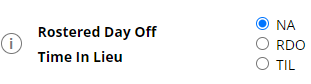
Change the Rostered Day Off Time in Lieu settings to either RDO or TIL
Auto TIL
The auto TIL setting can be used to automatically balance out an employees hours in comparison to the Basic Hours set in their Employee Profile.
Employee is contracted to work 38 hours.
Any hours above 38 hours will be stored to the TIL balance.
If the employee does not clock 38 hours, then hours will be deducted from their TIL balance until they are owed 38 hours of pay
Navigate to Menu > Settings > Employee > click the Edit button for the applicable Employee > within Employee Profile, under Payroll and Employment -
Change the Salary settings to enable Auto TIL
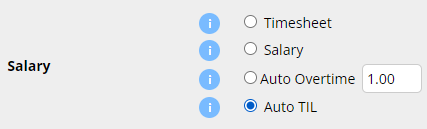
Basic Hours should be set to the contracted working hours of the employee.

Configuring RDO entitlements in the Employee Profile
RDO hours can be automatically deducted from the total Basic Hours of an employee's Payrun.
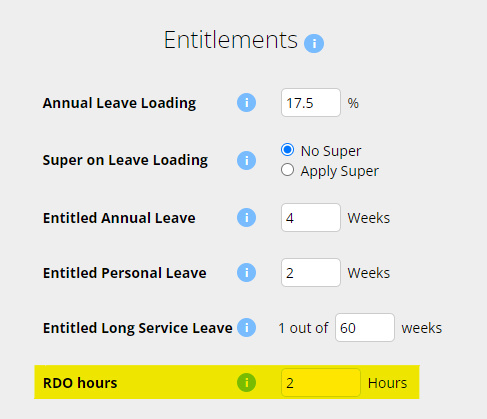
Navigate to Menu > Settings > Employee > click the Edit button for the applicable Employee > within Employee Profile - Entitlements, set RDO hours to the weekly value to deduct.
In this example an employee worked 40 hours a week.
They deduct 2 hours of their total worked hours to their RDO balance every week.
Adding TIL using a Code lookup
Codes can be used to add a payment to the employee every time the code is present in the roster notes.
This can also be used for Time In Lieu, for example, when an employee works an hour longer than normal.
We can put in the code TIL@60 in the notes and this will automatically take the 60 minutes and add it to the
TIL balance when you run payroll. Please note, this only works if entered in minutes.
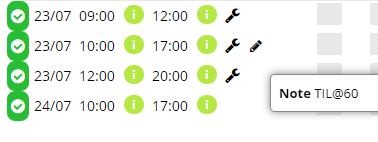
When you run payroll, the 60 minutes will automatically be taken off the total hours.
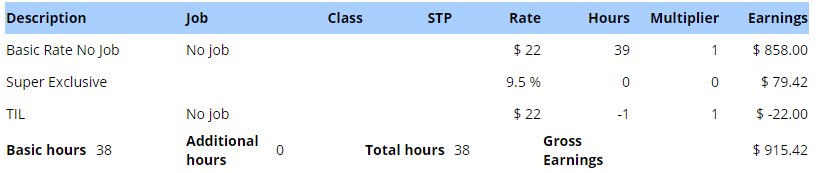
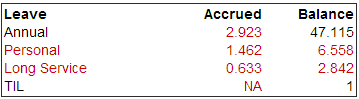
The hour taken off is automatically added to the TIL balance.
Adding to the TIL balance on the payslip
Additional hours can be added to a TIL balance by adding the hours on an employees payslip.
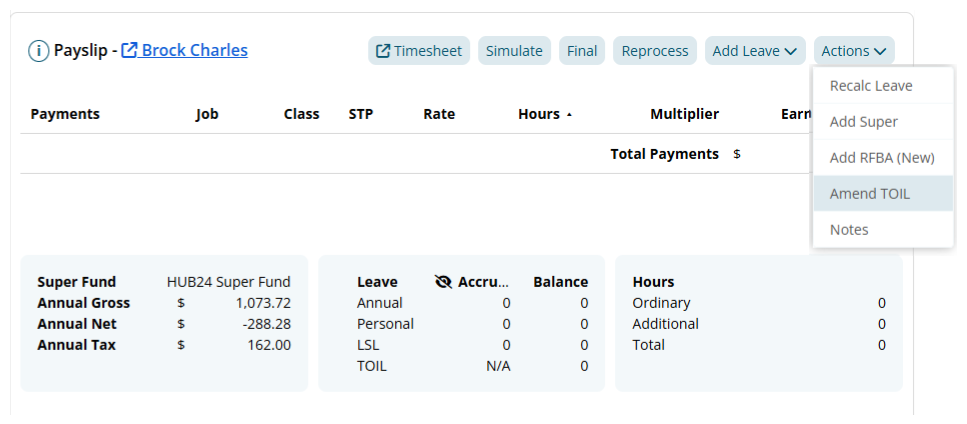
On an Employees payslip, click the "Actions" drop down button and select "Amend TOIL"
The "Amend TOIL" window will appear. Enter the amount of TOIL hours to be adjusted
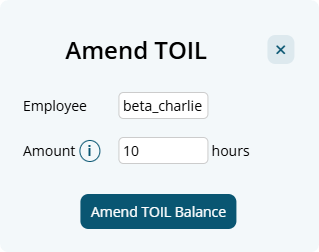
A "TOIL #Leave" payslip item will appear on the employees payslip.
If you are adding TOIL hours, the hours value should be negative. If you are deducting TOIL hours, the hours value should be positive,

The employees TOIL balance will be adjusted by the amendment. Note: The Accrued value will show "N/A"
