Recruitment - Teamtailor
Teamtailor is a recruitment and applicant tracking system. Once it's connected, a candidate you move to the Hired stage in Teamtailor is added to Microkeeper as a new employee, and sent a welcome letter to start their onboarding.
| Required plan | Enterprise |
|---|---|
| Required access | Settings |
This guide covers how to:
- Connect Teamtailor to Microkeeper.
- Send hired candidates automatically, with a trigger.
- Finish setting up a new employee.
- Send Teamtailor custom fields to Microkeeper.
Before you connect Teamtailor
- You need a Teamtailor account. To turn on the Teamtailor integration for your Microkeeper account, contact Microkeeper.
- New hires go into each of your Groups set to Auto Add. Check those are the Groups new staff should start in. See Groups.
Connect Teamtailor to Microkeeper
- In Teamtailor, go to Settings > Integrations > Marketplace, and activate Microkeeper.
- In Microkeeper, navigate to Menu > Settings > Employees, and click Connect Teamtailor.
- Click Generate Activation Key.
- Copy the key, paste it into Microkeeper's activation in Teamtailor, and save it.
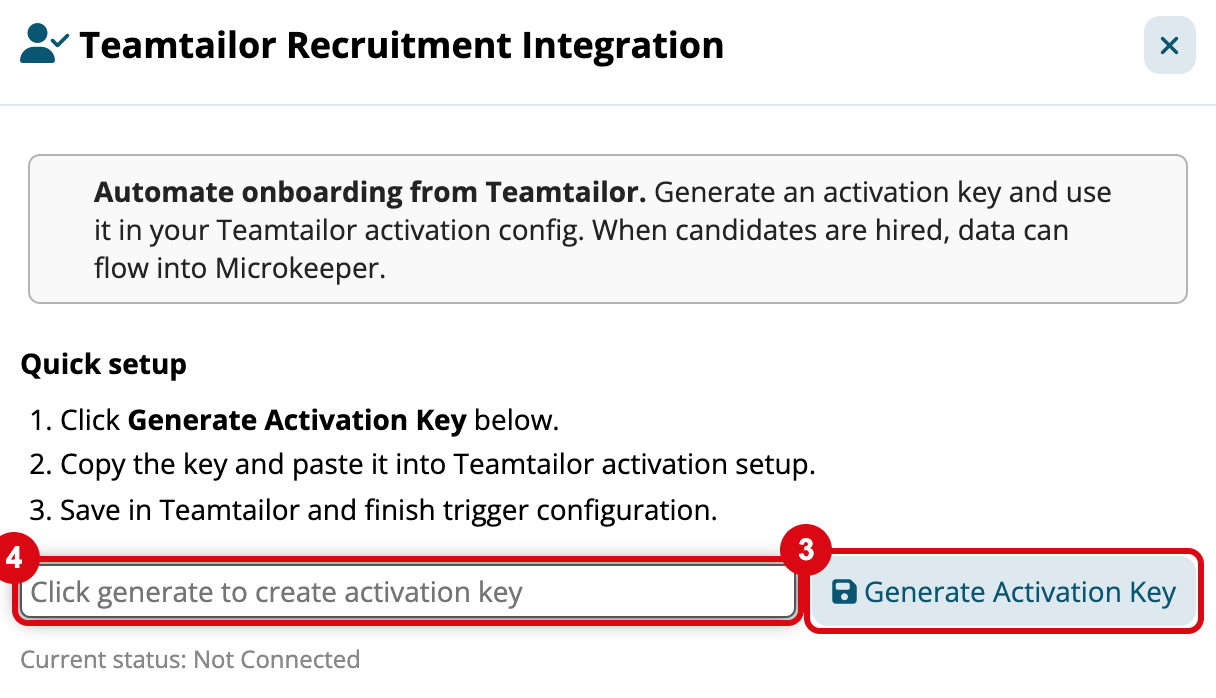
The key shows once. Generating a new key replaces it, so Teamtailor needs the new one before it can send candidates again.
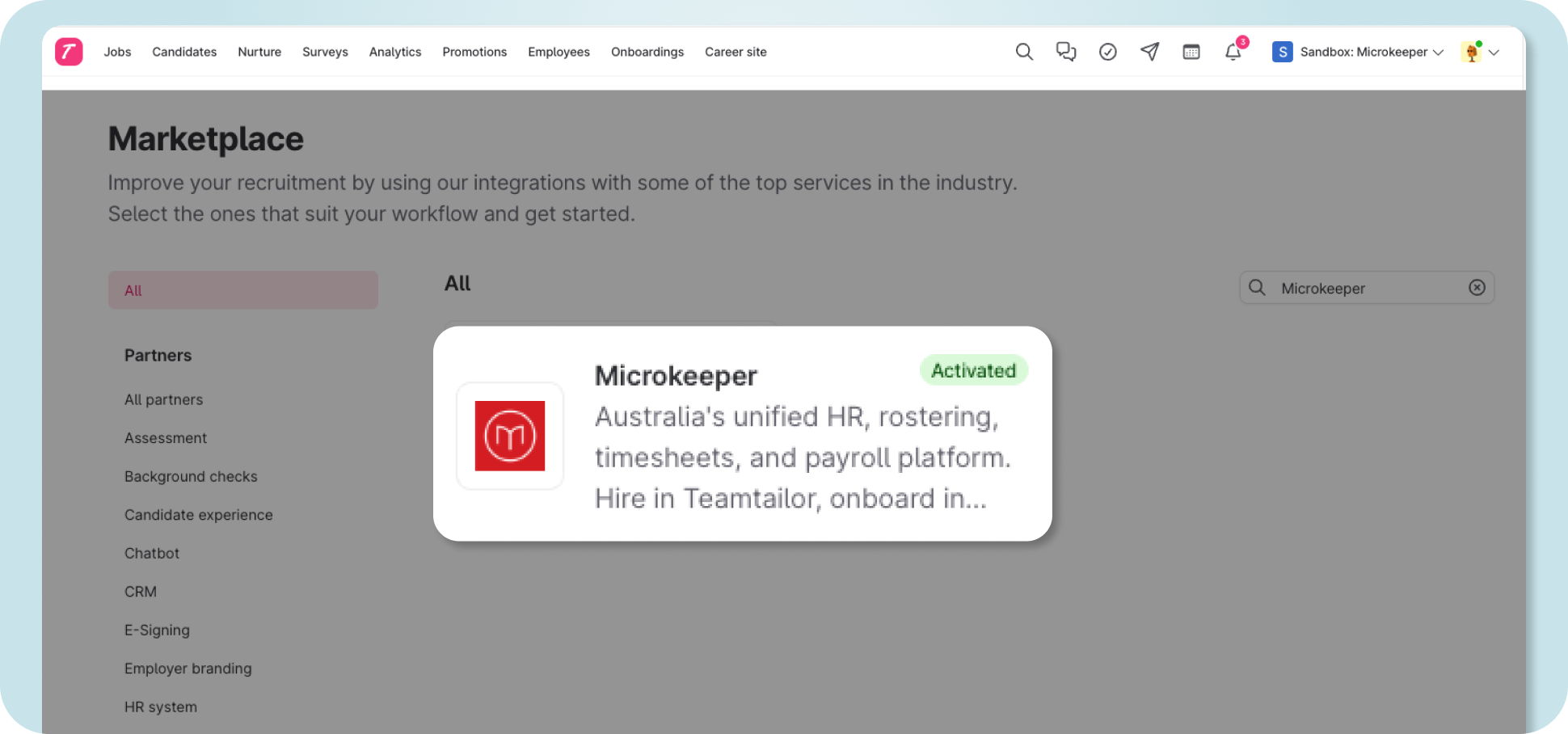
Send hired candidates automatically with a trigger
A trigger on a job's Hired stage sends each candidate moved there to Microkeeper. Set one up on each job.
- In Teamtailor, open the job's hiring pipeline.
- On the Hired stage, click the three dots, then Triggers.
- Under Integrations, choose Send Microkeeper webhook.
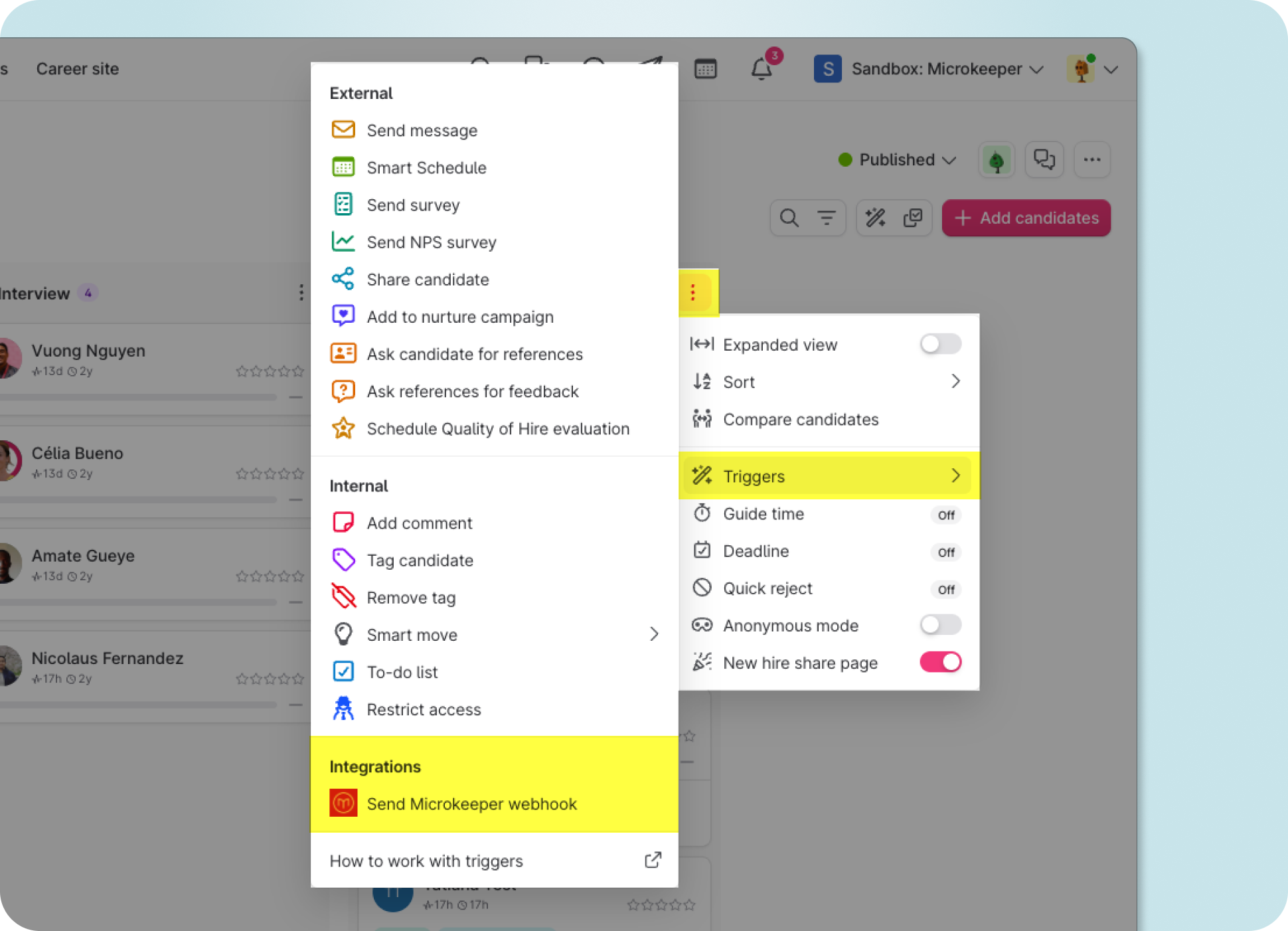
Then move a candidate to Hired to send them. To send several, click Bulk Select, choose the candidates, click Move and choose Hired.
-fbc39.png)
Before you move a candidate to Hired, check they aren't already one of your employees with the same email.
What happens when a candidate is sent
Microkeeper adds them as a new employee, and sends their welcome letter by email and SMS, if they have a valid email and Australian mobile. They log in and complete their onboarding. See Onboarding.
These details come from Teamtailor:
| Teamtailor | Microkeeper |
|---|---|
| First name and last name | Given Name and Surname |
| Phone | Mobile Number |
| Role, or the job's title | Position |
Finish setting up a new employee from Teamtailor
On the new employee's profile, set what Teamtailor doesn't send:
- their start date, Employment Type, pay cycle, pay rate and Rate Rule, under Payment & Employment;
- their Groups, Location and access.
Their address and other personal details come from their onboarding. See Add an Employee.
Send Teamtailor custom fields to Microkeeper
A Teamtailor custom field is copied to Microkeeper when its API name matches a Microkeeper field. API names are compared in lowercase letters and numbers only, so "favourite-pizza" matches "favouritepizza".
Microkeeper's own fields
| Teamtailor API name | Microkeeper field |
|---|---|
| dob | Date of Birth |
| nokname | Next of Kin Name |
| taxfilenumbertfn | Tax File Number |
| entitledannualleave | Annual Leave Entitlement |
Your custom fields
Make the API name your custom field's Name or its ID. For example, "emergency-contact" fills in a custom field named Emergency Contact, or with the ID emergency_contact. See Custom Fields.
Each value must suit the field's Validation. Send dates as YYYY-MM-DD, and Yes or No answers as "yes" or "no". A value that doesn't suit is left blank.