Leave Configuration
The Leave Configuration lets account administrators manage the leave types used by the business. Use it to control which leave options are active, who can use them, whether they are paid, how they accrue, and how they are handled during offboarding.
The page includes standard leave types such as Annual Leave, Personal Leave, Long Service Leave, Rostered Day Off (RDO), and Time Off In Lieu (TOIL). Enterprise accounts can also add custom leave options.
Navigate to Leave Configuration
Menu > Settings > General > Global - Entitlement Settings - Leave Config
Overview of the Leave Configuration Page
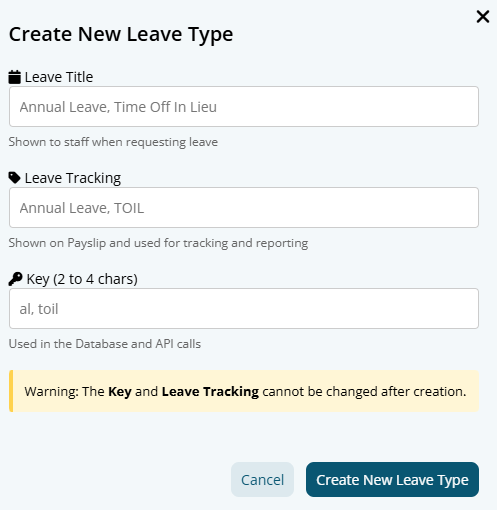
Each leave card shows the current settings for that leave type.
The card includes:
- Leave title and short description
- Whether the leave is active for permanent staff only, or permanent and casual staff
- Whether the leave is paid, unpaid, or paid for permanent staff only
- Who can request this leave
- How the leave will be handled during offboarding
- The accrual method
- Default accrual values for permanent and casual staff
Click the Edit button on a leave card to update its configuration
Edit a Leave Option
Click the Edit button on the leave option you want to update.
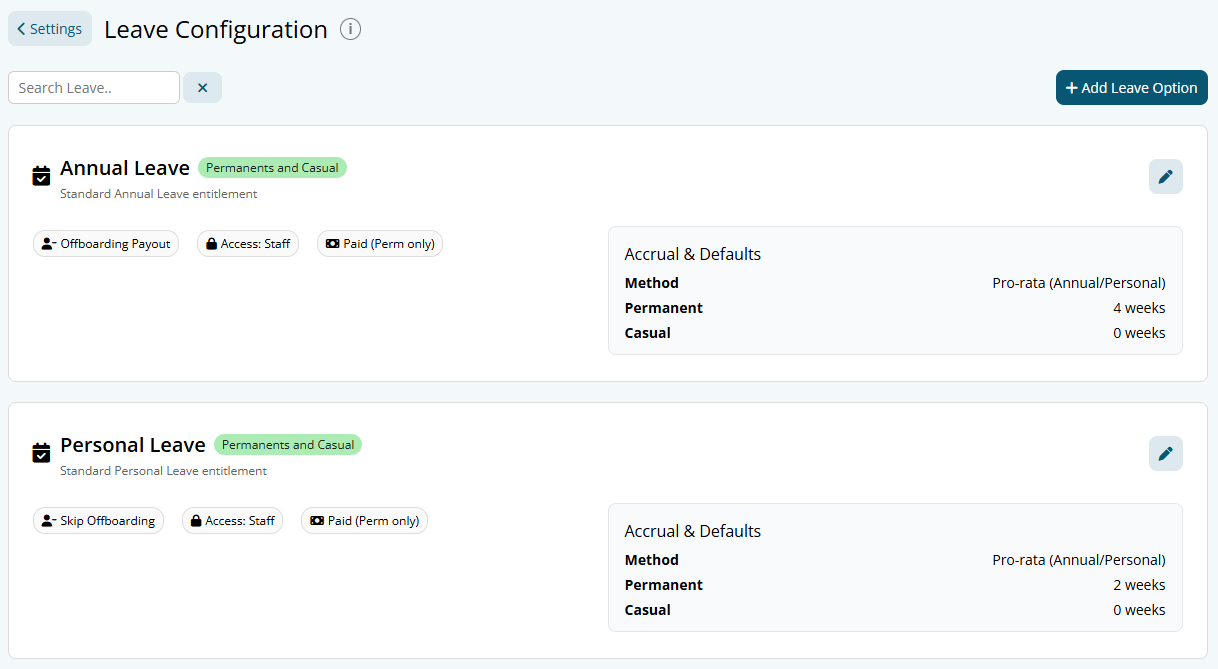
The Edit Leave Configuration window contains the settings used to control that leave type.
Activate or deactivate the leave option
Use the switch in the top-right corner of the window to turn the leave option on or off.
When a leave option is inactive, it is not available for use. Its configuration is retained, so it can be activated again later if required.
When the option is active, select who it is active for:
- Permanents + Casual: the leave option is available to Full time, Part time and Casual employees.
- Permanents Only: the leave option is only available to Full time and Part time employees
Select whether the leave is paid
Under Paid for, select how the leave should be paid in payroll:
- Permanents + Casual: both permanent and casual.
- Permanents Only: only permanent employees can be paid for this leave.
- Unpaid: the leave does not create a paid leave payment.
Add the payroll short name and staff note
Use Short name for Payroll to set the shortened label used for the leave in payroll.
Use Short note to add a brief explanation of the leave type. This should help staff understand the purpose of the leave option when they see it.
For example, a TOIL leave option could use the note: "Time banked instead of overtime payment."
Save changes
Click Update Leave Configuration to save your changes.
Choose an Accrual Method
The accrual method determines how the leave balance is managed.
Pro-rate (Annual/Personal)
Use Pro-rata for leave that accrued progressively, such as Annual Leave or Personal Leave.
Banking hours
Use Banking hours when employees bank hours through payroll.
This method is typically used for:
- Rostered Day Off (RDO)
- Time Off In Lieu (TOIL)
RDO and TOIL are separate leave types and should be configured according to the business's payroll arrangements.
Selecting Banking hours does not, by itself, give existing employees an RDO or TOIL balance. Check the relevant employee entitlement and payroll setup after configuring the leave type.
Long Service Leave
Use Long Service Leave for leave that accrues from an employee's ordinary hours over their period of employment.
Reporting only
Use Reporting only when the leave type payout needs to be recorded but does not accrue a balance.
Currently this is the best option for leave types where you have a maximum amount of hours to be paid out, instead of accruing hours to be paid.
Set Default Accurals
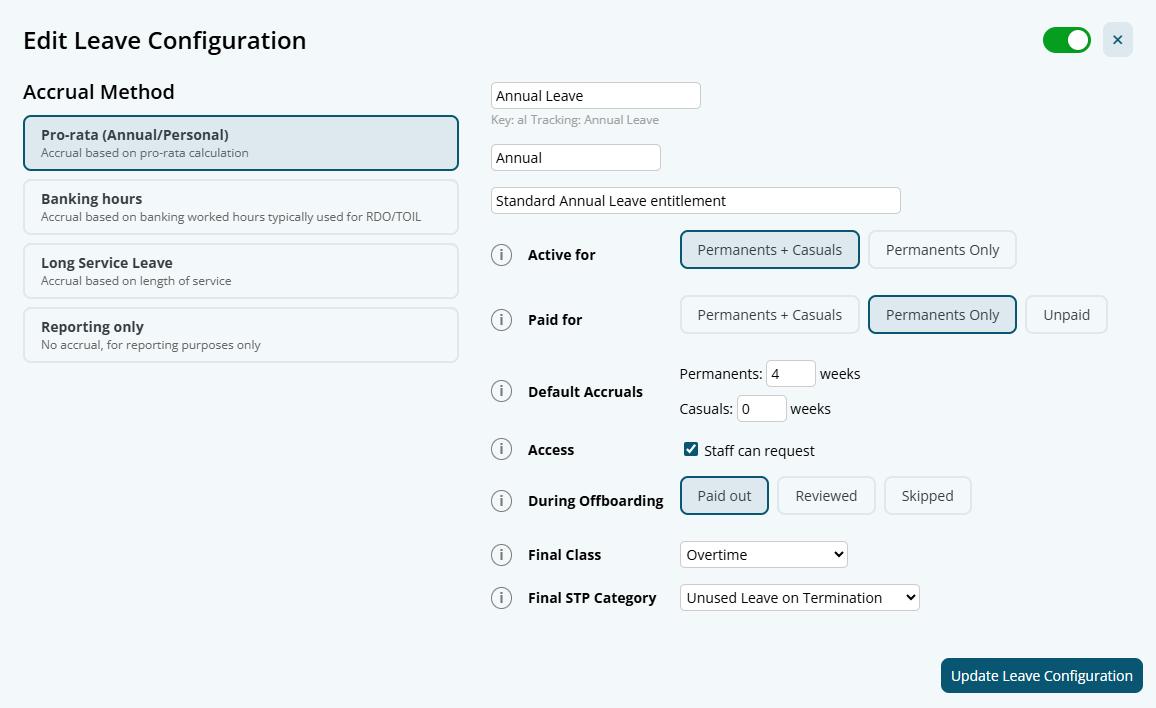
For accrual methods that use a balance, enter the default entitlement for:
- Permanents
- Casuals
The unit shown changes depending on the selected accrual method. For example, Banking hours uses hours.
These settings are defaults used when employees are added. They do not automatically update the entitlement or balance of employees already in the business.
Review the relevant employee profile or entitlement setup if an existing employee needs a different leave entitlement.
Set Leave Request Access
Under Access, choose whether staff can request this leave type.
- Select staff can request to allow employees to submit leave requests for this leave type.
- Leave this option unticked when the leave should only be managed or payroll administrators.
Configure Offboarding Treatment
For accruing leave types, select how the leave balance should be handled when an employee is offboarded:
- Paid out: the leave balance is included in the offboarding payout.
- Reviewed: the leave balance is flagged for review during offboarding.
- Skipped: the leave type is ignored during offboarding
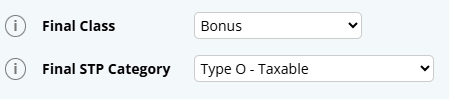
If the leave is paid out, select appropriate Final Class and Final STP Category. These settings control how the final leave payment is automatically classified during payroll.
Add a Custom Leave Option
Custom leave options are available for Enterprise accounts.
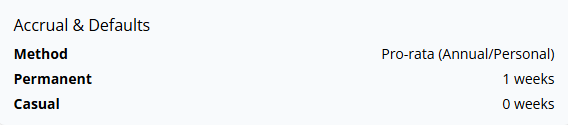
Click Add Leave Option.
Enter the following details:
- Leave Title: the name displayed to Administrators and staff in areas like leave forms
- Leave Tracking: the leave label used for tracking in Payroll and on related balance records
- Key: a unique lowercase identifier between two and four characters.