ABNs and Pay Cycles
Each ABN is a business that employs and pays your staff. A pay cycle is how often a group of those staff are paid, and from which bank account. Every pay run pays one pay cycle.
| Required plan | All plans |
|---|---|
| Required access | Settings |
This guide covers how to:
- Add your first ABN and pay cycle.
- Add another ABN, with its contact details and address.
- Add a pay cycle and choose its bank accounts.
- Put staff in the right pay cycle.
- Choose who can run a pay cycle.
- Archive a pay cycle you no longer use.
Setting up your account for the first time? Set Up Your ABN and Pay Cycles in Quick Start covers the first pay cycle only.
How ABNs and pay cycles fit together
Navigate to Menu > Settings > General > Global, then click ABN and Pay Cycles. Each ABN has a card, and each card has a Pay Cycles table of the pay cycles it pays.
For example, a business with restaurants in Melbourne and Sydney might have two ABNs, each paying its own staff weekly: "Melbourne Weekly" under the first ABN and "Sydney Weekly" under the second.
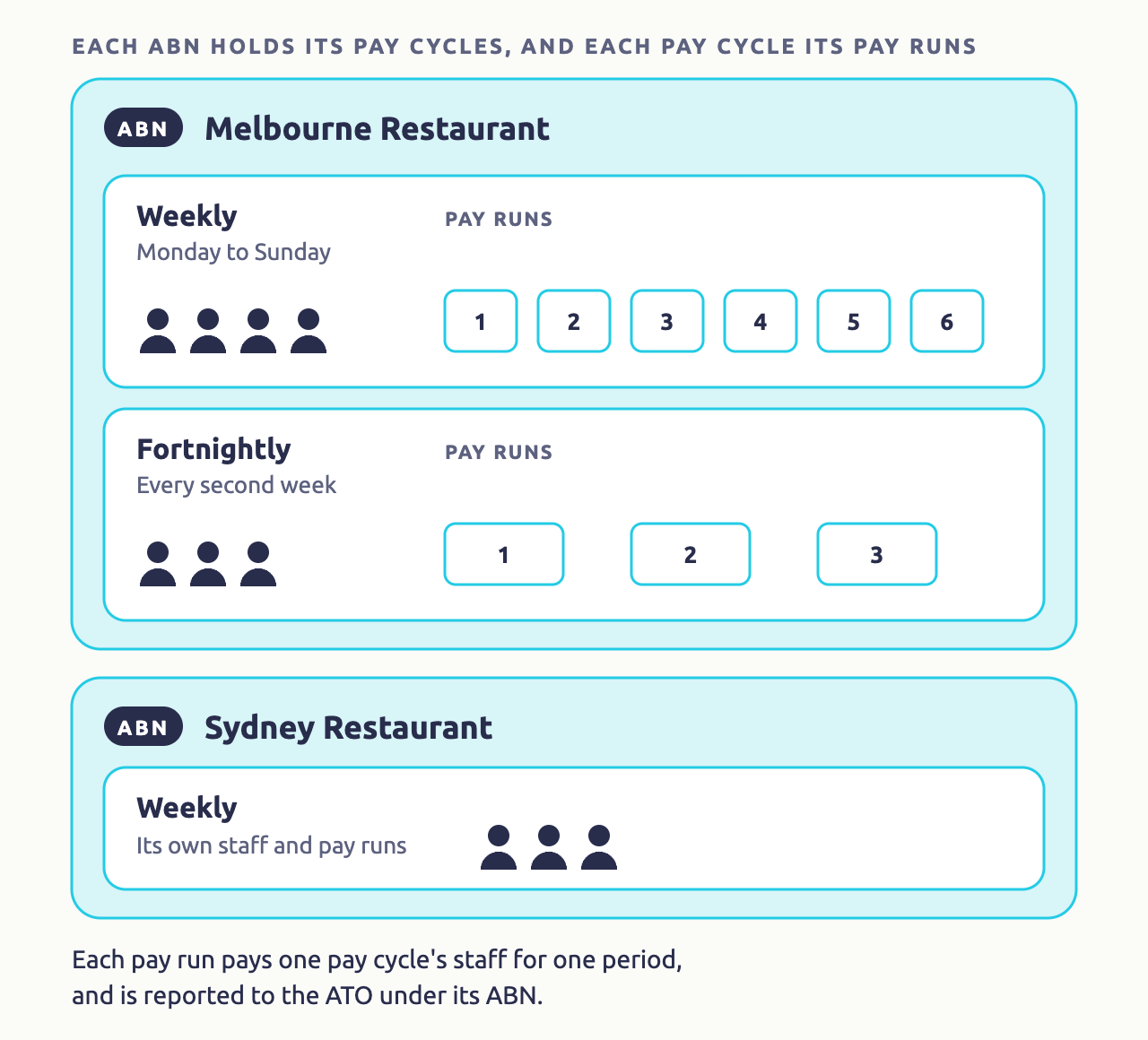
Each pay cycle has these settings:
| Setting | What it decides |
|---|---|
| Title | The name your payroll team sees, up to 24 characters and different for each pay cycle. |
| Pay Period | Weekly, Fortnightly, Semi-Monthly (the 1st to the 15th, and the 16th to the end of the month) or Monthly (the 1st to the end of the month). |
| Starting Day | For weekly and fortnightly pay cycles, the day the pay period starts, such as Monday to Sunday. |
| Payment Days in Arrears | How many days after the pay period ends you pay staff, counting the last day of the period as 0. For a Monday to Sunday week, paying the next Monday is 1, the Thursday after is 4, and the Friday before the period ends is -2.
|
| Wage Bank Account | The account the ABA file pays wages from. |
| Super Bank Account | The account super is paid from. ABN Default uses the one set on the ABN. |
| Access | Which of your payroll team can run it. |
| Active | Active, or Archived once it's no longer used. |
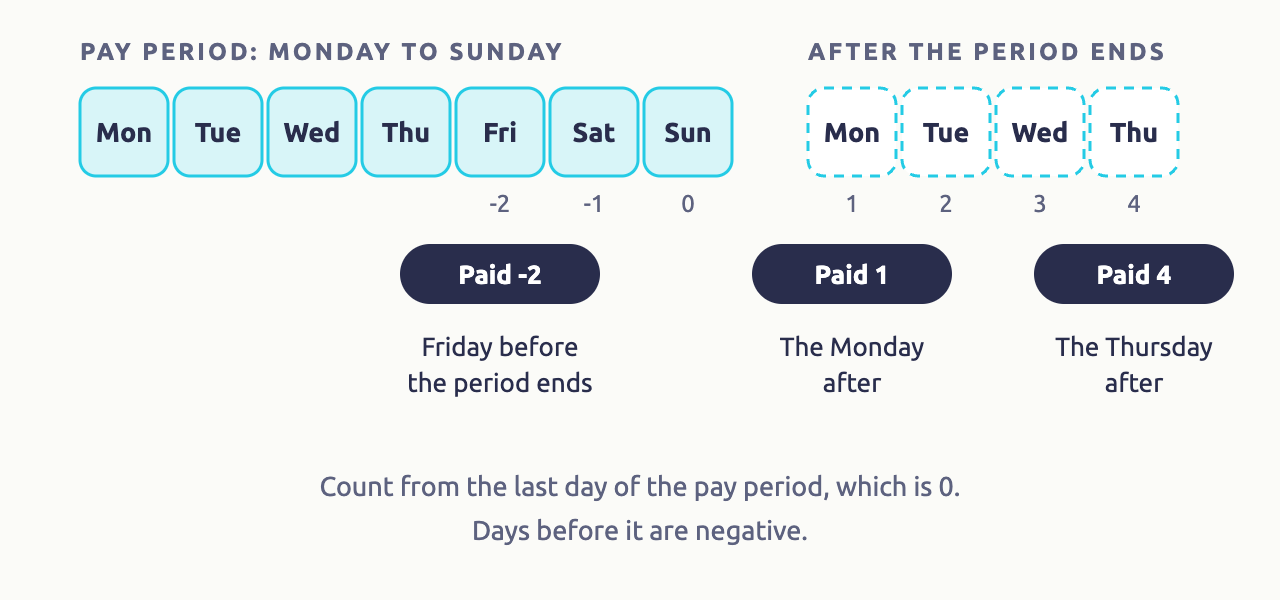
Each pay run pays one pay cycle for one pay period. It pays only that pay cycle's staff, and produces their payslips, an ABA file from its wages account, a Single Touch Payroll lodgement for the ABN and super payments.
Which staff a pay cycle pays isn't a setting on the form. With two or more pay cycles, each one has a Group of staff: see Put staff in the right pay cycle.
Add the bank accounts wages and super are paid from
Each pay cycle needs a bank account to pay wages from. Add the account before you add the pay cycle.
Navigate to Menu > Settings > General > Bank Details.
- Click Add Bank Account, then choose Withdrawal.
- Enter a Nickname you'll recognise, for example "Sydney Wages".
- Enter the Account Name, BSB and Account Number.
- Enter your APCA code, sometimes called a User ID, which your bank supplies for ABA files, and choose your bank in Bank Code.
- In Group, choose All if the account pays wages and super, Wages for wages only, or Super for super only.
- Enter a Reference, for example "SYD WAGES". It appears on your bank statement.
- Click Add Bank Account.
Warning
Keep the Reference to 12 characters or fewer. The field accepts more, but the ABA file won't generate with a longer reference.
If each ABN pays from its own account, add one for each.
Add your first ABN and pay cycle
Your first ABN and pay cycle are filled in from Global Settings, so check them there first: your ABN on Business Contact, and the Pay Period and Payment Days in Arrears on Payroll Settings.
- Navigate to Menu > Payroll > Payruns. With no pay cycle yet, ABN and Pay Cycles opens instead, and Add ABN opens with your ABN filled in.
- Click Add ABN / Branch Code. Microkeeper checks the ABN with the ATO and adds its card, with your business contact details from Global Settings.
- Add Pay Cycle opens next, filled in from Global Settings and named after your pay period, for example "Weekly". Change the Title and anything else you need, as in Add or change a pay cycle.
- Click Add Pay Cycle.
If you already have a bank account with the Group All, it's chosen as the pay cycle's Wage Bank Account.
If your account ran pay runs before it had pay cycles, Payruns opens Set Up ABN and Pay Cycles instead. It takes you through creating a pay cycle for each pay period you've run and putting your staff in them, keeping your past pay runs.
Add another ABN
If another company employs some of your staff, add its ABN. Skip this if one ABN pays all your staff.
On ABN & Pay Cycle Setup:
- Click Add ABN.
- Enter the ABN in Enter ABN. Leave the branch code as 001 unless the ATO gave this company a different one.
- Click Add ABN / Branch Code.
Microkeeper looks the ABN up with the ATO and adds a card for it, with the business name from the ATO's records. There's no way to type an ABN's details in by hand, so the ATO must know the ABN.
Add each ABN's contact details and address
Single Touch Payroll and super payments need a phone number, email address and address for each ABN, and won't go through without them. An ABN added from the ATO has none of these yet.
- Click the pencil button next to the ABN's name. Update ABN opens.
- Check the Trading Name. For an ABN added from the ATO, it's in lower case, so correct it, for example "Sydney Restaurant".
- Enter the ABN's Phone and Email.
- In Super Bank Account, choose the account this ABN pays super from.
- Click Update ABN.
- On the ABN's card, click the pencil next to No address set.
- Start typing the address in Search and choose it from the list, or fill in Street address, Suburb / city, Postcode and State.
- Click Save.
The card now shows Address set. Your first ABN has its details from Global Settings, so check them and add anything missing.
If a registered tax or BAS agent lodges Single Touch Payroll for an ABN, add the agent on the same card: see STP for Registered Agents.
Add or change a pay cycle
To add a pay cycle, click Add Pay Cycle on the card of the ABN that pays those staff. To change one, click the pencil button at the end of its row in Pay Cycles.
- Enter a Title, for example "Sydney Weekly".
- Choose the Pay Period, and for weekly or fortnightly, the Starting Day.
- Choose Payment Days in Arrears.
- In Wage Bank Account, choose the account wages are paid from.
- In Super Bank Account, leave ABN Default, or choose another account for this pay cycle's super.
- Under Access, leave Whole Payroll Team, or see Choose who can run a pay cycle.
- Click Add Pay Cycle, or Update Pay Cycle for an existing one.
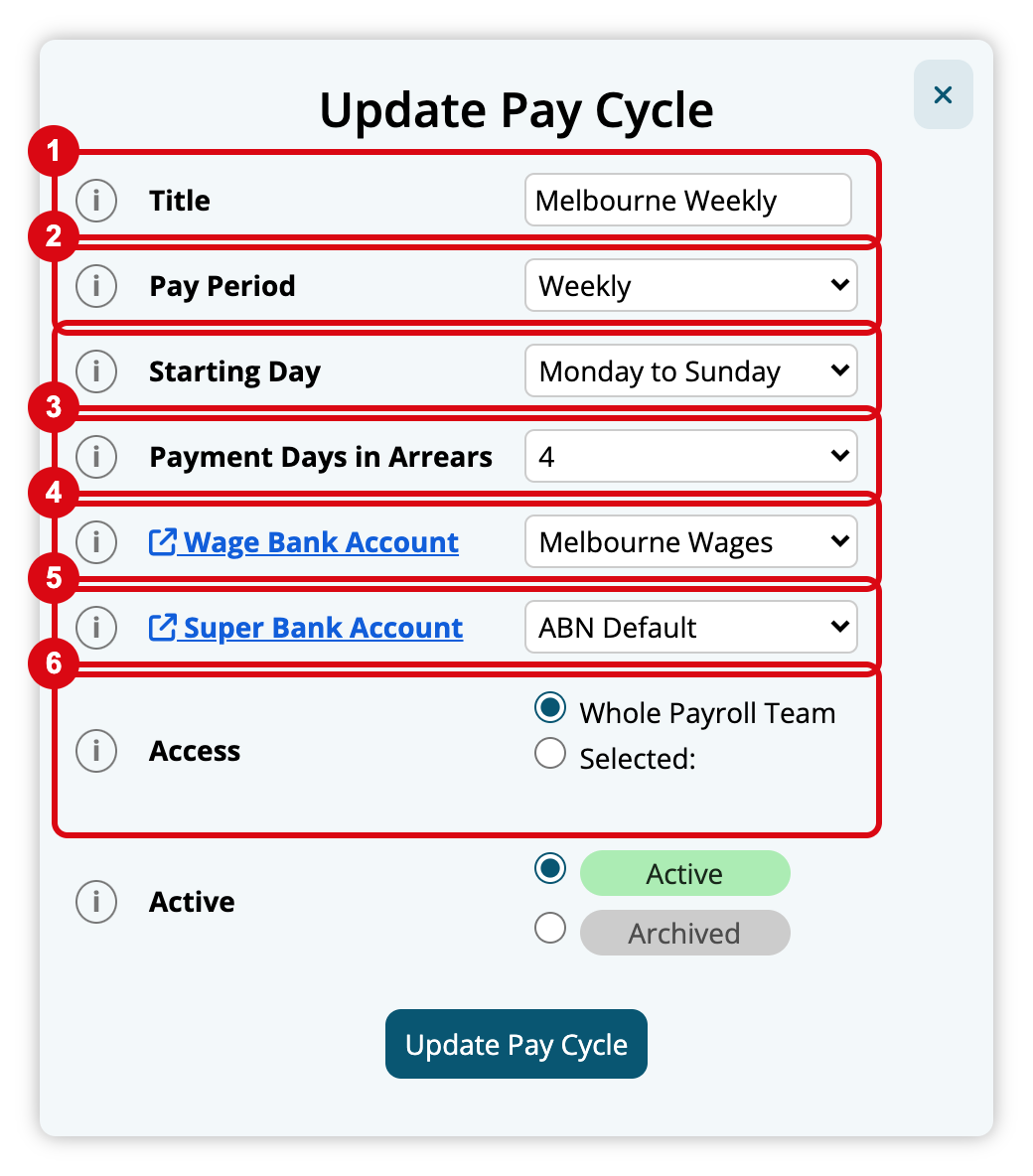
Every pay cycle needs a Wage Bank Account, including your first one. Without one, the Wages column shows Select Bank Account, and the ABA file can't be downloaded for its pay runs.
The Wage Bank Account list only shows accounts whose Group is All, Wages or Super.
Put staff in the right pay cycle
With one pay cycle, every employee is paid in it, and its Staff column shows All Staff.
As soon as you have two or more, Microkeeper gives each pay cycle its own Group, named after it, and a pay run only pays the staff in its pay cycle's Group. The new Groups start empty.
Warning
Staff who aren't in a pay cycle's Group are left out of its pay runs. When you add your second pay cycle, put every employee in one pay cycle before the next pay run.
Click the number in a pay cycle's Staff column. It opens Employee Allocation for that pay cycle's Group, where you tick its staff. An employee can only be in one pay cycle: adding them to one takes them out of the others.
For new staff, choose their pay cycle under Pay Cycle Allocation when you add them. For more on pay cycle Groups, see Groups.
Choose who can run a pay cycle
Everyone with Payroll access can run every pay cycle unless you limit it. For example, your Sydney payroll officer might only run Sydney's pay.
- Click the pencil button at the end of the pay cycle's row.
- Under Access, choose Selected: and tick the people who can run it. The list shows staff with Payroll access, and users from other businesses linked to your account.
- Click Update Pay Cycle.
At least one person must be ticked. The Access column then shows the number of people who can run it; hover over it to see who. For what the others can no longer see, see Managers and Access.
Archive a pay cycle you no longer use
Click the pencil button at the end of the pay cycle's row, choose Archived under Active, and click Update Pay Cycle.
An archived pay cycle stays in your reports, but no new pay runs can be processed for it. To use it again, choose Active.
Check your ABNs and pay cycles are ready
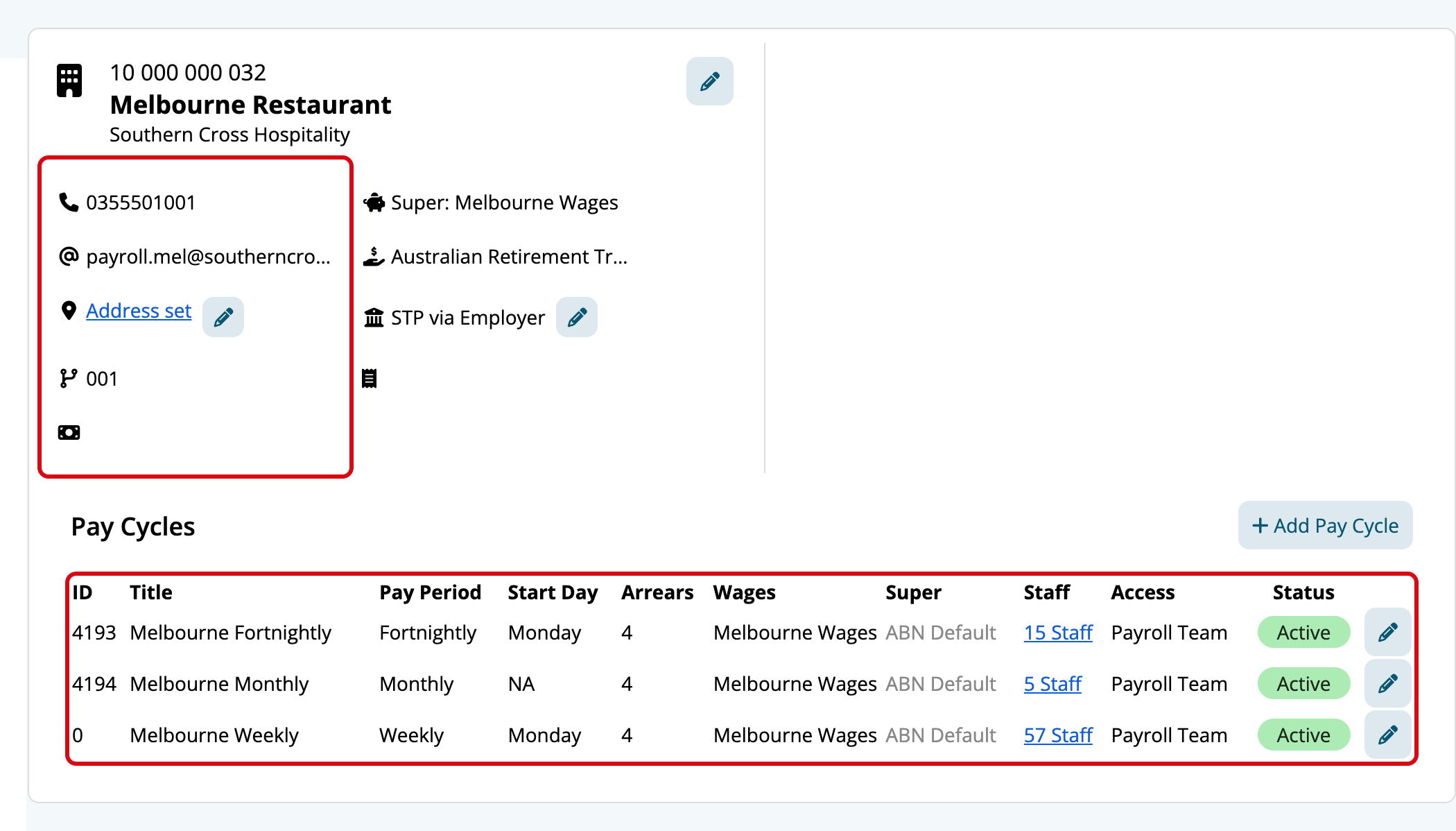
On ABN and Pay Cycles, check that:
- Each ABN's card shows its phone number, email and Address set.
- Every pay cycle shows a bank account in the Wages column, not Select Bank Account.
- With two or more pay cycles, every one has staff in its Staff column.
Then navigate to Menu > Payroll > Payruns. On Upcoming Payruns, each active pay cycle has its next pay run listed, with a Start button.