Personal File Templates
A Personal File Template is a document you write once, such as your letter of offer, and issue to any employee as a Personal File. Variables in it, such as the employee's name, start date and pay rate, are filled in from their profile when it's issued, and you complete the rest for them.
| Required plan | All plans |
|---|---|
| Required access | HR - Config |
| To use the AI Chat Assistant | Enterprise |
This guide covers how to:
- Add a template.
- Add employee details with variables.
- Publish a template.
- Draft a document with the AI Chat Assistant.
Add a Personal File Template
- Navigate to Menu > Settings > Personal File Templates.
- Click New Template.
- Choose what to start from: Blank template, a Microkeeper template, or one of yours.
- Enter the Title, such as "Letter of Offer", and choose its Category, such as Personal File.
- Click Add Template.
- Write the document, and click Save.
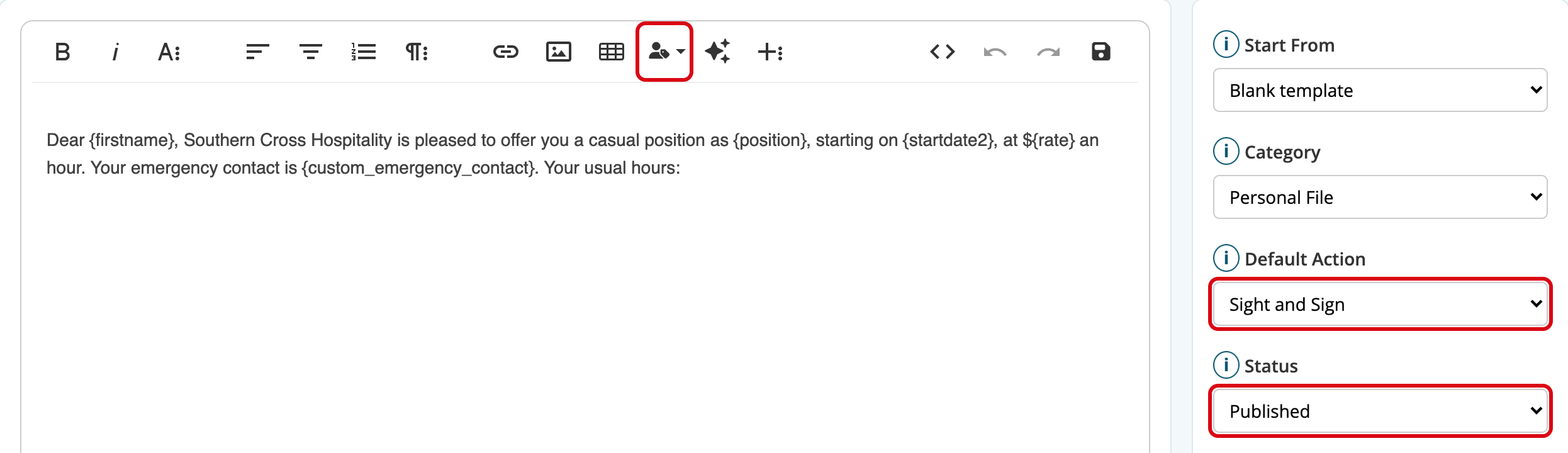
Default Action is the Action each file issued from the template starts with, Sight and Sign unless you change it. See Personal Files.
Add employee details to a template with variables
In the editor, open Employee Profile Variables and choose a detail. It's added as a variable, such as {firstname}, which becomes the employee's details when the template is issued to them. The template itself keeps showing the variable.
| Variable | Becomes |
|---|---|
{firstname} {lastname} | Their first and last name |
{dob2} | Date of birth |
{address} {address2} {city} {state} {postcode} | Their address |
{phoneno} {email} | Mobile number and email |
{position} | Position |
{startdate2} | Start date |
{primary_manager} | Their primary manager's name |
{rate} | Default pay rate |
{basichours} | Weekly ordinary hours |
{status} | Employment type |
{custom_...} | Each of your custom fields, such as {custom_emergency_contact}. See Custom Fields |
Publish a Personal File Template
Set Status to Published. Only published templates are offered when you issue a Personal File. A Draft or Archived template isn't.
To use a template, issue it from the employee's profile. See Personal Files.
Draft a document with the AI Chat Assistant
On the Enterprise plan, the editor's AI Chat Assistant drafts a document, or rewrites or formats the one you're writing.
- In the editor's toolbar, click the AI Chat Assistant.
- Ask for a draft, such as "A letter of offer for a casual bar attendant", or ask it to rewrite what's in the editor.
- Check the suggestion, and click Apply.
It works in templates and in Personal Files. Check what it writes before you issue it.