Roster Your First Week
This is step 5 of Quick Start. It puts your first week of shifts on the Roster Calendar and publishes it to your staff.
By the end of this step you'll have:
- Added a week of shifts.
- Locked the week and notified your staff.
Before you roster your first week
Finish Add Your Staff first. The Roster Calendar shows a row for each Location, or a row for each Role at the Location if you roster by Role.
Add shifts on the Roster Calendar
Navigate to Menu > Rosters > Roster Calendar.
- Choose the week from the week list at the top, or move to it with the arrow buttons.
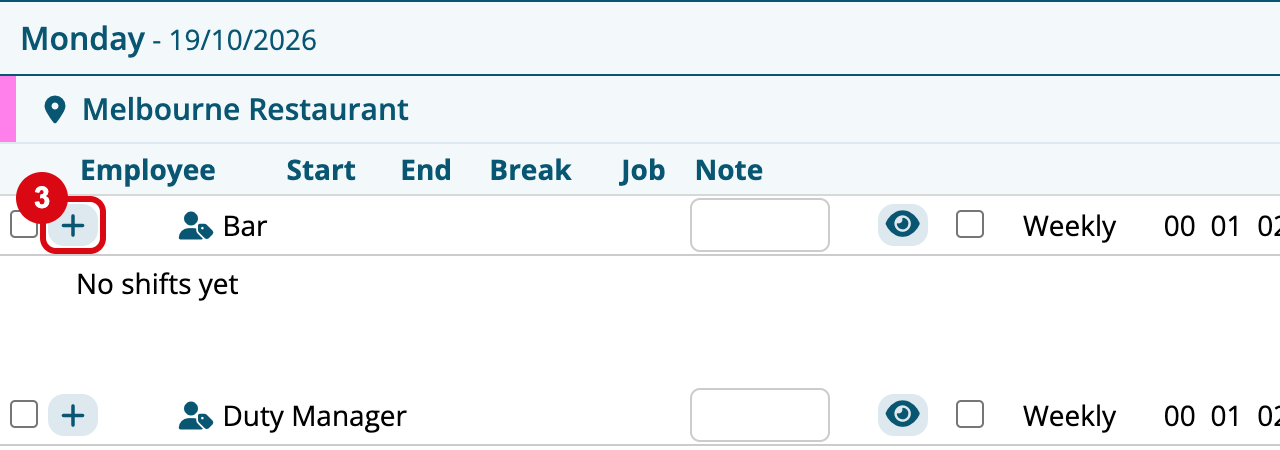
- Find the day, then the Location row the shift belongs to, or its Role row if you use Roles.
- Click + on that row. An empty shift appears.
- Choose the employee under Employee.
- Enter the Start and End times, for example "17:00" and "21:00".
Each change saves as you make it. A shift that ends after midnight goes on the day it starts, for example "18:00" to "04:00" on Friday.
Faster ways to fill a roster
Once you're comfortable with the Roster Calendar, you can fill weeks faster:
- Save a standard week as a template and clone it into any week. See Roster Templates.
- Clone a week forward, or import a roster from a spreadsheet. See Roster Calendar.
- Repeat a roster that rotates over several weeks. See Roster Cycles.
Lock the week and notify your staff
Staff can't see a week on the Employee Console until it's locked.
- On the Roster Calendar, with the week showing, click Lock. The Send Roster Notifications window opens.
- Under Select Notification Types:, tick Microkeeper App, Email or both.
- Choose All Rostered Staff.
- Click Send, then Back to Rosters.
To change a locked week, click Unlock, make your changes, then lock it again.
Check your first week is rostered
The week list shows Locked after the week's dates, and Total Hours Rostered in the budget box matches the hours you expect. Your staff can now see their shifts on the Employee Console.
Next step: record and approve timesheets
Continue with Record and Approve Timesheets to choose how your staff clock on and approve the hours they work.