Add Your Locations
This is step 3 of Quick Start. A Location is where your staff work. Rosters, timesheets and reports are all organised by Location.
By the end of this step you'll have named the Locations your staff work at. Roles and Jobs are optional, and you can add them now or later.
Before you add your Locations
Have a list of the places your staff work, for example "Melbourne Restaurant" and "Sydney Restaurant".
Name your Locations
When you first log in, Microkeeper creates a Location named after your business, ending in "HQ". Rename it to your main place of work rather than adding a new one: Locations can't be deleted, only archived.
Navigate to Menu > Settings > General > Locations.
- Click the pencil button next to your HQ Location.
- Change the Title to the name your staff know it by, then click Update.
- For each other place your staff work, click Add Location, enter the Title and click Add.
If all your staff work in one place, renaming the HQ Location is all you need.
Optional: roster by Role
A Role is what an employee does on a shift, such as "Bar" or "Kitchen". Without Roles, each Location has a single Shifts row on the Roster Calendar. With Roles, each Location gets a row for each Role, and reports split hours by Role.
To add a Role, navigate to Menu > Settings > General > Roles.
- Click Add New Role.
- Enter the Title, for example "Kitchen", and click Add.
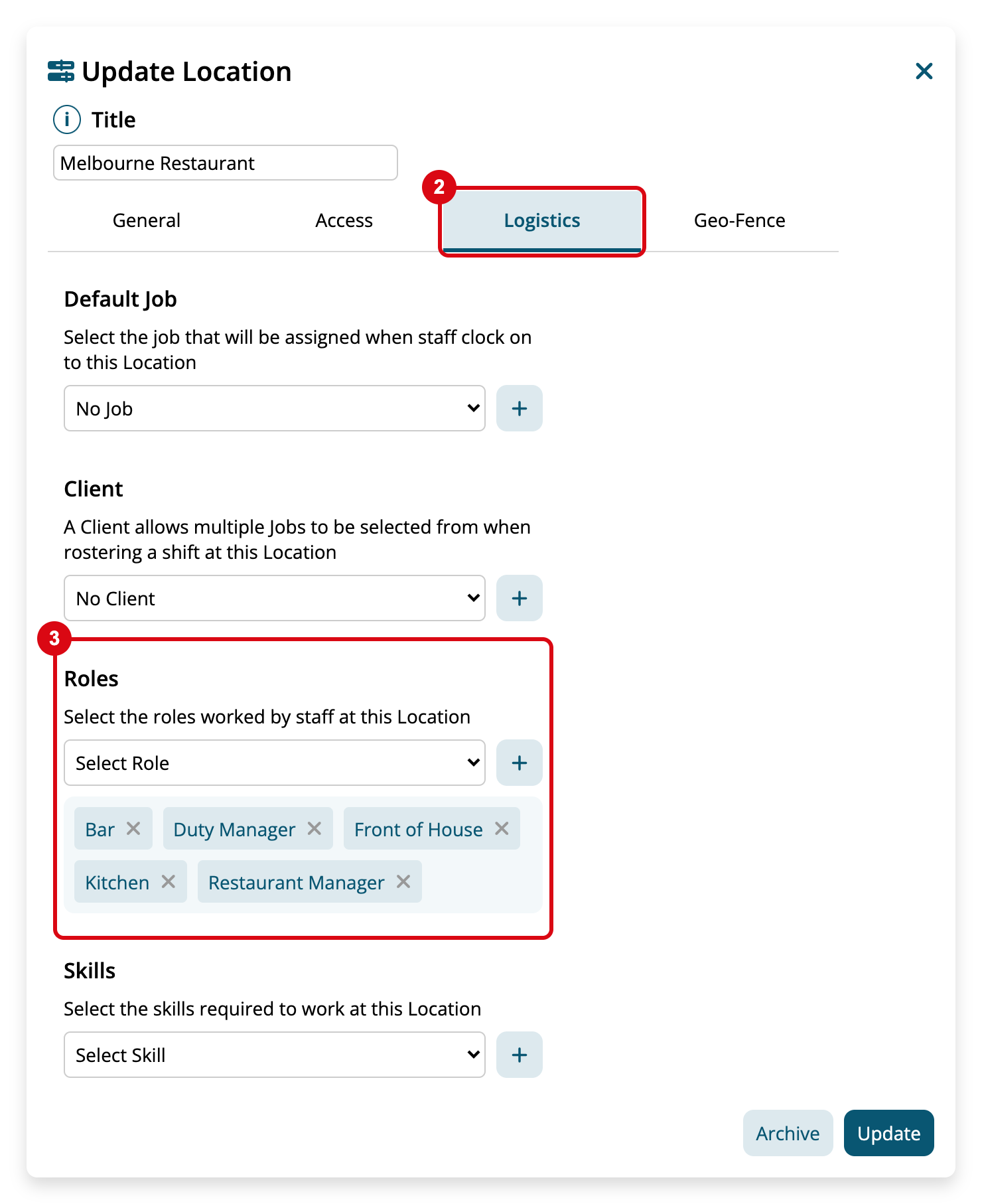
Then link the Roles to each Location, or they won't show on the Roster Calendar:
- On Locations, click the pencil button next to the Location.
- Click the Logistics tab.
- In Roles, choose each Role worked at this Location from Select Role.
- Click Update.
For more, see Roles.
Optional: Jobs and other Location settings
You can come back to these any time:
- Jobs track hours against a piece of work or cost centre, such as private functions. See Jobs and Cost Centres.
- A Location's staff group and managers are on the Location's Access tab. Managers can only be chosen once your staff are added. See Locations and Groups.
- Address, roster budget and Geo-Fence are on the Location's other tabs.
Check your Locations are ready
On Locations, each place your staff work is listed with the name your staff know it by. If you added Roles, each Location lists them in the Roles column.
Next step: add your staff
Continue with Add Your Staff to add your employees and send their logins.