Custom Fields
Custom Fields are your own details on every employee's profile, such as an emergency contact, a uniform size or a licence number. Staff can fill them in during onboarding, and you can add them to Personal Files.
| Required plan | Standard Enterprise |
|---|---|
| Required access | Settings |
| To see and edit them on a profile | HR - Review, HR - Full or HR - Config |
This guide covers how to:
- Add a custom field.
- Ask staff to fill it in during onboarding.
- Fill it in on an employee's profile.
- Change or archive a field.
Add a custom field
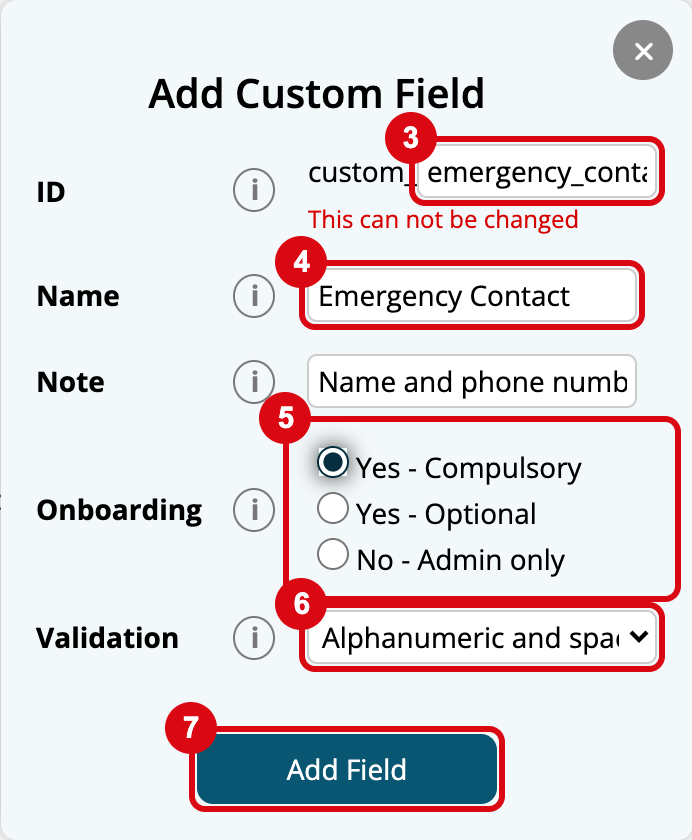
- Navigate to Menu > Settings > Custom Fields.
- Click Add New Field.
- Enter the field's ID, in lowercase letters, numbers and underscores, such as "emergency_contact". It can't be changed later.
- Enter its Name, as staff see it, such as "Emergency Contact", and a Note explaining what to enter.
- Choose whether staff fill it in during Onboarding, as below.
- Choose its Validation, as below.
- Click Add Field.
| Validation | Staff enter |
|---|---|
| Alphanumeric and spaces | Letters, numbers and spaces, such as "4 Pizzas" |
| Date | A date, as dd/mm/yyyy |
| Yes or No | Yes or No |
| Yes, No or Prefer not to say | Yes, No or Prefer not to say |
| ID Only numbers | Numbers only, such as "12345678" |
| ID Alphanumeric | Letters and numbers, such as "ABCzyq123" |
Ask staff to fill in a custom field during onboarding
Onboarding decides whether staff see the field:
- Yes - Compulsory: staff must fill it in to finish onboarding.
- Yes - Optional: staff are asked, but can leave it blank.
- No - Admin only: only you fill it in, on the profile.
See Onboarding.
Fill in a custom field on an employee's profile
Open the employee's profile and go to Custom Fields. Each field saves as you change it.
To add a field to a contract or letter, use its variable, such as {custom_emergency_contact}. See Personal File Templates.
Change or archive a custom field
On Custom Fields, click the edit button on the field, change its Name, Note, Onboarding or Validation, and click Update Field. Its ID stays the same.
To stop using a field, click its edit button, then Archive. To see archived fields, click View Archived; open one and click Unarchive to use it again.