Employees
Everything in Microkeeper is about your employees: who works where, when they work, how they're paid and what they can see. Each person has one employee profile, and every part of Microkeeper reads from it.
| Required plan | All plans |
|---|---|
| Required access | To edit profiles: Settings, or Employees - Add/Edit or Employees - Edit |
What an employee is in Microkeeper
An employee is anyone with a login to your Microkeeper account: your casual cooks, your restaurant managers, your payroll officer and you, the owner. There are no separate user accounts. A manager is an employee with manager access, and an admin is an employee with payroll and settings access. See Managers and Access.
Each employee logs in with a username that's unique across every Microkeeper business. Their home is the Employee Console, where they see their roster, clock on and off, request leave and read their payslips. See Employee Console.
What connects to an employee
The rest of Core Concepts connects to the employee's profile, and every part of Microkeeper uses those connections:
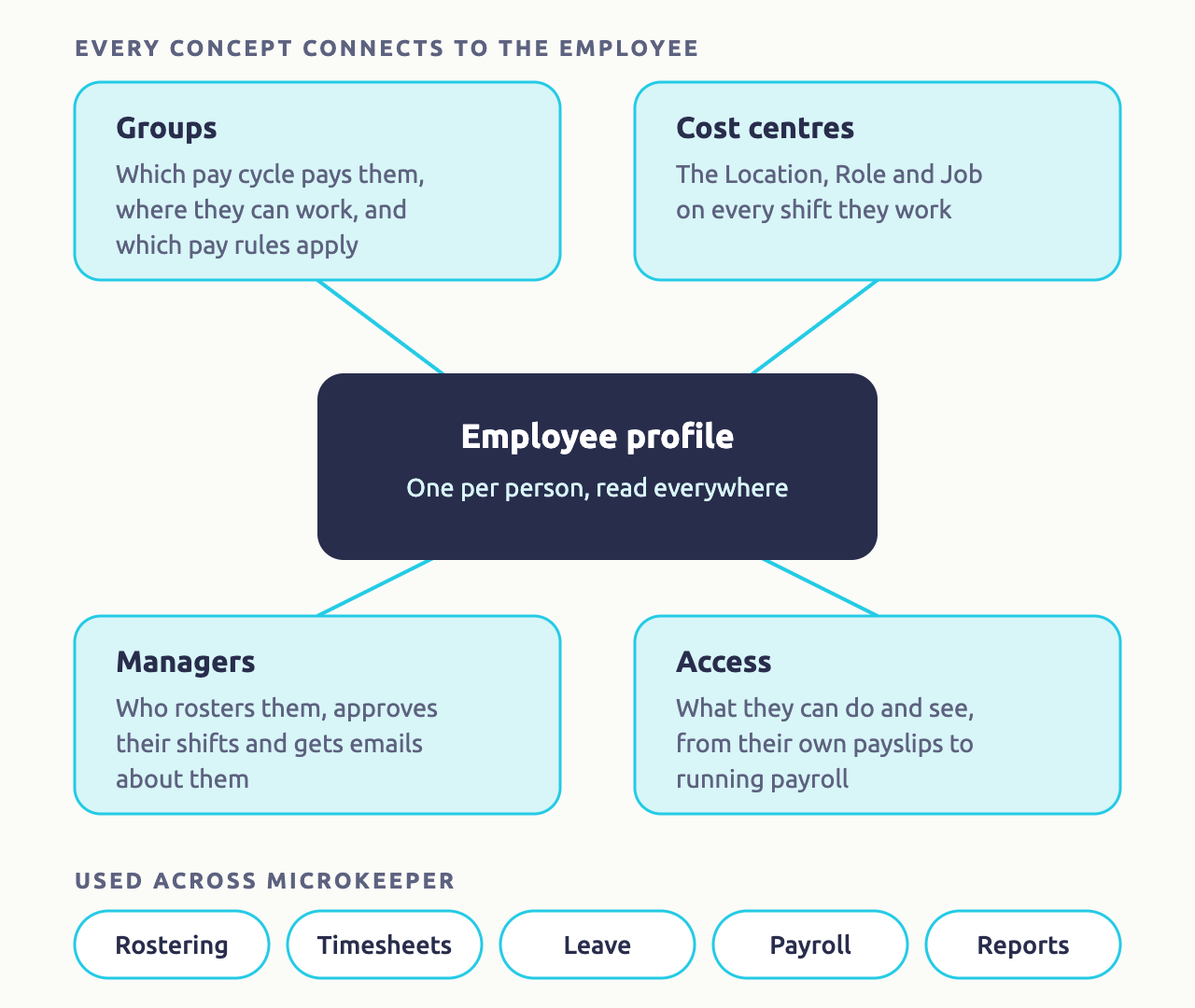
- Groups: their pay cycle Group decides which pay runs pay them, a Location's Group decides where they can be rostered, and the Groups your pay rules are limited to decide which rules apply to them.
- Cost centres: the Location, Role and Job recorded on every shift they work, so you can see what their hours cost.
- Managers: the managers of their Locations roster them and approve their shifts. See Managers and Access.
- Access: what they can do themselves, from seeing their payslips to running payroll.
Most surprises come from a missing connection. For example, an employee who isn't in their pay cycle's Group is left out of its pay runs, and one who isn't in a Location's Group can't be rostered there.
An employee's journey through Microkeeper
From the day you add them to the day they leave, an employee moves through Microkeeper like this:
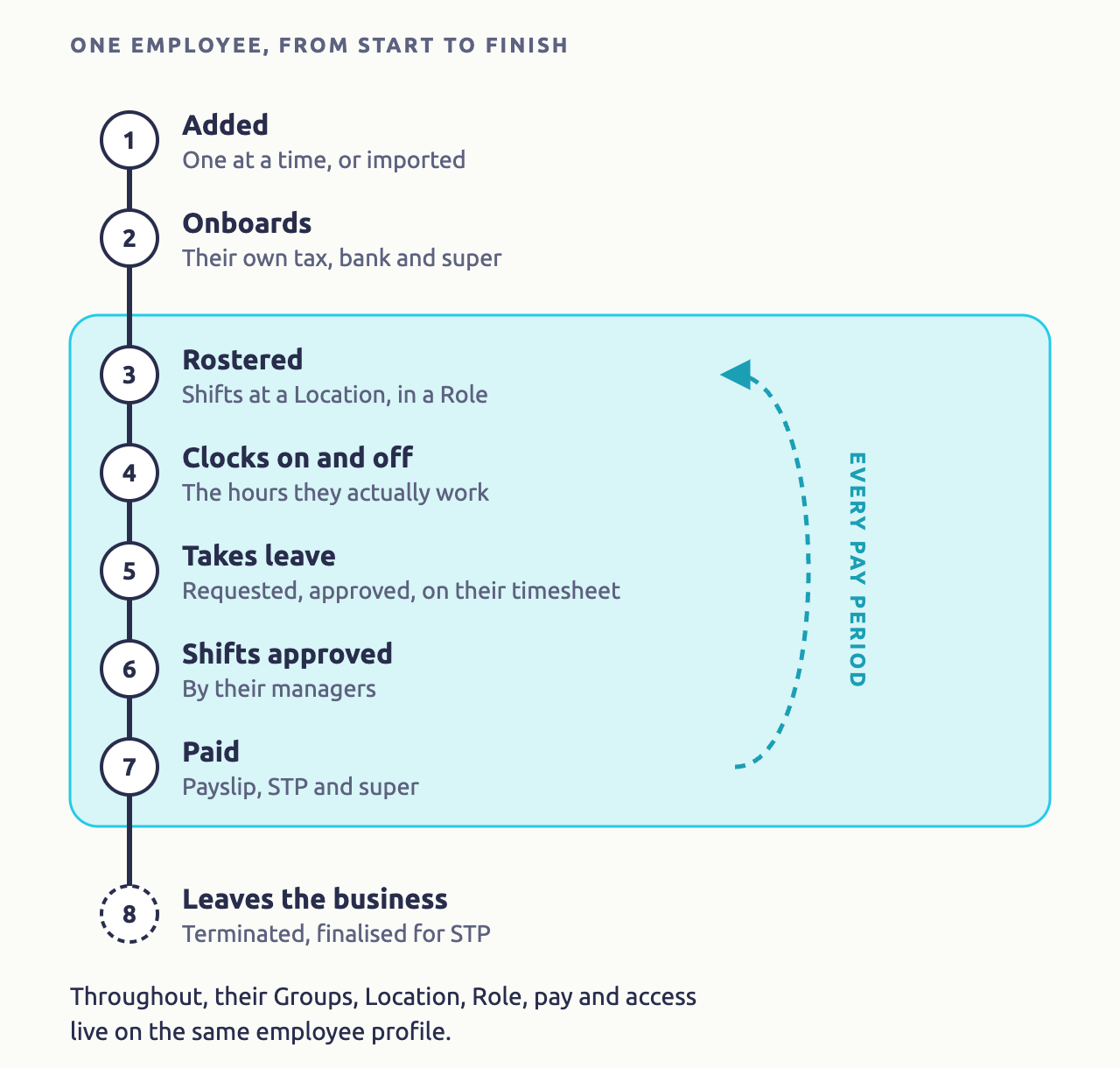
- Added: you add them one at a time, or import your staff. See Add an Employee and Import Staff.
- Onboards: they log in and enter their own tax file number declaration, bank account and super fund. See Onboarding.
- Rostered: their manager rosters them at a Location, in a Role. See How Rostering Works.
- Clocks on and off: their timesheet records the hours they actually work. See Clocking Options.
- Takes leave: they request leave, a manager approves it, and it shows on their timesheet over their rostered hours. See How Leave Works.
- Shifts approved: the managers they work for check and approve their shifts. See Approve Timesheets.
- Paid: each pay run turns their hours into a payslip, lodges it with the ATO through Single Touch Payroll and pays their super. See Run a Pay Run.
- Leaves the business: you terminate them and finalise them for Single Touch Payroll. See STP Staff Changes.
Steps 3 to 7 repeat every pay period. Throughout, the same profile holds their Groups, Location, Role, pay and access, so changing it changes everything that reads from it.
The employee profile
Navigate to Menu > Settings > Employees and click Edit next to an employee. Their profile is split into sections, and you only see the sections your access allows.
| Part of their work life | Profile sections |
|---|---|
| Who they are | Personal Details, Address, Custom Fields, Personal Files |
| Where and when they work | Group Allocation, Contracted Hours, Availability, Employee Clocking, Employee Display |
| How they're paid | Payment and Employment, Entitlements, Employee Tax, Super Fund Details, Advanced Super Details, Banking, Opening Balances, Payslip Config |
| Their status and access | Active Status, Access Control |
Employees fill in much of this themselves during onboarding. You set what's yours to decide, such as their pay, Groups and access.
Employee status: employed, paused or terminated
Each employee's Active Status, on their profile, is one of:
| Status | What it means |
|---|---|
| Currently Employed | Working for you. They can do everything their access allows. |
| Employment Paused | Still employed, but not working for now, such as on extended leave. They have limited access and aren't included in pay runs, but are included in your Final STP lodgement. They don't need a termination date. |
| Employee Terminated | No longer employed. They keep a limited login where they can only see their payslips and payment summaries. |
When an employee leaves, set their Termination Date and Cessation Type as well: Single Touch Payroll needs both. See STP Staff Changes.