Weekly Rules
A Weekly Rule pays overtime once an employee's hours for the week pass a limit, such as 38. It's added to a Shift Rule: the hours that Shift Rule pays past the limit are paid at the Weekly Rule's rate instead. Weekly Rules are also called WOT rules, for weekly overtime.
| Required plan | All plans |
|---|---|
| Required access | Settings and Payroll - Full Access |
Navigate to Menu > Settings > Payroll Rules > Weekly Rules.
Add a Weekly Rule
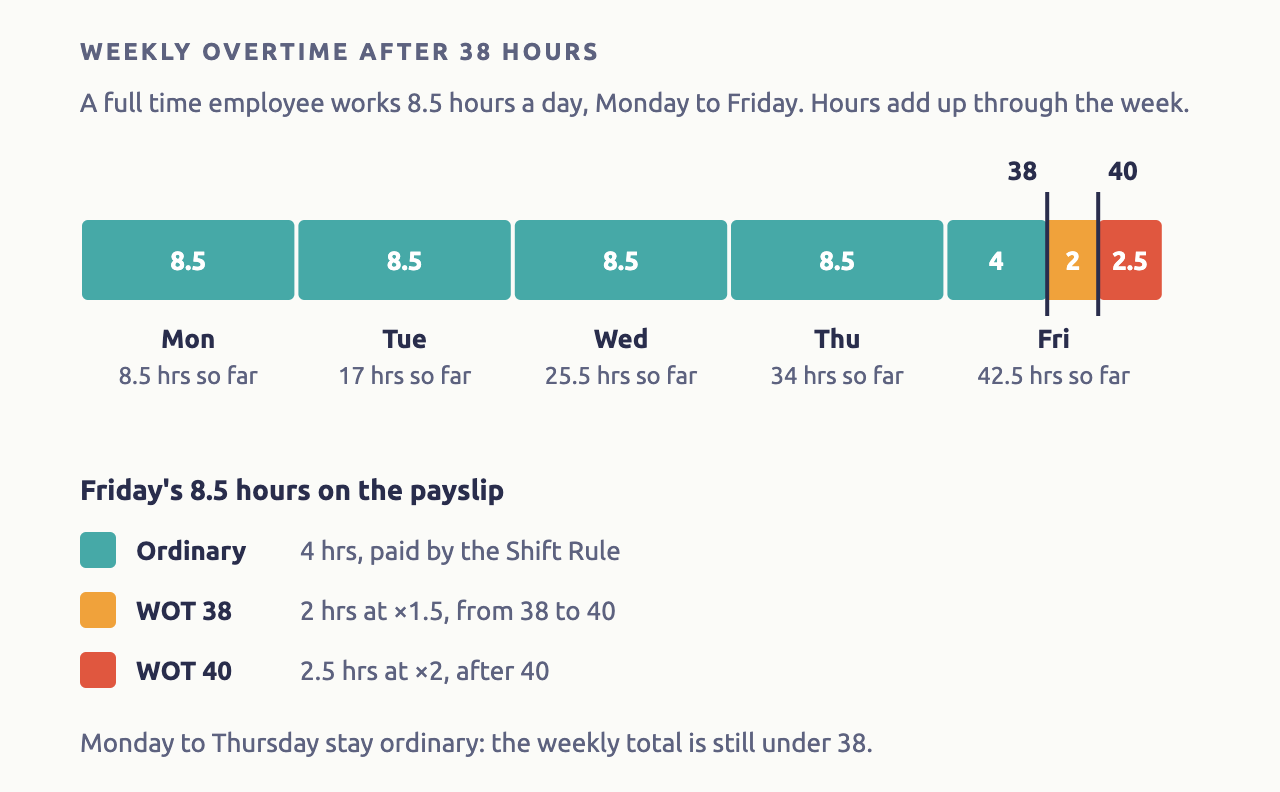
Most awards need two: time and a half for the first 2 hours past 38, and double time after 40.
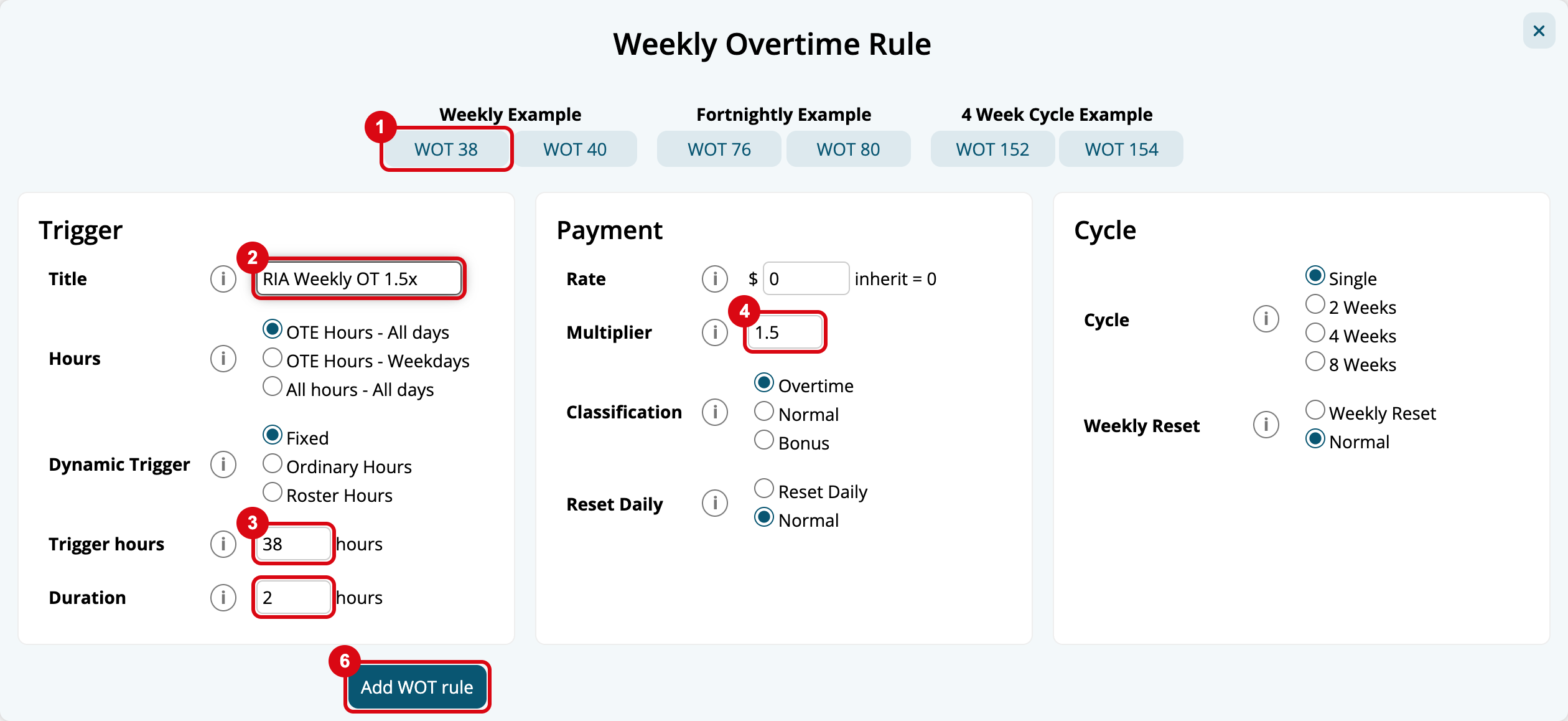
- Click Create WOT Rule, then the WOT 38 example. It fills in time and a half from 38 to 40 hours.
- Change the Title if you need to. It's shown on the payslip.
- Check Trigger hours, the hours before overtime starts, such as "38", and Duration, how many hours after that the rule pays, such as "2".
- Check the Multiplier, such as "1.5", and leave Rate at 0 to use the rate the Shift Rule would have paid.
- Choose the Classification, usually Overtime.
- Click Add WOT rule.
- Do the same with the WOT 40 example for double time. Its Duration is 200, more hours than anyone works, so it pays every hour after 40.
Add Weekly Rules to your Shift Rules
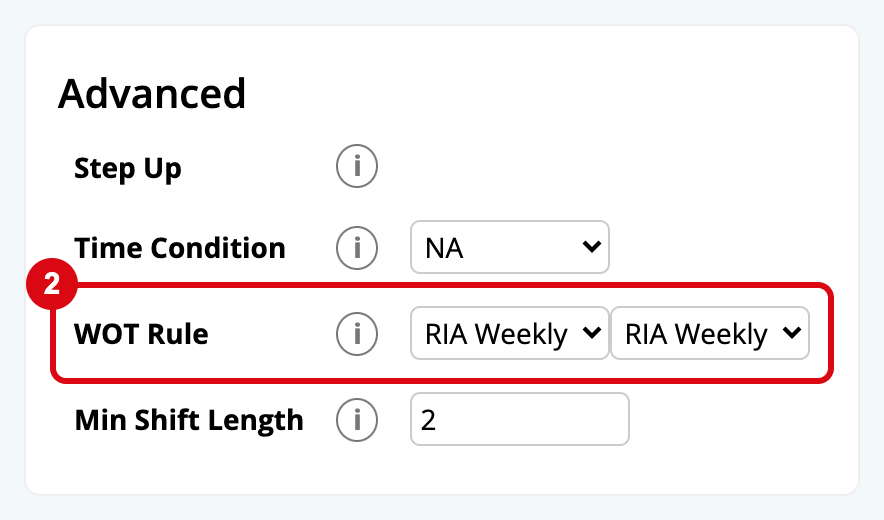
A Weekly Rule does nothing until it's added to a Shift Rule. Add it to each Shift Rule whose hours count towards the weekly limit, usually your ordinary hours rules.
- Navigate to Menu > Settings > Payroll Rules > Shift Rules, and click the pencil on the rule.
- Under WOT Rule, choose up to 2 Weekly Rules, such as WOT 38 and WOT 40.
- Click Update Shift Rule.
Weekly Rules aren't given to a Group. They apply to whoever the Shift Rule applies to, so staff on a second award need Weekly Rules of their own on their own Shift Rules. Give each a title that says which award it's for.
Hours paid as Basic, by no Shift Rule, still count towards the weekly total, but they never become weekly overtime.
Choose which hours count towards the weekly limit
Under Hours, choose:
- OTE Hours - All days: only ordinary hours count. Hours already paid as daily overtime don't, so they aren't paid as overtime twice.
- All hours - All days: every hour worked counts, including daily overtime.
For example, an employee works 10 hours a day, Monday to Saturday, with overtime after 8 hours a day and after 38 hours a week. With OTE Hours - All days, they reach 38 ordinary hours late on Friday. With All hours - All days, they reach it on Thursday, so all of Friday and Saturday is weekly overtime. Check your award to choose.
Set a different limit for each employee
Under Dynamic Trigger, choose what the limit is:
- Fixed: the Trigger hours you enter, the same for everyone.
- Ordinary Hours: the Weekly Ordinary Hours on each employee's profile, plus the Trigger hours. For part time staff, enter 0 in Trigger hours, so overtime starts after their own hours.
- Roster Hours: the hours each employee is rostered that week, plus the Trigger hours.
Restart overtime each day after the weekly limit
Set Reset Daily so that once the limit is passed, each later shift starts again at the Trigger hours. For example, with WOT 38 and WOT 40 set to Reset Daily, the first 2 hours of each shift after the employee passes 38 are paid at time and a half, then double time, instead of every later hour going straight to double time.
Count overtime over a fortnight or a cycle
Under Cycle, choose how many weeks the limit covers:
- Single: each pay run on its own. For a fortnightly pay cycle, set Weekly Reset so each week of the fortnight is counted separately, and enter the weekly limit, such as 38.
- 2 Weeks, 4 Weeks or 8 Weeks: hours from the earlier pay runs in the cycle count too. Enter the limit for the whole cycle, such as 152 for 4 weeks. Use the WOT 76, WOT 152 and other examples to start.
For a cycle, also choose:
- Circuit: Lap counts up through the cycle and starts again, so overtime is usually paid in the last pay run of the cycle. Rolling treats every pay run as the end of a cycle, looking back over the weeks before it.
- Spread or Full: Spread pays the overtime a bit in each pay run of the cycle, up to its share of the Duration. Full works it out from the whole cycle.
The first pay run in Microkeeper decides where the cycle starts. Cycles use the hours on earlier payslips, not timesheets.