How HR Works
HR in Microkeeper is how you manage your people, from the day you hire them to the day they leave. Each employee has one record: their personal and employment details, documents, certificates and work rights. It's the same record their rosters, timesheets and payroll use, and staff keep their part of it up to date themselves from the Employee Console.
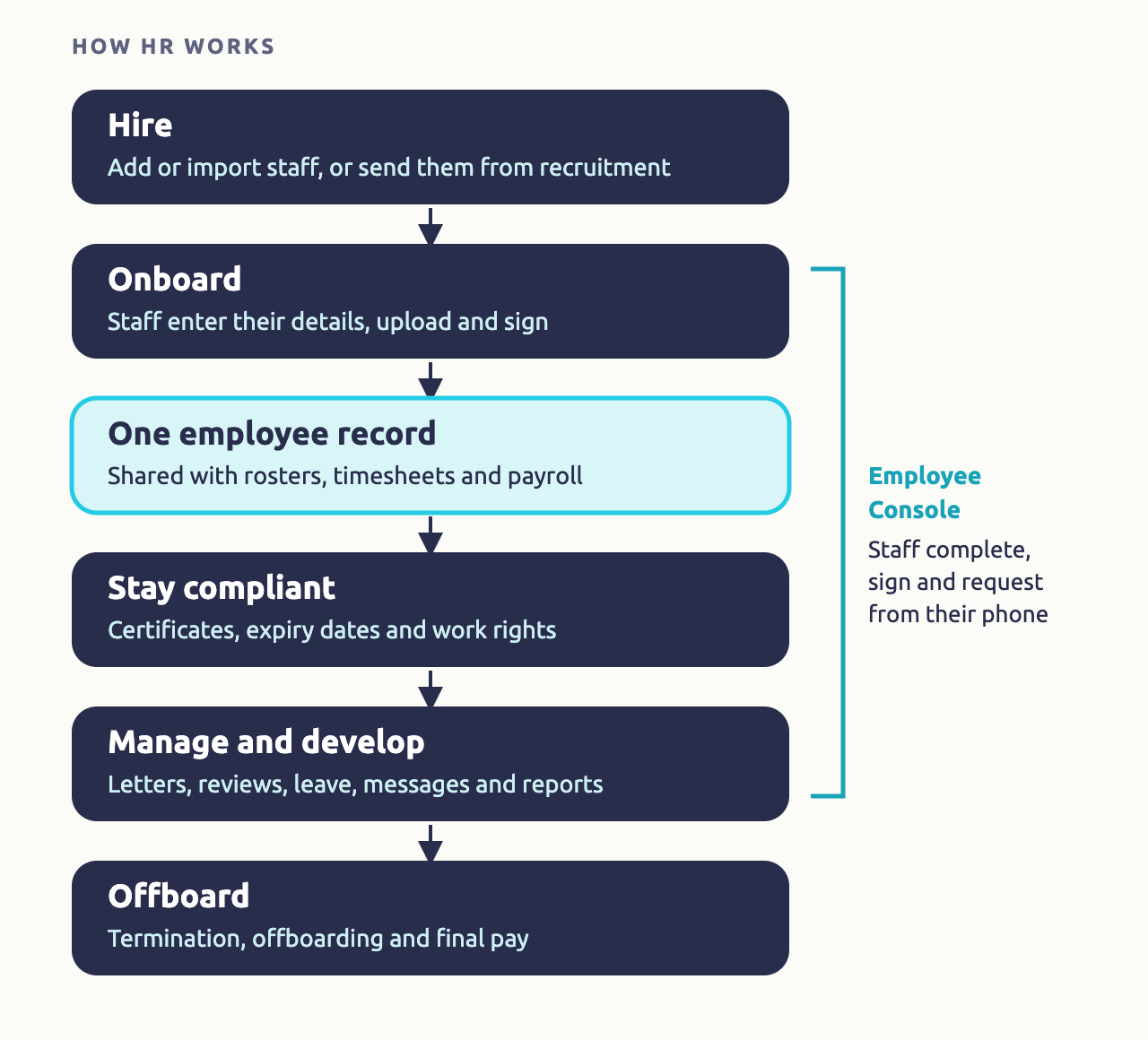
HR workflow in Microkeeper
Hire
Add each new employee once.
- Add staff one at a time, or import them. See Add an Employee and Import Staff.
- Or send hired candidates from your recruitment system. See Manatal and Teamtailor.
Onboard
New staff set themselves up.
- With their welcome letter, staff enter their tax, super and bank details, your custom fields and their work rights, and complete their skills and documents. See Onboarding.
- See who's finished, and what's missing. See Onboarding Review.
Keep one employee record
Everything about the employee, in one profile.
- Their details, employment, pay, entitlements, documents and access. See The employee record.
- Add the details your business needs. See Custom Fields.
Stay compliant
Know staff are qualified and allowed to work.
- Collect certificates and expiry dates, and policies to sign. See Skills and Documents and Skill Review.
- Check visa holders' work rights. See VEVO Checks.
- Staff can't clock on without what's critical. See Compliance on the roster and when clocking on.
Manage and develop
The day-to-day of managing people.
- Issue letters of offer, performance reviews and warnings, signed online. See Personal Files.
- Approve leave. See How Leave Works.
- Message staff, and get emails for birthdays, work anniversaries and what needs review. See Messaging and Notifications.
- Follow staff turnover and your workforce's make-up in Menu > Payroll > Analysis, with Employee turnover rate and Staff Demographic.
Offboard
When an employee leaves.
- Terminate them, pay them out and finalise them for Single Touch Payroll. See STP Staff Changes.
- Ask them to complete your offboarding documents, as skills in the Offboarding category. See Skills and Documents.
The employee record
Each employee's profile holds who they are, where and when they work, how they're paid, and their status and access. Because rosters, timesheets and payroll read the same profile, a change to an employee, such as their Location or their pay, is made once and used everywhere. See Employees.
The HR parts of the profile are:
- Personal Details and Address, which staff enter in onboarding.
- Custom Fields, your own details, such as an emergency contact. See Custom Fields.
- Personal Files, documents for that employee. See Personal Files.
- Active Status, whether they're employed, paused or terminated.
Staff see their own details, payslips, leave and documents in the Employee Console, on the web or in the Microkeeper app. See Employee Console.
Skills or a Personal File
| Use | When | Examples |
|---|---|---|
| Skills and Documents | Everyone in a Group completes the same thing, and may upload a document or enter an expiry date | RSA certificate, food handler certificate, Code of Conduct, a site induction, an employment agreement everyone signs |
| Personal Files | A document you complete for one employee | Letter of offer with their own pay and hours, performance review, disciplinary letter, position description |
Staff sign both online, and both can stop staff clocking on until they're complete.
HR access for managers and admin staff
What a manager can do in HR depends on the HR option in Access Control on their profile:
| HR access | What it allows |
|---|---|
| Review | Review pending skills their staff submit. Once a skill is reviewed, they can't open it again. Also VEVO Checks, if they're turned on |
| Full | Review past and pending skills, and view and manage Personal Files on employee profiles |
| Config | Everything in Full, plus set up skills in Skill Config and manage Personal File Templates. Recommended for HR admin staff |
Pay details on the profile, such as Payment & Employment and Banking, need Payroll access. Managers only see the staff they manage, and a new manager can't see Skill Review until you give them HR access. See Managers and Access.
Compliance on the roster and when clocking on
- Critical Global skills, and Personal Files set to Critical, must be complete before the employee can clock on at all.
- Critical Shift skills must be complete before the employee can clock on to a shift at the Location or in the Role that needs them.
- A Role can require skills. When you roster, staff without them show as Unskilled, and their shift shows the skills they haven't completed.
A skill waiting for approval still counts as not complete. See Skills and Documents.
HR guides
Skills and Documents
Certificates, policies and inductions for each Group.
Skill Review
Approve what staff submit, and follow up missing skills.
Personal Files
Letters and reviews for one employee, signed online.
Personal File Templates
Write a document once and issue it to anyone.
Custom Fields
Your own details on every employee profile.
VEVO Checks
Check and monitor visa holders' work rights.
Recruitment - Manatal
Send hired candidates from Manatal.
Recruitment - Teamtailor
Send hired candidates from Teamtailor.
What HR relies on
- Employees, and what their profile holds. See Employees.
- Groups, which decide who each skill is for. See Groups.
- Locations and Roles, which decide where critical shift skills apply and which shifts need skills. See Roles.
- Onboarding, where new staff complete their record. See Onboarding.