Clocking On and Off
Clocking on when you start and off when you finish records your hours, and your pay is worked out from them. It only takes a tap, on your phone or a computer at work.
This guide covers how to:
- Clock on and off.
- Add a break or switch jobs.
- Fix a location problem.
- Check your hours.
Clock on when you start
- On Home, find Clock.
- Check Location, Role and Job. If you're rostered, they're filled in for you, marked (Default).
- Tap Clock on.
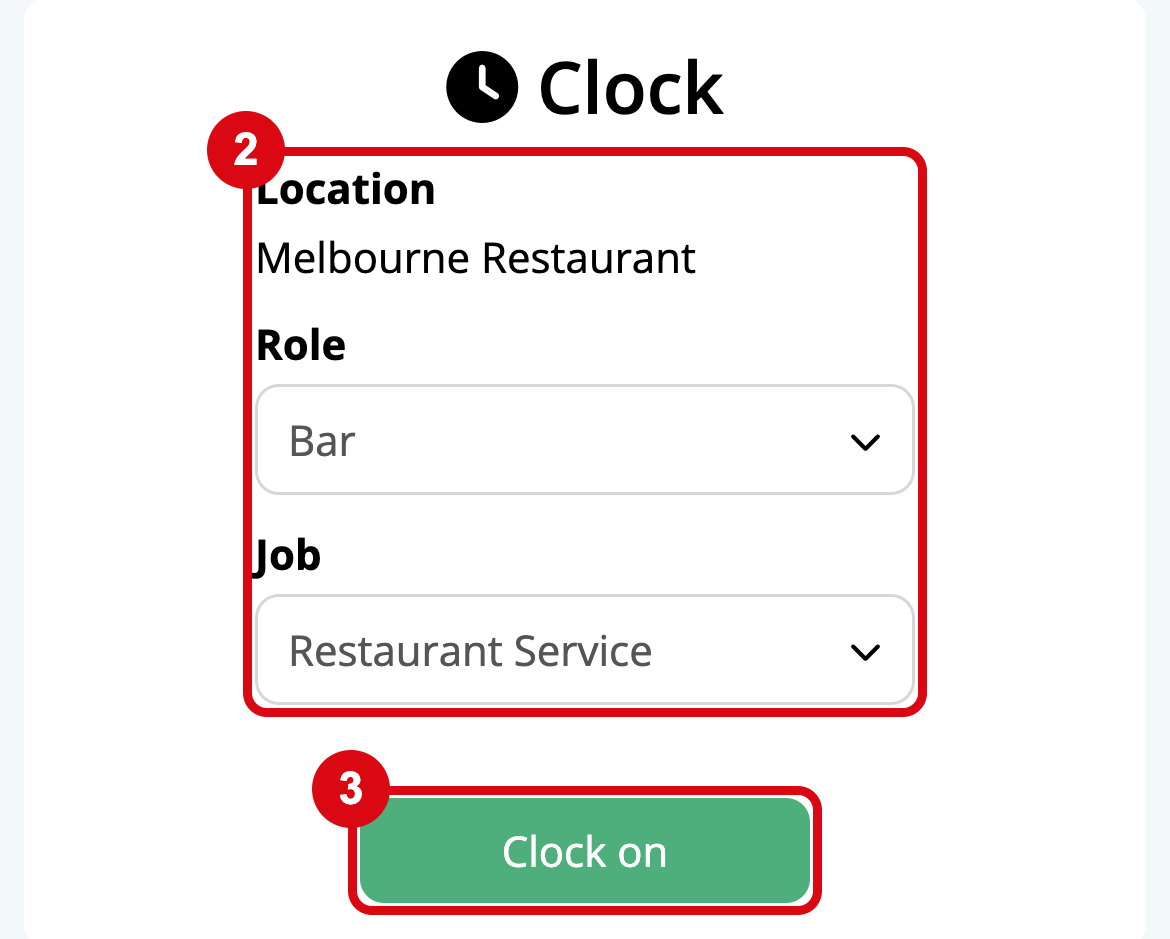
You'll see You have clocked on, and the card shows when you started.
If your employer checks where you are, the buttons show once your phone has found your location. Stay on the page for a few seconds while it does.
Clock off when you finish
On Home, tap Clock off. You'll see You have clocked out.
If you forget to clock off, don't worry: on Time, add a note to the shift with the time you finished, and your manager fixes it. See Check your hours.
Add a break or switch jobs
- A break: while you're clocked on, choose your break from Break, such as a 30 minute break, and tap Add.
- Another job or role: if you move to different work during your shift, choose the new Role or Job and tap Switch. Your hours are split between them.
Fix a location problem when clocking
Some employers only let you clock on at work, using your phone's location. If you can't clock on:
- User denied the request for Geolocation: Microkeeper needs your location. Allow it for Microkeeper or your browser in your phone's settings, then try again.
- Location information is unavailable: turn on Location in your phone's settings.
- Accurate location can not be determined: your location needs to be accurate to under 500 metres. Step outside or near a window, turn on Wi-Fi, and try again.
- Outside of location: you're too far from your workplace. Clock on when you get there.
Still stuck? Tell your manager the time you started, so your hours are right.
Check your hours
- Tap Time.
- Tap Last Week or Next Week to move a week at a time.
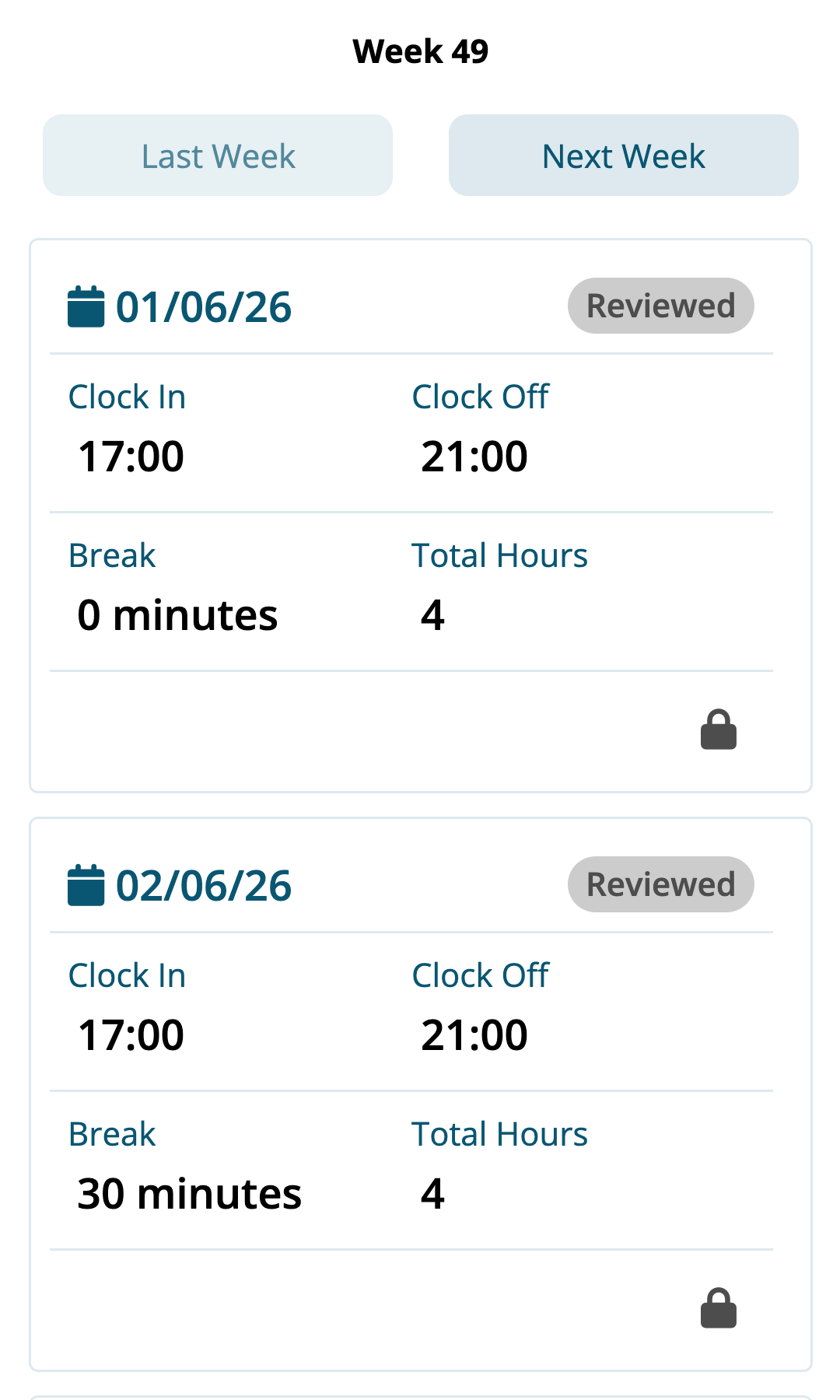
Each shift shows when you clocked in and off, your break and your hours. Reviewed means your manager has checked it; Pending means they haven't yet.
See something wrong? Tap the note button on the shift, type what happened in up to 100 characters, such as "Finished at 10pm, forgot to clock off", and tap Submit. Your payroll office sees it before you're paid. Once a shift is reviewed, talk to your manager instead.
Other ways you might clock
- A shared screen at work: on the Quick Clock page, tap your username, or enter your username and password, to clock on or off.
- Fingerprint or tag: tap your finger or tag on the reader at work.
- Face scan: look at the iPad at work.
Your manager tells you which your workplace uses.