Approve Timesheets
Timesheet approval decides which worked hours reach the pay run. This guide covers choosing how approval works, approving shifts, and making sure every shift is paid.
| Required plan | Standard Enterprise |
|---|---|
| Required access | Timesheet - Full Access |
| To change approval settings | Settings |
Choose Tick Approval or Visual Approval
| Setting | What managers do | What the pay run pays |
|---|---|---|
| Tick Approval | Approve or decline each shift. Microkeeper records who approved it. | Approved shifts only. |
| Visual Approval | Look over the timesheets. There's nothing to tick. | Every shift with hours. |
Tick Approval suits a business where several managers each look after their own staff. Visual Approval suits a business where one person checks all the timesheets.
Navigate to Menu > Settings > General > Global, then click Timesheet Settings.
- Under Shift Approval, choose Tick Approval or Visual Approval.
- With Tick Approval, under Auto Shift Approval, choose Auto approve shifts that match roster or Manually approval all shifts.
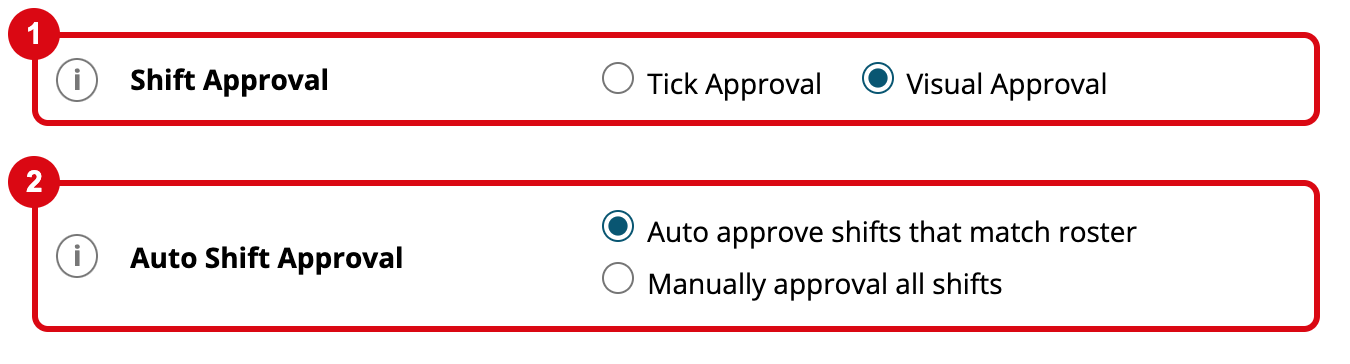
Each setting saves as soon as you choose it.
Warning
With Tick Approval, shifts still waiting and shifts a manager declined are left out of the pay run, and nothing on the pay run or payslips tells you. Approve every shift in the pay period before you start the pay run.
Approve shifts on the Timesheets page
With Tick Approval, staff with Timesheet - Full Access approve the shifts of the staff they manage. See Managers and Access.
Navigate to Menu > Rosters > Timesheet.
- Choose the week.
- On the Staff tab, click Pending to list only the staff with shifts waiting. Each shows Pending.
- Click an employee and check their shifts against the roster.
- Click Approve All to approve all their pending shifts for the week.
- Repeat for each employee until the list shows "All caught up!".
To approve one shift, click the blue button beside it, which turns into a green tick. Clicking the green tick declines the shift, shown as a red cross, and clicking the red cross puts it back to waiting. Hover over a button to see who approved or declined it.
Approve All is greyed out when the employee has no pending shifts, or when two of their shifts overlap. Fix the overlap first.
Managers can't approve their own shifts. Staff with Settings access can approve anyone's. Self-managed staff, who add their own timesheets, can change a shift until a manager approves or declines it.
Auto approve shifts that match the roster
With Auto approve shifts that match roster, a shift is approved when the employee clocks off if its clock on and clock off times match one of their rostered shifts that day, to the minute, after clock rounding. It shows as approved by "auto".
For example, Ava is rostered from 17:00 to 21:00. If she clocks on at 17:00 and off at 21:00, her shift is approved for her. If she clocks off at 21:20, it waits for a manager.
Only clocked shifts are auto approved. Shifts added on the Timesheets page, made with Generate Timesheet, or added by self-managed staff wait for a manager. Shifts imported from a timesheet CSV file arrive already approved.
Changes that send a shift back for approval
- A manager edits it. When a manager without Settings access changes an approved shift, it goes back to waiting. When someone with Settings access edits it, it stays approved under their name.
- The week is generated again. Generate Timesheet replaces the shifts it made last time, and the new ones wait for approval.
Once an employee is in a pay run for the period, only managers who also have Payroll - Full Access can approve or change their shifts. Others see "The payroll process has already started contact payroll to make amendments."
Remind managers to approve shifts by email
In Timesheet Settings, under Approval Reminder, choose Email to managers for shifts not approved. At 2pm the day after each pay period ends, managers get an email headed "Shifts that require management review", listing each employee with shifts still waiting.
Each employee's reminder goes to their Clocking Issue manager, or their Primary manager if none is set, in Menu > Manage > Notification Config. See Notifications.
Check every shift is approved before payroll
With Tick Approval, the top of the Timesheets page shows how much of the week is approved, such as 92% Approved. Before you start a pay run, check each week in the pay period shows 100% Approved. The figure only covers the staff you can see, so someone who sees all staff should do the final check.
Pay shifts a pay run left out
If a pay run is missing hours because shifts weren't approved, approve them, then reprocess the pay run while it's unlocked.
- On the Timesheets page, approve the missing shifts.
- Navigate to Menu > Payroll > Payruns and open the pay run.
- Click Bulk Actions > Reprocess.
- Tick I understand and click Confirm Reprocess Payrun.
Reprocessing recalculates every payslip in the pay run. Lines you added by hand stay. See Processing a Payrun.