Your Skills and Documents
Your employer may ask you for a certificate, such as your RSA, or to read and sign a policy or your letter of offer. You do them all from your Employee Console, and your manager approves them.
This guide covers how to:
- See what's waiting for you.
- Complete a skill, such as a certificate.
- Sign a document.
See what's waiting for you
On Home, Skills and Files lists what you need to do, with anything Critical, Expired or Expiring soon at the top. To see everything, including what's done, tap Profile > Skills & Files.
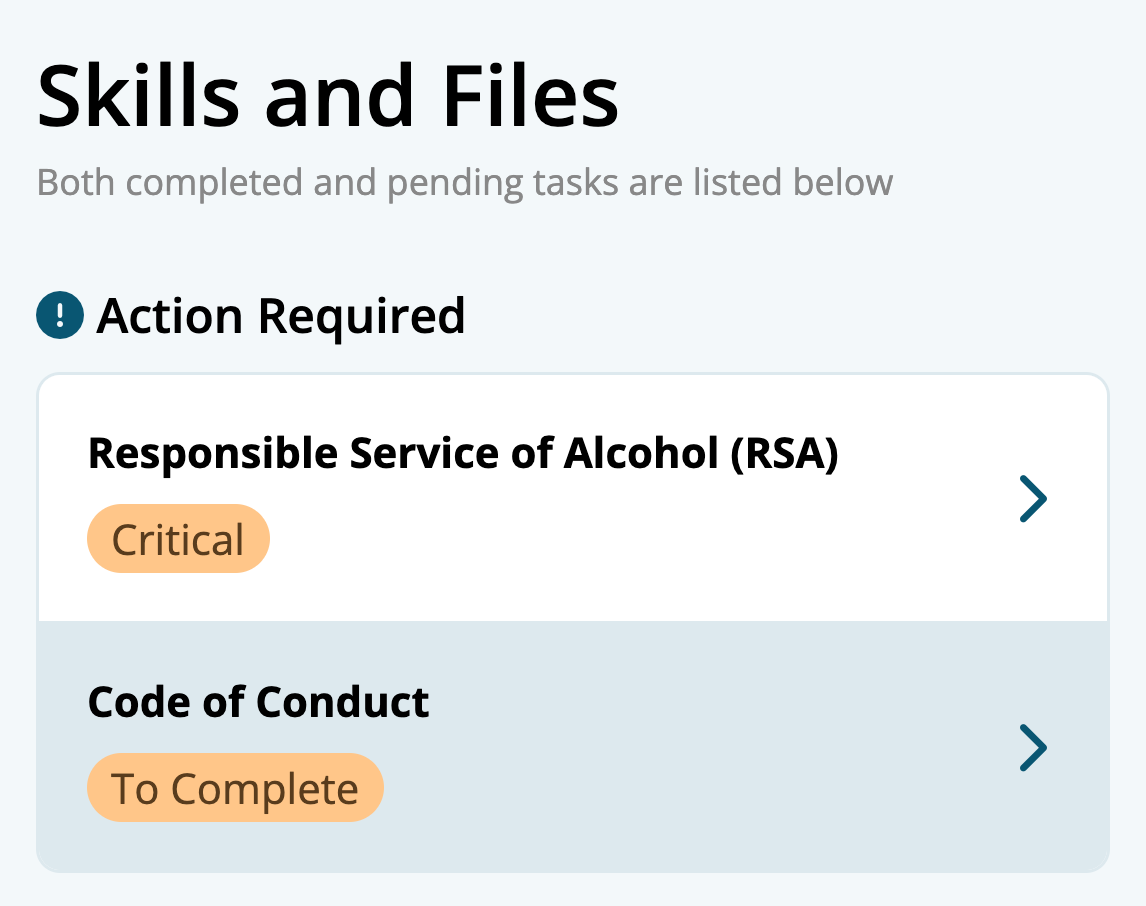
Each one shows where it's up to:
- To Complete: waiting for you.
- Pending: you've sent it, and your manager is checking it.
- Complete: approved.
- Resubmit: your manager needs something changed. Open it to see their note.
Critical items
Something marked Critical must be done and approved before you can clock on, so do it before your first shift.
Complete a skill, such as a certificate
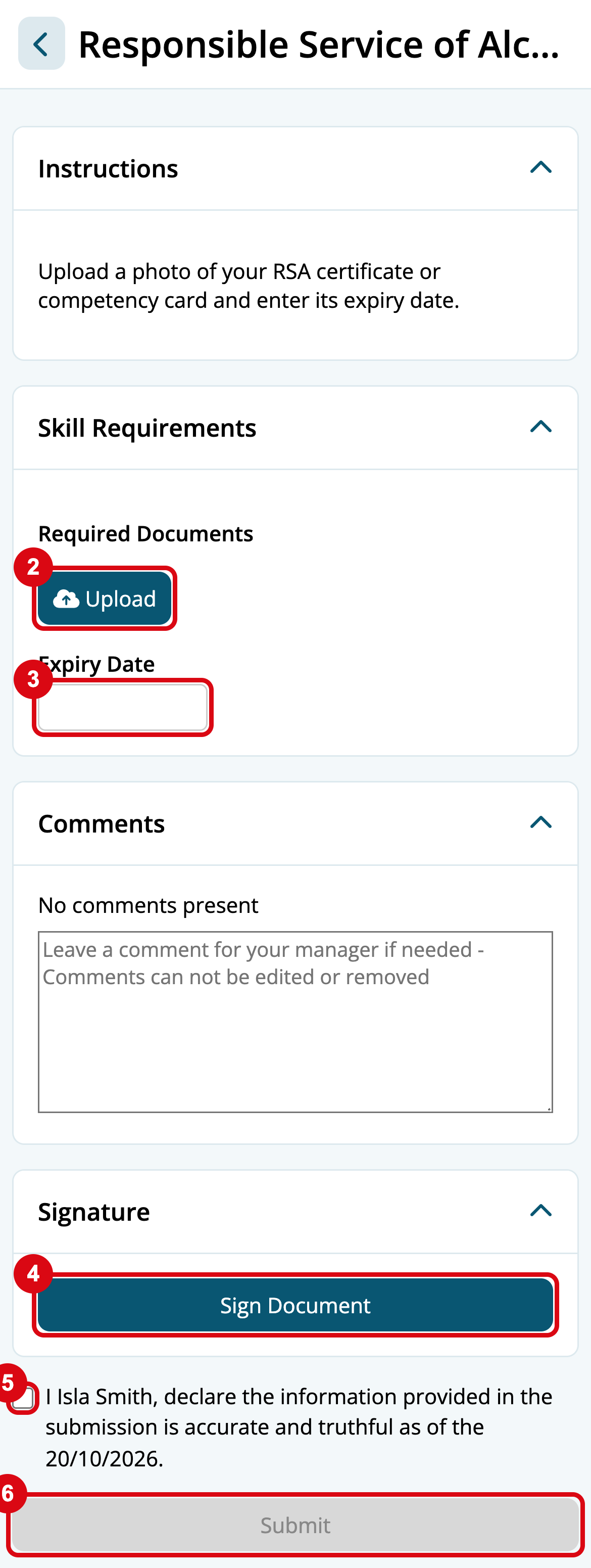
- Tap the skill to open it, and read your employer's instructions.
- If it asks for a document, tap Upload and take a photo of it, or choose the file.
- If it asks for an expiry date, enter the date on your certificate.
- If it asks you to sign, tap Sign Document, sign with your finger, and tap Save.
- Tick the declaration that starts with your name.
- Tap Submit.
You'll see Skill Submitted, and it waits for your manager to approve it. When a certificate is close to expiring, it comes back to Expiring soon: upload your new one the same way.
Sign a document
Some documents are just for you, such as your letter of offer or a performance review.
- Tap the document to open it, and read it.
- Tap Sign Document, sign with your finger, and tap Save.
- Tick I ... have read and understood the document provided by my employer.
- Tap Submit.
You'll see Document successfully signed. Your signed copy stays in Skills & Files, so you can read it again any time.
Not sure about something in a document? Ask your manager before you sign.
Skills and documents questions
Guides related to skills and documents
- Clocking On and Off
- Skills and Documents, for managers
- Personal Files, for managers