Your Payslips and Details
Your payslips show what you were paid each pay run, and how it was worked out. Keeping your details up to date means your pay goes to the right account and your employer can reach you.
This guide covers how to:
- Open a payslip.
- Save or print a payslip.
- Update your details.
- Change your bank account.
Open a payslip
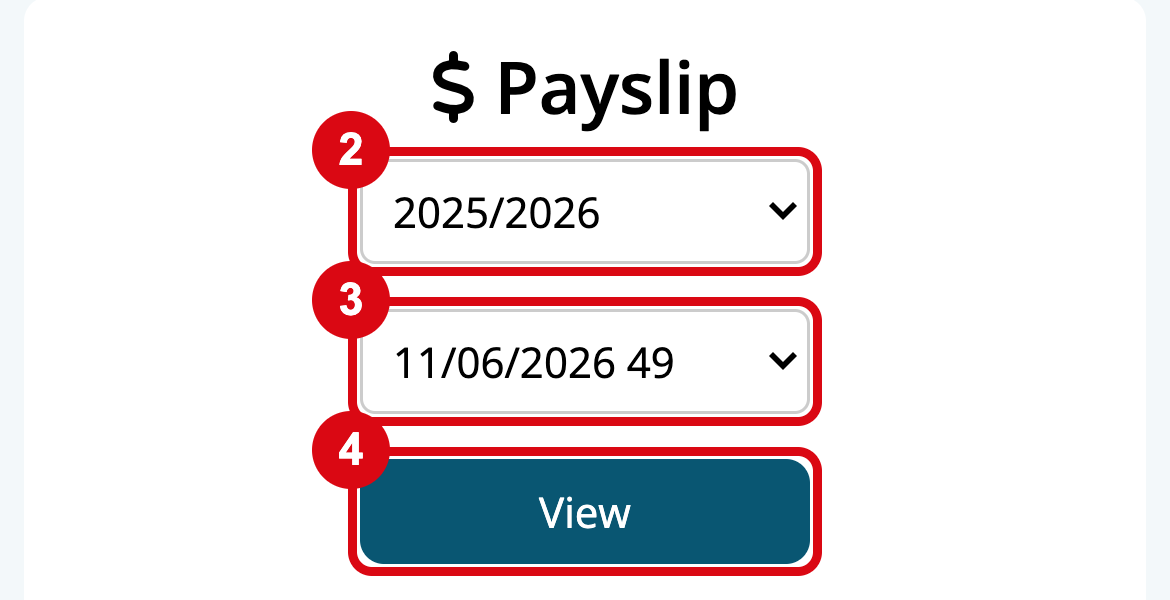
- Tap Pay.
- Choose the financial year, such as 2025/2026. It starts on this financial year, so choose last year for a payslip from before July.
- Choose the pay date. The latest is chosen for you.
- Tap View.
Your payslip shows your hours and pay for each kind of work, any allowances, the tax taken out, your super, and what went into your bank account. At the bottom, your year to date shows your pay and tax since 1 July, and your leave balances if your employer shows them.
A payslip shows once your employer has paid it. If you can't see one you expect, check the financial year, then ask your manager.
Save or print a payslip
- Save it as a PDF: open the payslip in Chrome or Safari, tap Print, then choose Save as PDF.
- Keep a copy: tap Download to save it as a page you can open later.
Print isn't available in the Microkeeper app, so open Microkeeper in your phone's browser to save a PDF.
Update your details
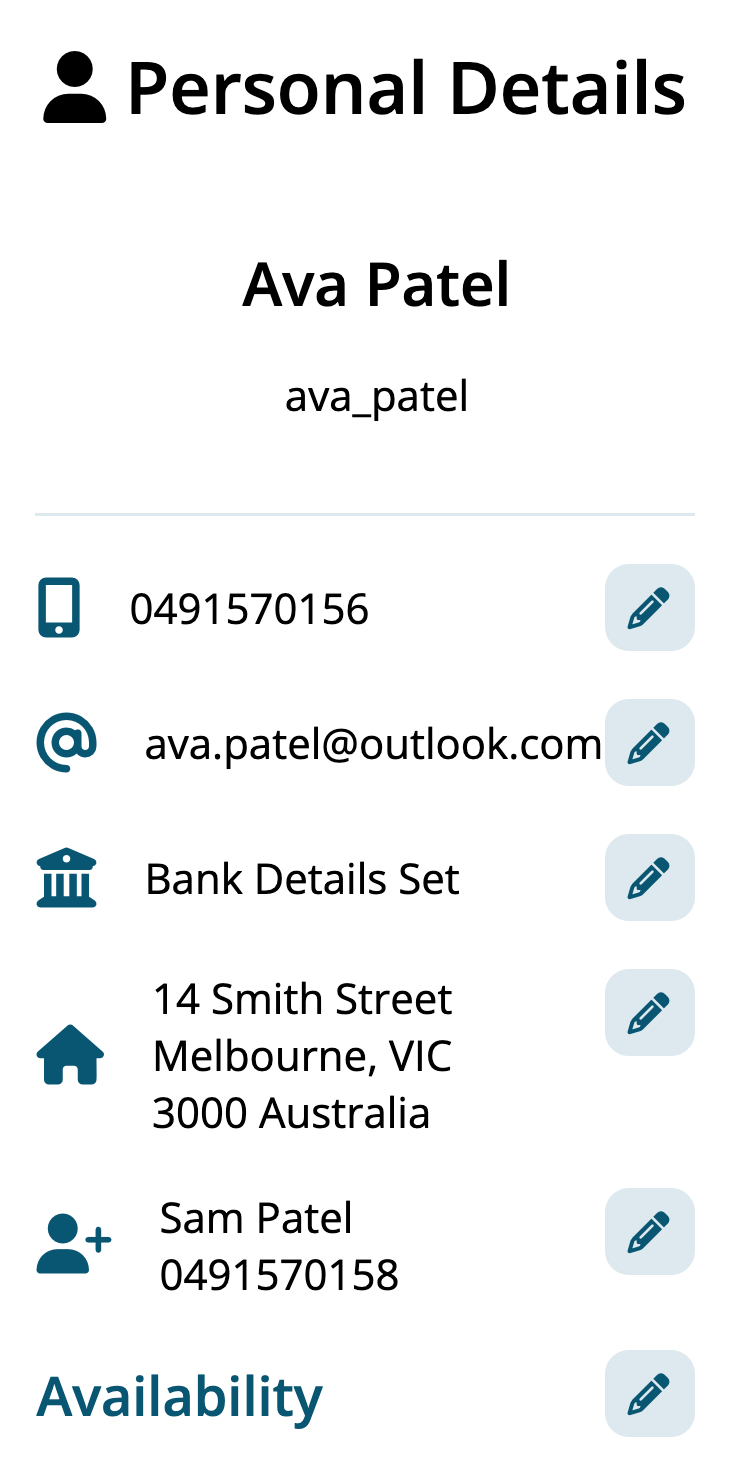
Tap Profile to see your Personal Details. Tap the pencil beside one to change it. It's saved straight away.
- Mobile: enter your new number, tick Confirm mobile number and tap Save. Enter the 4 digit PIN Microkeeper texts you, and tap Save.
- Email: tick Confirm email and tap Save. Click Verify email in the email Microkeeper sends you, within 24 hours, to finish the change.
- Address: search for your address, check it, and tap Save. Your employer needs it for your end of year tax.
- Emergency Contact: enter their Name and Phone Number, and tap Save.
To change your name, tax or super, talk to your manager.
Change your bank account
Your pay goes into this account, so take a moment to check it.
- On Profile, tap the pencil beside Bank Details Set.
- Enter the Bank Title, the name on the account, such as "MS AVA PATEL", the Bank BSB and the Bank Account Number.
- Tap Verify. Check the bank and branch match your account.
- Tick I confirm my bank details are correct and tap Confirm.
Warning
Pay that goes to the wrong account may not come back. If you change your bank account close to payday, tell your manager too, so they know it's you.
Your employer gets an email when you change your bank account. Your account number isn't shown on your profile, to keep it safe.
Payslip and details questions
Guides related to your payslips
- Clocking On and Off
- Requesting Leave
- Run a Pay Run, for managers