Staff Changes in Single Touch Payroll
Every pay run you lodge tells the ATO about each employee's pay, start date and, when they leave, their termination. This guide shows you how to record staff changes so the ATO receives the right details. It's part of Single Touch Payroll.
| Required plan | All plans |
|---|---|
| Required access | Payroll - Full Access or Payroll - Medium Access |
This guide covers how to:
- Set up a new employee for STP.
- Finalise an employee who leaves, including termination payments.
- Rehire an employee.
- Change an employee's income type during the financial year.
Before you make staff changes
- You need Payroll access to change an employee's Active Status, Start Date, Termination Date and Cessation Type.
- Employee profiles are at Menu > Settings > Employees. Use the Terminated Staff filter to find someone who has left.
- Except in the final STP lodgement for the year, Microkeeper reports only the staff in the pay run who have gross pay or PAYG tax. An employee who isn't paid in a pay run isn't reported in it.
Set up a new employee for Single Touch Payroll
When you add an employee, send them their welcome login. They log in and complete their own details on the Employee Console. See What your staff do with their welcome login.
Your staff know everything STP needs except, sometimes, their tax file number. Before their first pay run:
- Check their Start Date. It's included in STP, and staff with a future Start Date aren't included in the pay run.
- Check their Tax File Number TFN. If they've applied for a TFN but haven't received it, enter "111111111" until it arrives. Hover over the i next to the field for the other ATO placeholder numbers.
- Check their Tax File Number Declaration TFND shows a signing date. Only a signed declaration is included with STP data.
Staff who don't have a TFN should apply for one straight away. In their first pay run, the payslips page lists them under Staff Starting In This Pay Period so you can check their pay.
Finalise an employee who leaves
An employee's last payslip should be marked as final, so the ATO knows their employment has ended. Do this with the Final button on their payslip, before you lock and lodge the pay run.
- Navigate to Menu > Payroll > Payruns and process the pay run as normal.
- On the leaving employee's payslip, click Final. The One Tap Terminate window opens.
- Check the Rate and the leave hours to pay out, such as Annual Leave and Leave Loading. For leave you can choose to pay out, such as long service leave, click its Payout button.
- Check the Termination Date.
- Choose the Cessation Type: Voluntary, Ill Health, Deceased, Redundancy, Dismissal, Contract or Transfer. See ATO Cessation Type for what each one means.
- Click Terminate. It appears once you've chosen a Cessation Type.
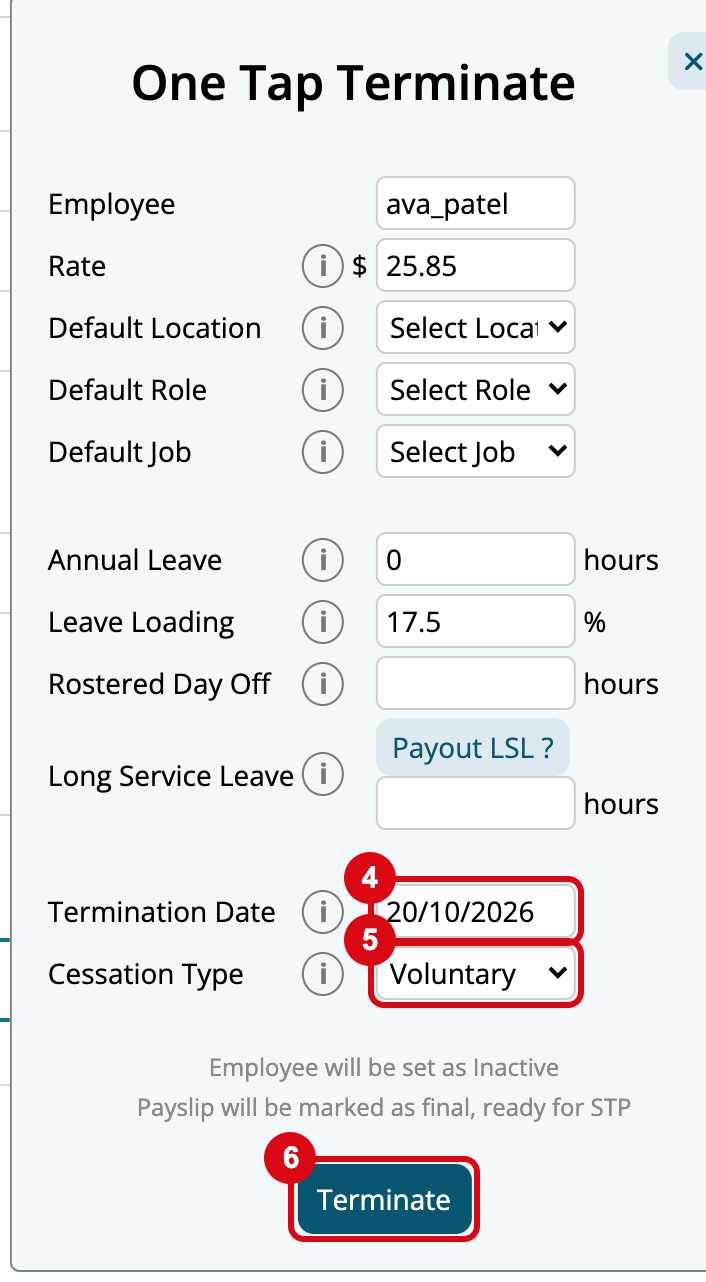
Microkeeper sets the employee to Employee Terminated, saves the Termination Date and Cessation Type on their profile, adds the leave payouts to the payslip and marks it as final. When you lodge the pay run, the ATO receives their final STP report.
Warning
Only active employees are included in a pay run. If you terminate an employee after their last pay run has been lodged, they aren't in the next pay run, so the ATO doesn't receive their final report until the final STP lodgement for the year.
If you've set a Termination Date and Cessation Type on someone's profile but they're still employed, the payslips page lists them under Staff Ready To Conclude Employment. Click Final on their payslip in their last pay run.
Pause an employee instead of terminating them
For staff who aren't working for now but are still employed, set Active on their profile to Employment Paused. Paused staff don't need a Termination Date or Cessation Type. They aren't included in pay runs, but they are included in the final STP lodgement for the year.
Report termination payment tax with Single Touch Payroll
An employment termination payment (ETP) is reported to the ATO with its own tax amount. Microkeeper records the PAYG tax on a payslip as one amount, and reports the ETP's share of it in proportion to the ETP's share of the gross pay. The total tax reported always matches the payslip.
For example, an employee is paid $30,000 of normal earnings and a $10,000 ETP, with $4,000 tax withheld in total:
| Payment | Gross | Share of gross | Tax reported |
|---|---|---|---|
| Normal earnings | $30,000 | 75% | $3,000 |
| ETP | $10,000 | 25% | $1,000 |
| Total | $40,000 | 100% | $4,000 |
The ATO might say the ETP is undertaxed by $50 and normal earnings are overtaxed by $50. Because the total tax is correct, you don't need to do anything.
Rehire an employee in Single Touch Payroll
When a terminated employee comes back, update their existing profile so the ATO knows they've started work again. Navigate to Menu > Settings > Employees, choose Terminated Staff and open their profile.
- Under Active Status, set Active to Currently Employed.
- Clear the Termination Date.
- Set Cessation Type to Employed.
- Set the Start Date to the day they start again.
- Check their other details, such as address, bank account and tax, are still current.
Each field saves as soon as you change it. The next time the employee is paid, their STP report isn't marked as final, and the ATO knows they've started again.
Warning
If you leave the Termination Date and Cessation Type set, Microkeeper reports the employee as final even though they're working again.
Change an employee's income type during the financial year
If an employee's tax scale or STP income stream changes during the financial year, for example from Working Holiday Maker (WHM) to Salary and Wages (SAW), terminate their profile and add a new profile for the new income type. Microkeeper sends the full financial year to date with each STP report, so changing Tax Scale, STP Income Stream Type or Override Tax Scale on the existing profile re-reports all of the year's pay under the new settings. See Income Stream Type Code for the income types.
Add the new employee profile
Add the new profile first, while the current profile is still active. Navigate to Menu > HR > Add Employee.
- Enter the employee's name, mobile number and email. Their new profile has a different Username.
- Set the Start Date. It can be their original start date.
- Under Setup Method, choose Copy from..., then choose the employee's current profile.
- Click Add Employee.
- Open the new profile and, under Employee Tax, set the tax fields for the new income type.
- Check the rest of the employee's details, such as their tax file number, bank account and super fund, match the old profile.
- Add any leave balances they had on the old profile.
Copying brings across the Payment and Employment settings, Groups, Entitlements and other profile settings. Hover over the i next to Copy from... for the full list. Copy from only lists active employees, which is why you add the new profile before terminating the old one.
Terminate the old employee profile
Use Final on the old profile's payslip in its last pay run, as in Finalise an employee who leaves, and choose Transfer as the Cessation Type. If the old profile isn't in a pay run, set its Termination Date, set Cessation Type to Transfer and set Active to Employee Terminated on its profile.
Let managers know about the new profile, so they can move any rostered shifts to it. At the end of the financial year both profiles are reported as final, and the employee receives two payment summaries in their myGov account.
Staff changes troubleshooting
Related Single Touch Payroll guides
- Lodge a Pay Run with STP: report each pay run to the ATO.
- STP End of Financial Year: lodge the final STP report for the year.
- STP Reporting Codes: cessation types, income stream types and other codes.