Microsoft Business Central
Microkeeper exports each pay run as an Excel file for Microsoft Dynamics 365 Business Central: its wages, super, PAYG withholding and net pay against your Business Central accounts, with up to two dimensions. Microkeeper's Payroll Import extension adds a Payroll Staging page to Business Central, which loads the file and turns it into general journal lines.
| Required plan | All plans |
|---|---|
| Required access | Settings to set up accounts, and Report and Payroll to export pay runs |
This guide covers how to:
- Install the Payroll Import extension in Business Central.
- Set up your dimensions.
- Add your accounts and dimension values in Microkeeper.
- Export a pay run and import it into a general journal.
Before you export to Business Central
- Set the ABN's accounting system to Microsoft Business Central. See Choose the accounting system for each ABN.
- Contact Microkeeper for the Payroll Import extension. It's a .app file, inside a compressed folder called ExcelImportforPayroll.
- Your Business Central user needs permission to manage extensions, such as SUPER.
Install the Payroll Import extension
You install the extension once for each Business Central environment.
- Extract the compressed folder from Microkeeper.
- In Business Central, search for and open Extension Management.
- Click Manage > Upload Extension.
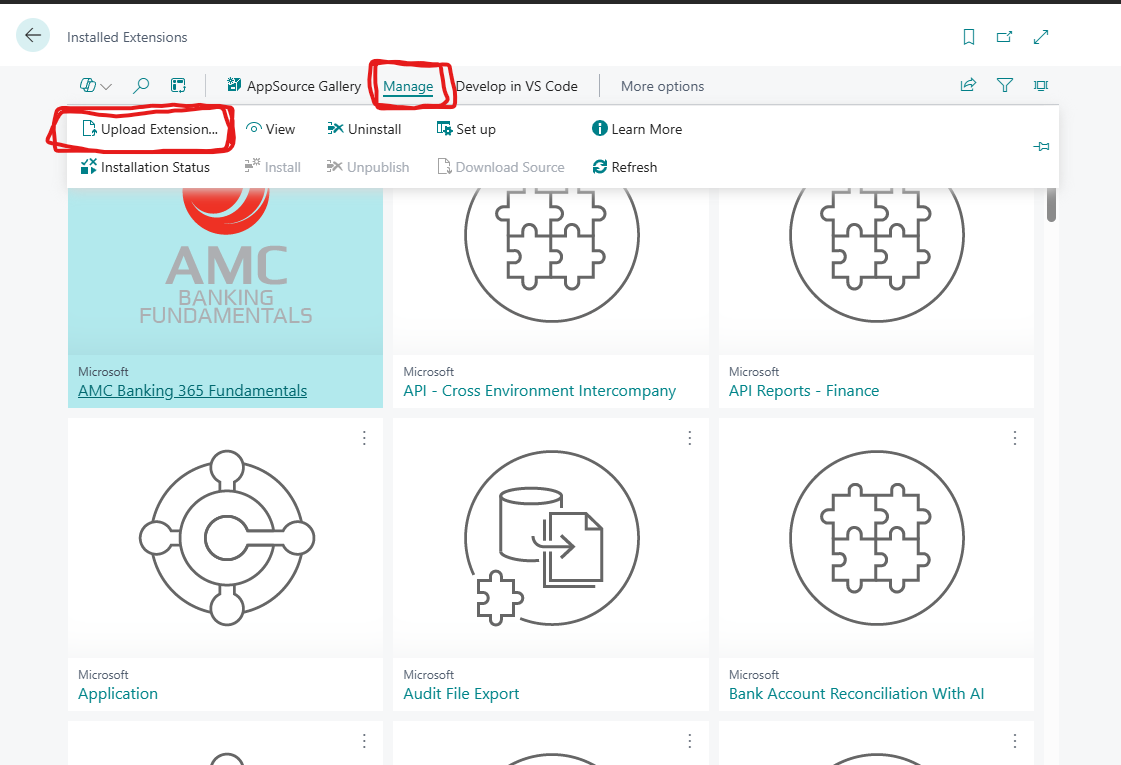
- In Select .app file, choose the .app file from the folder, such as Default Publisher_ExcelImportforPayroll_1.0.0.0.app.
- Leave Deploy to as Current version, accept the terms, and click Deploy.
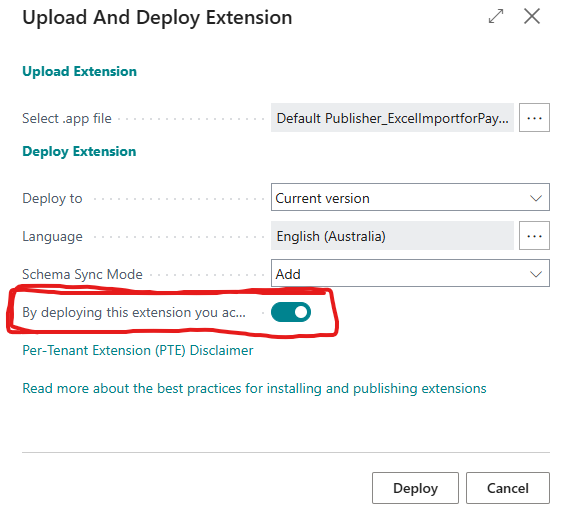
It installs in the background, which can take several minutes. Click Manage > Installation Status to follow it. Once it's Completed, Business Central has a Payroll Staging page.
When Microkeeper sends you a new version of the extension, upload it the same way. Its version number must be higher than the one installed.
Set up your dimensions
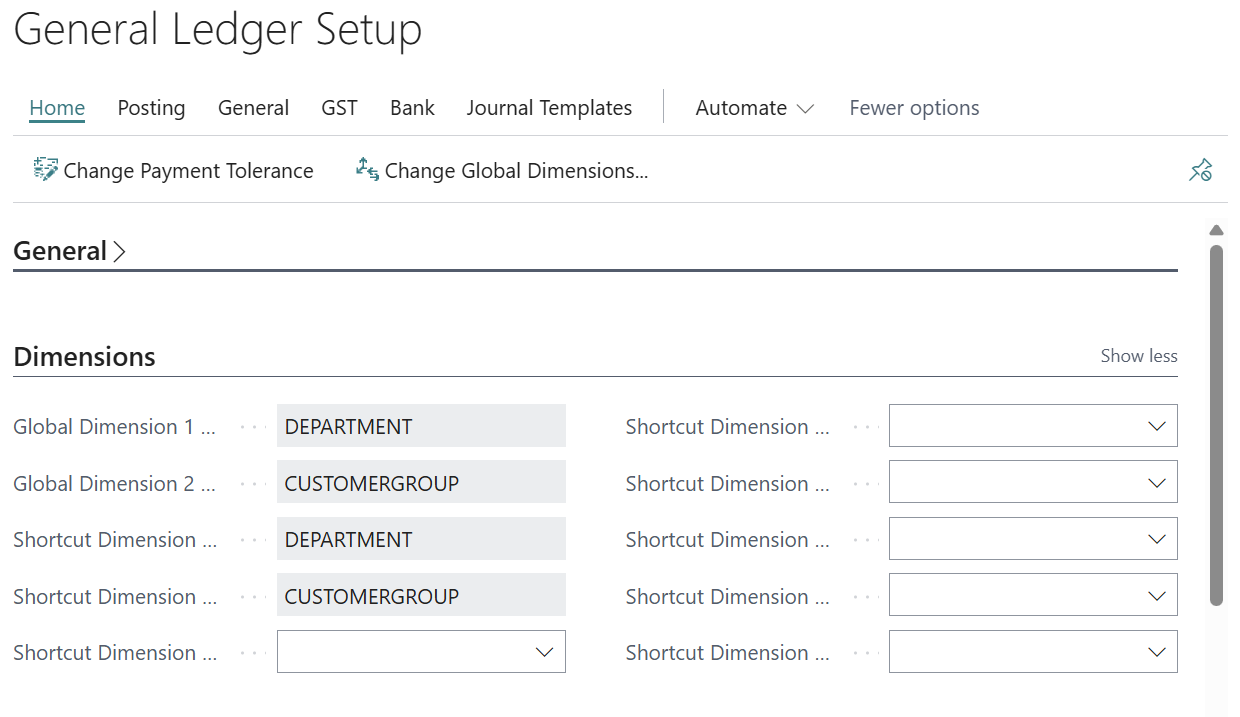
Microkeeper's two tracking categories become Business Central's first two dimensions: Tracking Category 1 fills Shortcut Dimension 1 Code, and Tracking Category 2 fills Shortcut Dimension 2 Code. Search for and open General Ledger Setup to see which dimensions those are, under Dimensions.
To add a dimension:
- Search for and open Dimensions.
- Click New, and enter a Code and Name, such as DEPARTMENT and Department.
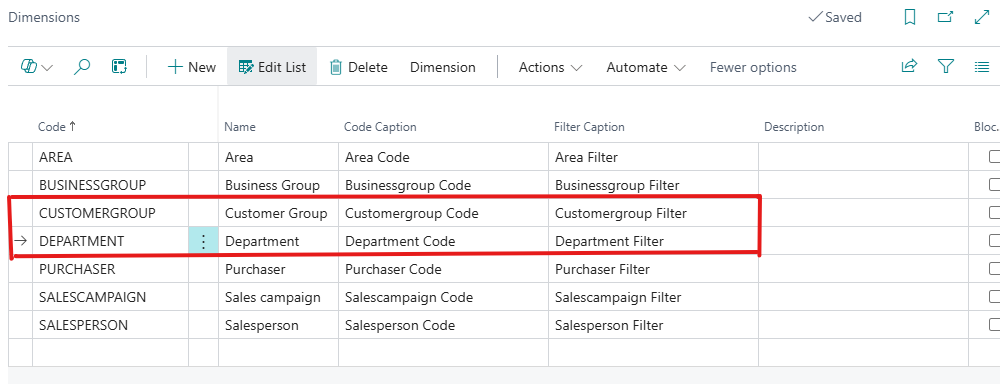
- Choose the dimension, then click Dimension > Dimension Values.
- Add a line for each value, such as each department you post wages to.
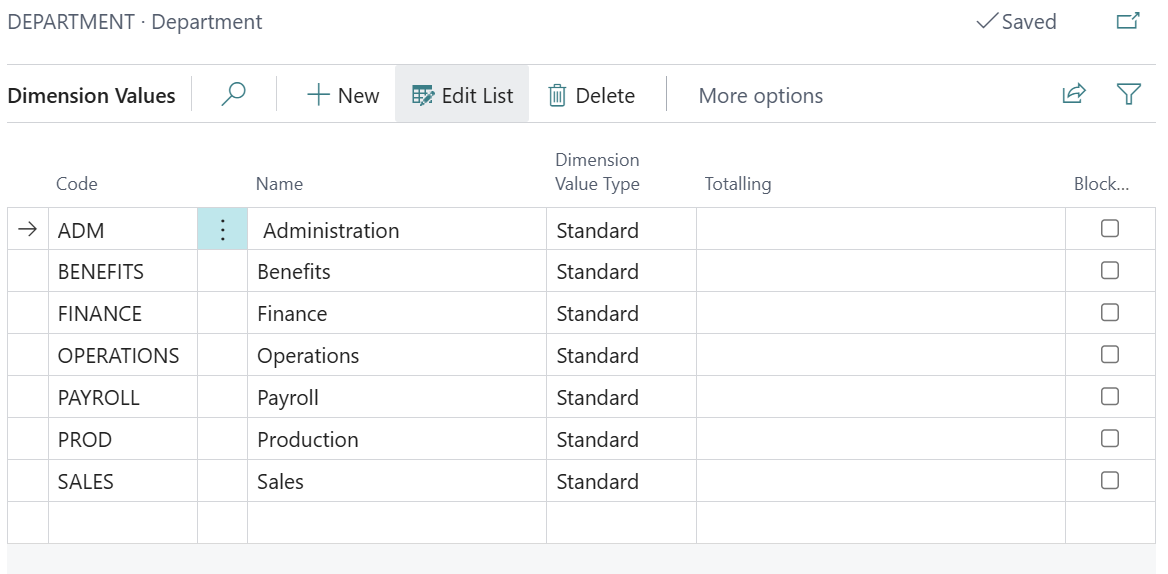
To make a dimension one of the two that payroll fills, set it as Global Dimension 1 or Global Dimension 2 in General Ledger Setup, with Change Global Dimensions.
Add your accounts and dimension values in Microkeeper
Open the ABN's Chart of Accounts, from ABN and Pay Cycles. See Chart of Accounts.
- Add the accounts you post payroll to, with each account's Account Code its No. in Business Central's Chart of Accounts. The import stops if an account number isn't in Business Central.
- On the Tracking Category 1 tab, add each value of your first dimension, named with its Code in Business Central, such as OPERATIONS. Add your second dimension's values on Tracking Category 2.
Export a pay run's Business Central journal
- Navigate to Menu > Payroll > Payruns and open the pay run.
- Click Complete Payrun, then 3. Export.
- Check each line's Description, Account and dimensions, and click Save Settings. See Map each pay run line to an account.
- Click Microsoft Business Central Export.
The Excel file has the columns Journal Template Name, Journal Batch Name, Posting Date, Description, Account No, Amount, Tracking Category 1 and Tracking Category 2, in that order, which is the order the extension reads them. Every line is in the General template's DEFAULT batch, dated the pay run's Payment Date, with debits as positive amounts and credits as negative.
Import the journal into Business Central
- In Business Central, search for and open Payroll Staging.
- Click Actions > Upload Payroll Sheet, and choose the Excel file from Microkeeper. Business Central shows Excel is successfully imported.
- Check the lines: each is a G/L Account line, with its account, amount, Posting Date and dimension codes.
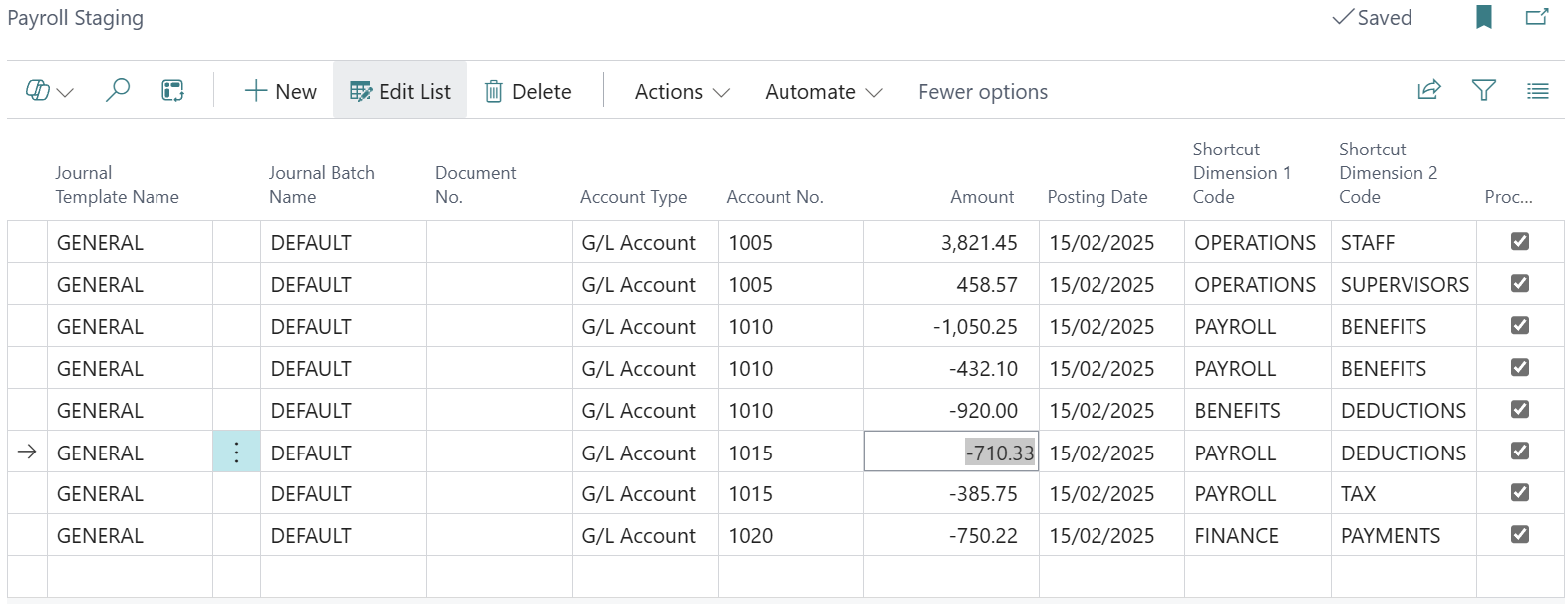
- Click Actions > Process to General Journal.
- Check the Journal Template Name and Journal Batch Name, such as GENERAL and DEFAULT, and click OK.
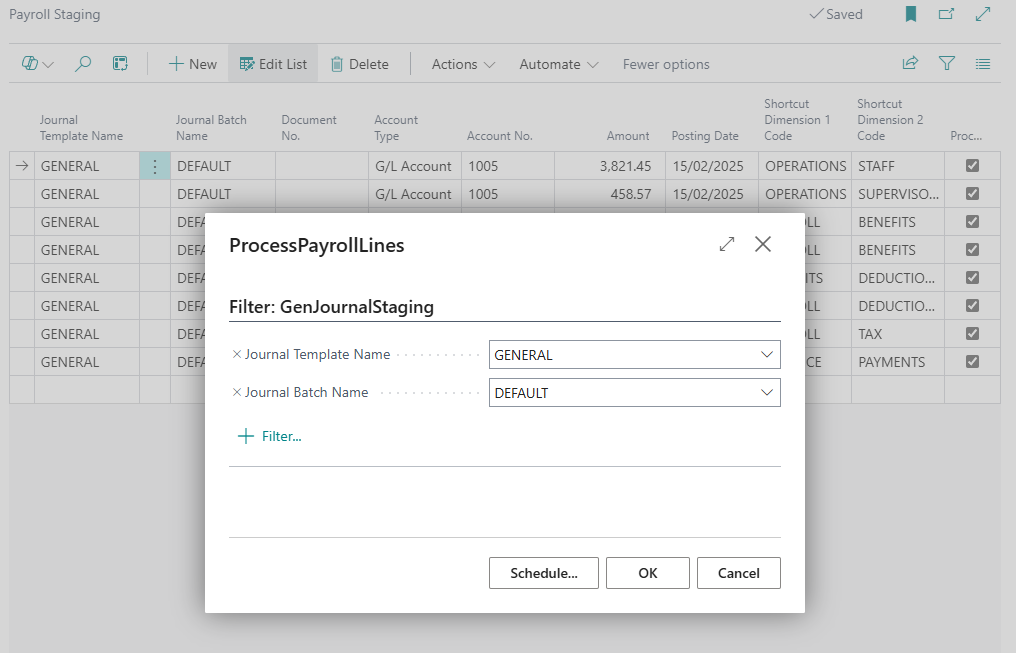
Each line is then ticked as Processed, so it isn't added to the journal twice.
Check and post the payroll journal
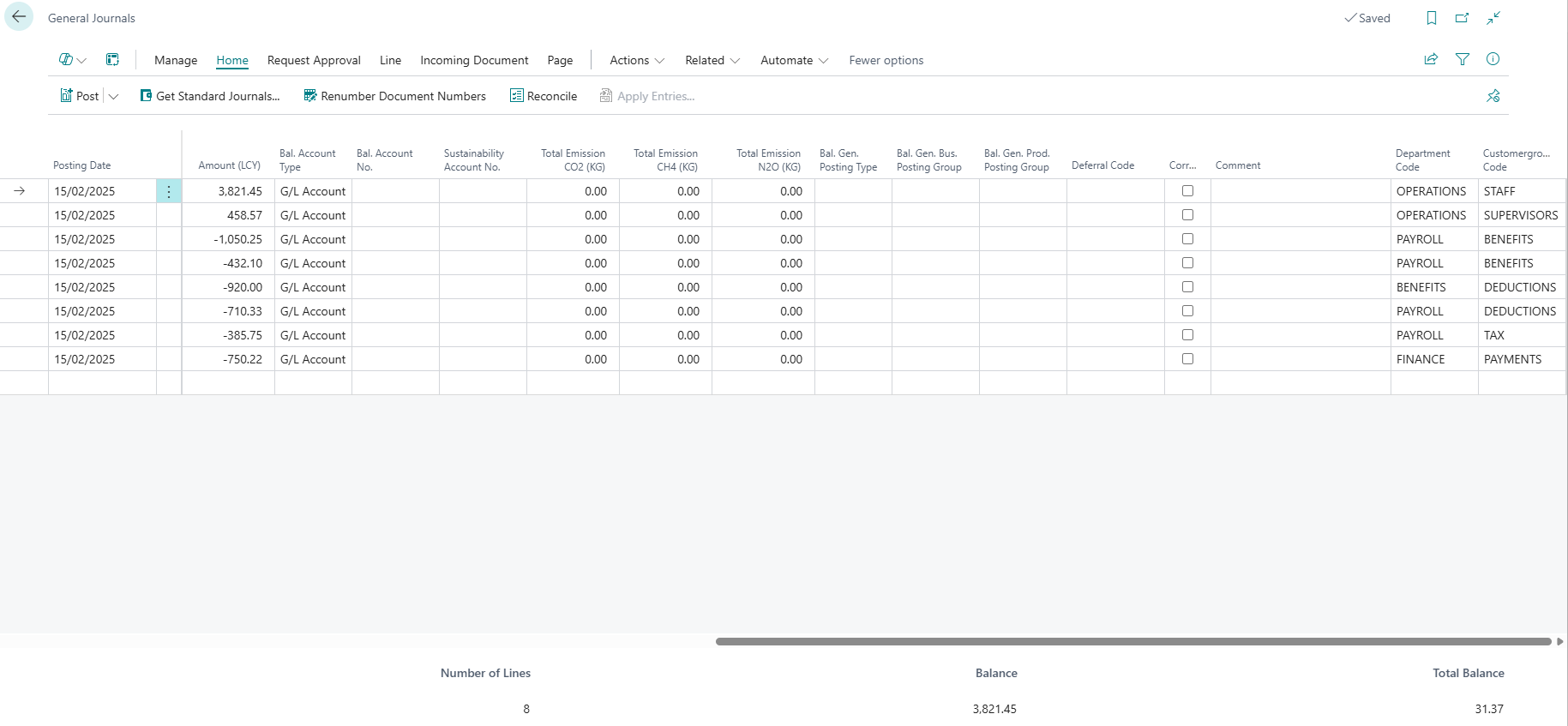
- Navigate to Finance > General Journals, and open the batch you processed to, such as DEFAULT.
- To see the dimensions, click Page > Show more columns, and scroll right.
- Check the lines balance, then post the journal.