Managers and Access
Access decides what each person can do when they log in to Microkeeper. Location managers decide which staff a manager can see, roster and approve, and pay cycle access decides which pay runs your payroll staff can run. This guide explains how these work together and how to make someone a manager.
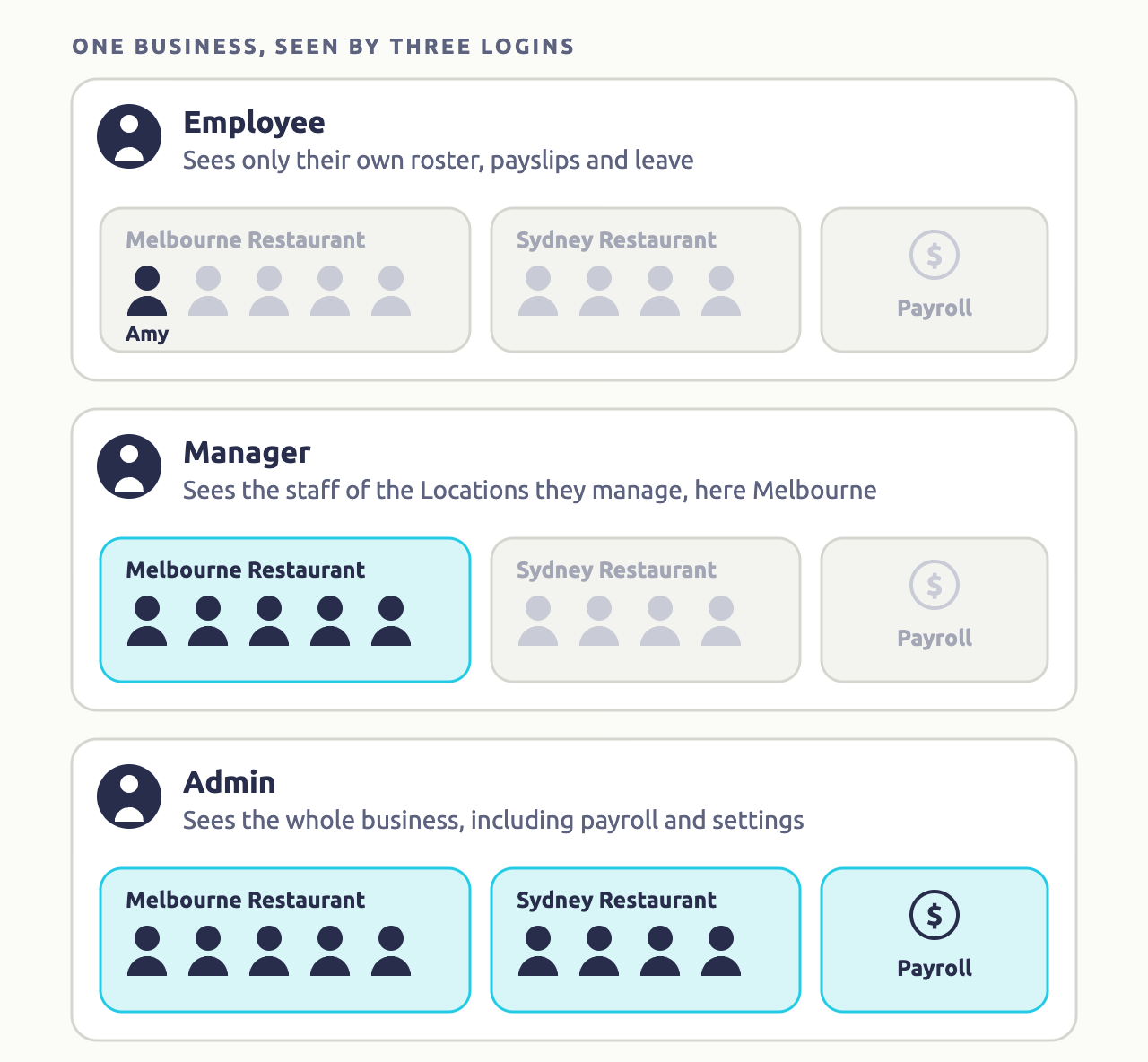
What access is in Microkeeper
Microkeeper has no single "role" setting for a login. Each employee has an Access Control section on their employee profile, with a set of options for each area of Microkeeper. What a person can do comes from the options you tick there.
The options are in two columns, and the combination someone has makes them one of three kinds of user:
| Kind of user | Access Control options | What they can do |
|---|---|---|
| Employee | No options in either column | Use the Employee Console: view their roster, payslips and leave, request leave, and clock on and off in the ways their Employee Clocking setting allows. |
| Manager | One or more Manager Options | Work with the staff they manage: rosters, timesheets, leave requests and staff details, depending on the options ticked. |
| Admin | One or more Payroll/Admin options, usually Settings and Payroll - Full Access | Run payroll, change settings, see reports, and set other people's access. |
The MFA Required setting in Global Settings uses the same split: Admin Access (Recommended) asks anyone with a Payroll/Admin option for a second sign-in step, and Manager Access adds anyone with a Manager Option.
An employee whose employment is terminated can only see a limited version of the Employee Console, and their clocking is turned off, whatever their access says.
Why managers and access matter
Access keeps pay and personal details with the people who need them. A restaurant manager can roster and approve their own staff without seeing payroll, bank details or the other restaurant's staff.
Managers also matter for pay. With Tick Approval turned on, a shift only goes into the pay run once a manager approves it, and a manager can only approve shifts for the staff they manage. If nobody manages an employee, nobody but an admin can approve their shifts. See Approve Timesheets.
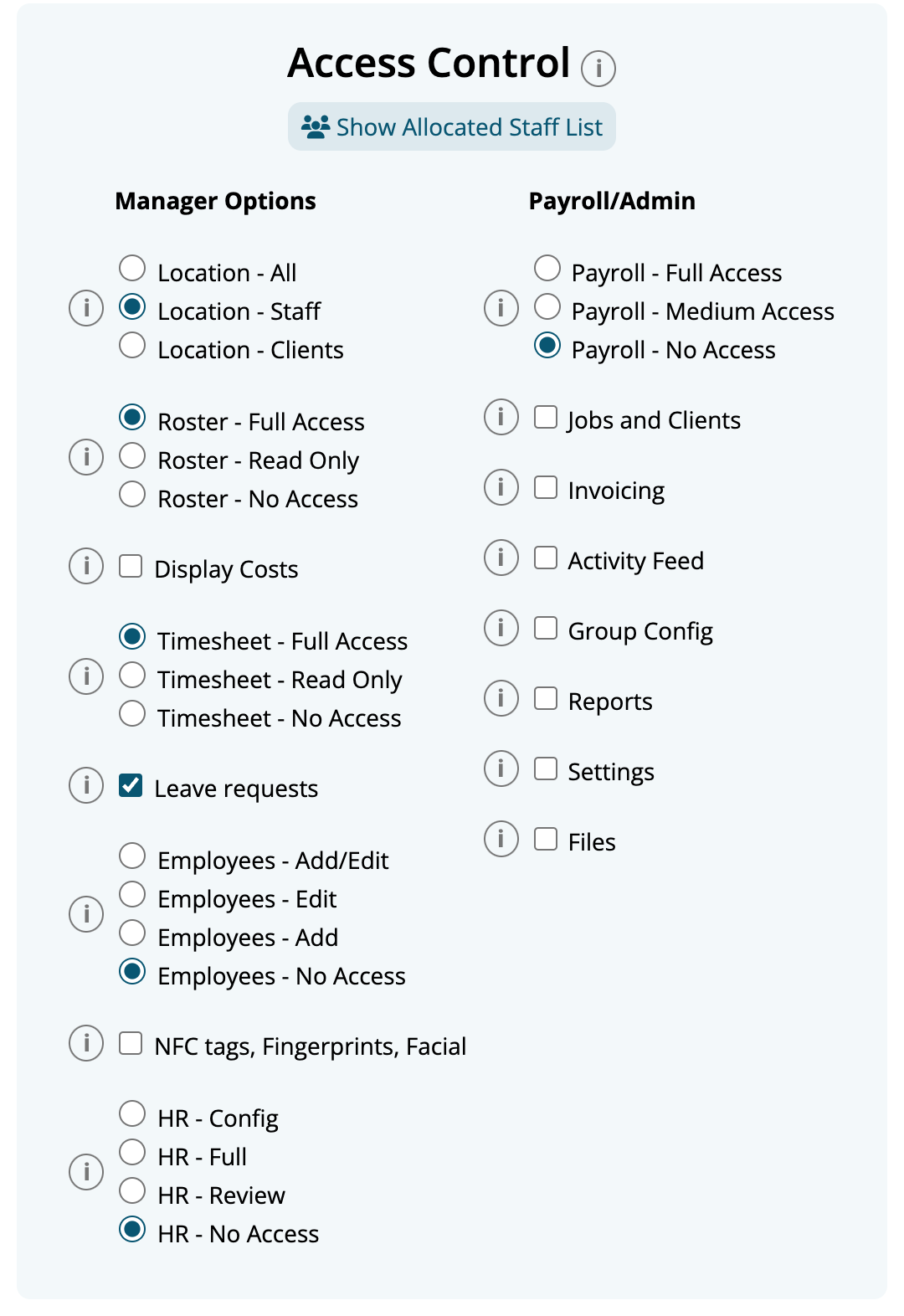
Manager Options in Access Control
The Manager Options column of Access Control sets what a manager can do for the staff they manage.
| Option | Choices | What it allows |
|---|---|---|
| Location | Location - All, Location - Staff, Location - Clients | Which staff the manager works with. See the next section. |
| Roster | Roster - Full Access, Roster - Read Only, Roster - No Access | Full Access creates and edits rosters on the Roster Calendar and Roster Template. Read Only shows the View Roster page only. |
| Display Costs | Tick box | Shows costs on the roster, such as pay rates and shift rule amounts. |
| Timesheet | Timesheet - Full Access, Timesheet - Read Only, Timesheet - No Access | Full Access adds, edits and approves timesheets. Read Only can view timesheets but not change them. |
| Leave requests | Tick box | Opens Leave Review, to approve leave and submit leave for other employees. |
| Employees | Employees - Add/Edit, Employees - Edit, Employees - Add, Employees - No Access | Adding staff and editing their profiles. Full access to the profile also needs Payroll - Medium Access, HR - Full, Roster and Files access. |
| NFC tags, Fingerprints, Facial | Tick box | Assigns NFC tags and enrols fingerprints for staff. |
| HR | HR - Config, HR - Full, HR - Review, HR - No Access | Reviewing Skills and Personal Files that staff submit. Config also sets up Skills and Personal File Templates. |
Payroll and Admin options in Access Control
The Payroll/Admin column gives access to whole areas of the business rather than to particular staff.
| Option | What it allows |
|---|---|
| Payroll - Full Access | View, edit and process pay runs. |
| Payroll - Medium Access | Read-only access to payslips, download the ABA file and lock the pay run, with no changes to payroll data. |
| Jobs and Clients | The Jobs and Clients areas. |
| Invoicing | Create and edit invoices. |
| Activity Feed | The activity feed on the home page. It holds no sensitive data. |
| Group Config | Set up Groups. |
| Reports | Reports and Analysis. Full reports also need Payroll access. |
| Settings | Every setting in Microkeeper, including this Access Control section. |
| Files | File management. Deleting files also needs Settings. |
Warning
Someone with Settings can change anyone's access, including their own. Give it only to the account holder and your payroll officer.
Only someone with both Payroll and Settings access can see the Access Control section.
Which pay cycles payroll staff can run
Payroll access covers every pay cycle. If you pay staff in more than one pay cycle, you can limit a pay cycle to some of your payroll team, for example so your Sydney payroll officer only runs Sydney's pay.
Each pay cycle's Access setting is either Whole Payroll Team, for everyone with Payroll access, or Selected:, for the people you tick. To set it, see Choose who can run a pay cycle.
With Selected:, anyone not ticked doesn't see the pay cycle on the Payruns page, and can't open its pay runs, payslips, bank file, STP history or super payments, or see its pay in payroll reports.
The pay cycle setting only narrows Payroll access: the people you tick still need Payroll - Full Access or Payroll - Medium Access in their Access Control.
Which staff a manager manages
A manager works with the staff of the Locations they manage. Three settings decide who that is:
- Location in the manager's Access Control. Location - All gives access to every Location and every employee. Location - Staff limits the manager to the staff of the Locations they're assigned to. Location - Clients does the same, and also limits timesheets to entries with Jobs for the Clients linked to those Locations.
- Managers on each Location's Access tab, which assigns the manager to that Location.
- Group on the same tab, the staff Group of that Location. The manager manages everyone in the Group. If the Group is All Staff, they manage everyone.
For example, the Melbourne Restaurant's Group is "Melbourne Staff" and its manager is the Melbourne restaurant manager. That manager sees and approves Melbourne staff, and Sydney staff don't appear on their timesheets.
How each area uses this:
| Area | What a manager with Location - Staff sees |
|---|---|
| Roster Calendar and View Roster | Only the Locations they manage. |
| Timesheet | Only staff in the Groups of the Locations they manage. They can only add, edit or approve shifts for those staff. |
| Leave Review | Only leave requests from those staff. |
| Dashboard | Only those staff. |
| Employees | Only those staff. |
The Primary manager and other managers in Notification Configuration don't change what a manager can see. They only decide who gets emails.
Make someone a manager
Give the person access first, then assign them to their Locations. A Location's Managers list only shows active staff who already have manager access.
Navigate to Menu > Settings > Employees.
- Click Edit next to the person.
- Scroll to Access Control.
- Under Manager Options, choose what they need. For a restaurant manager, choose Roster - Full Access, Timesheet - Full Access and tick Leave requests.
- Leave Location - Staff chosen, so they only manage their own Locations.
Each option saves as soon as you change it.
Navigate to Menu > Settings > General > Locations.
- Click the pencil button next to the Location they manage.
- Click the Access tab.
- Check the Group is the Group of staff who work at this Location.
- In Managers, click Select Manager and tick the person.
- Click Update.
To check who they now manage, go back to their employee profile and click Show Allocated Staff List in Access Control. It lists each employee they manage, with the Location they're managed through.
For more on the Access tab, see Locations. To put staff in a Location's Group, see Groups.
What a manager can approve and change on timesheets
A manager with Timesheet - Full Access approves shifts for the staff they manage. Microkeeper won't let them approve shifts for anyone else.
- A manager can't approve their own shifts. Someone with Settings access approves them.
- Once one of their own shifts has been approved, a manager without Settings access can't change it. Microkeeper shows "Shift has already been reviewed - Contact your manager to make a change".
- When a manager without Settings access edits an approved shift, the shift goes back to waiting for approval. When someone with Settings access edits it, it stays approved in their name.
Employees set to Self managed in Employee Clocking can add and view their own timesheets. Their shifts still wait for a manager to approve them.
Whether managers have to approve shifts at all depends on the Shift Approval setting. With Tick Approval, managers approve each shift and only approved shifts are paid. With Visual Approval, there's nothing to approve and every shift with hours is paid. See Approve Timesheets.
The manager's home page
When a manager logs in on a computer, they open on the Launchpad if they have Timesheet, Roster, Payroll or Settings access. Their menu shows only the areas their access allows.
Everyone else opens on the Employee Console. This includes:
- employees with no manager access
- a manager whose only access is Leave requests, who finds Leave Review at Menu > HR > Leave Review
- anyone logging in on a phone or the app.
Managers can reach their own payslips, roster and leave at Menu > Home > Employee Console. The Dashboard, at Menu > Home > Dashboard, shows the status of the staff they manage.
Manager notifications
Emails to managers are set separately from Location managers. Microkeeper sends each employee's notifications to the managers set for that notification type in Notification Configuration, or to their Primary manager if none is set. Notification types include leave requests, clocking issues, timesheet notes, payroll messages, HR, birthdays and hire anniversaries.
Making someone a Location manager doesn't send them any of these emails. Set them in Notification Configuration too.
Navigate to Menu > Manage > Notification Config. See Notification Configuration.