Getting Started
Welcome! Your employer uses Microkeeper for your shifts, hours and pay. In a few minutes you can log in, set your own password and tell your employer what they need to pay you.
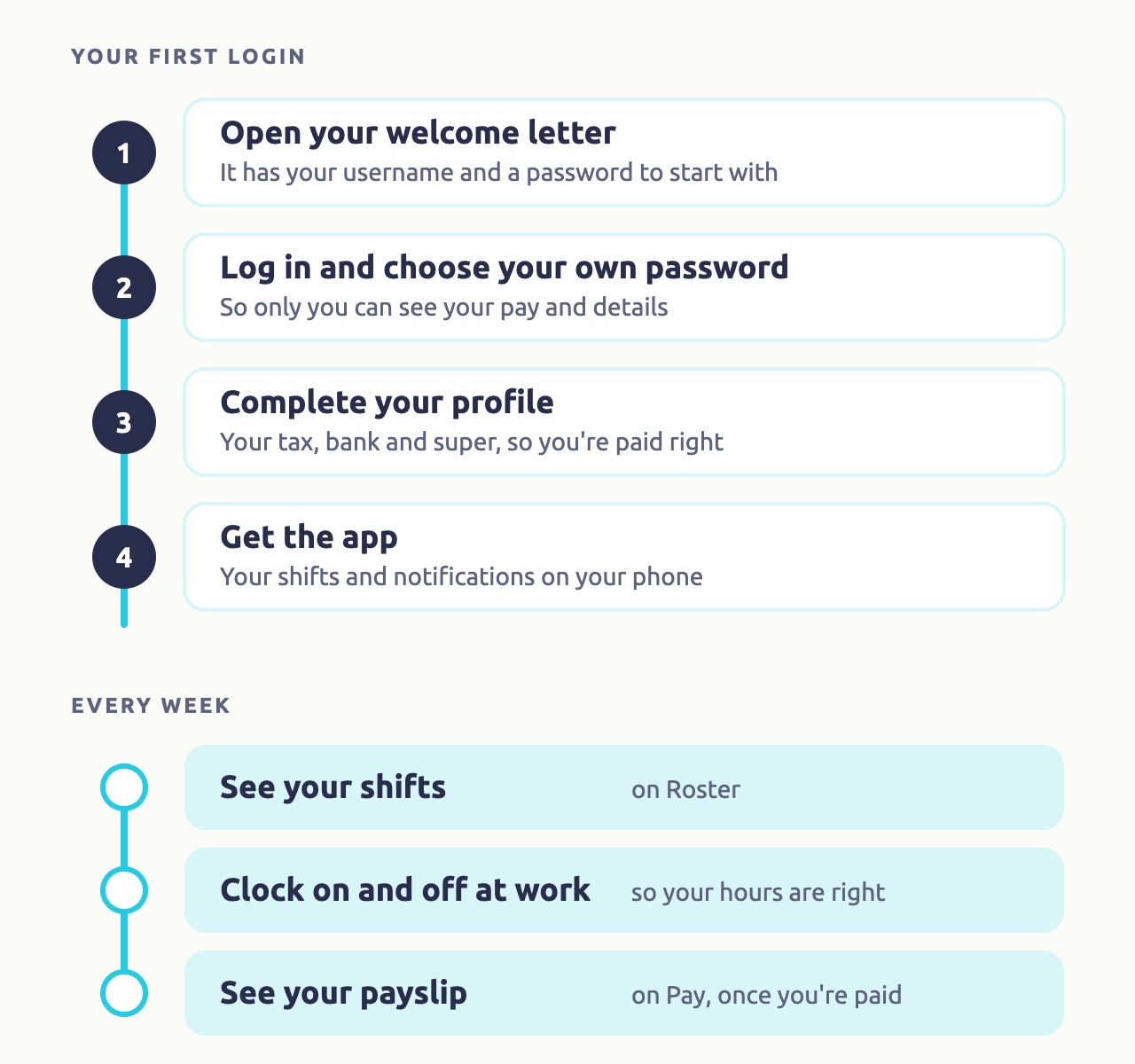
This guide covers how to:
- Log in for the first time.
- Choose your own password.
- Complete your profile.
- Get the Microkeeper app.
Log in with your welcome letter
Your employer sends you a welcome letter by email or text message. It has your Username and a Password to start with.
- Go to www.microkeeper.com.au/login.php, or open the Microkeeper app.
- Enter your Username and Password from the letter.
- Tap Login.
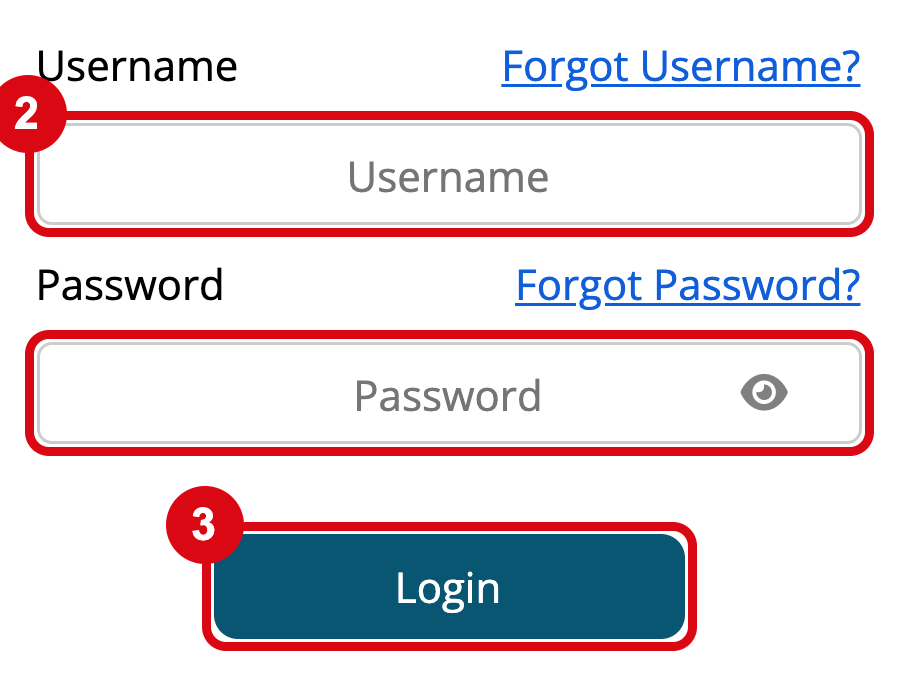
You log in with your username, not your email address. If you can't find your welcome letter, tap Forgot Username? and enter your email, or ask your manager to send it again.
Choose your own password
The password in your welcome letter is only for your first login. Change it to one only you know, so your details and pay stay safe.
- Tap Profile at the bottom of the screen, then Change Password.
- Enter your Current password, the one from your letter.
- Enter your new password twice. It needs at least 8 characters, with upper and lower case letters, a number and a special character such as ! or @. Four lights turn green as you go.
- Tap Update.
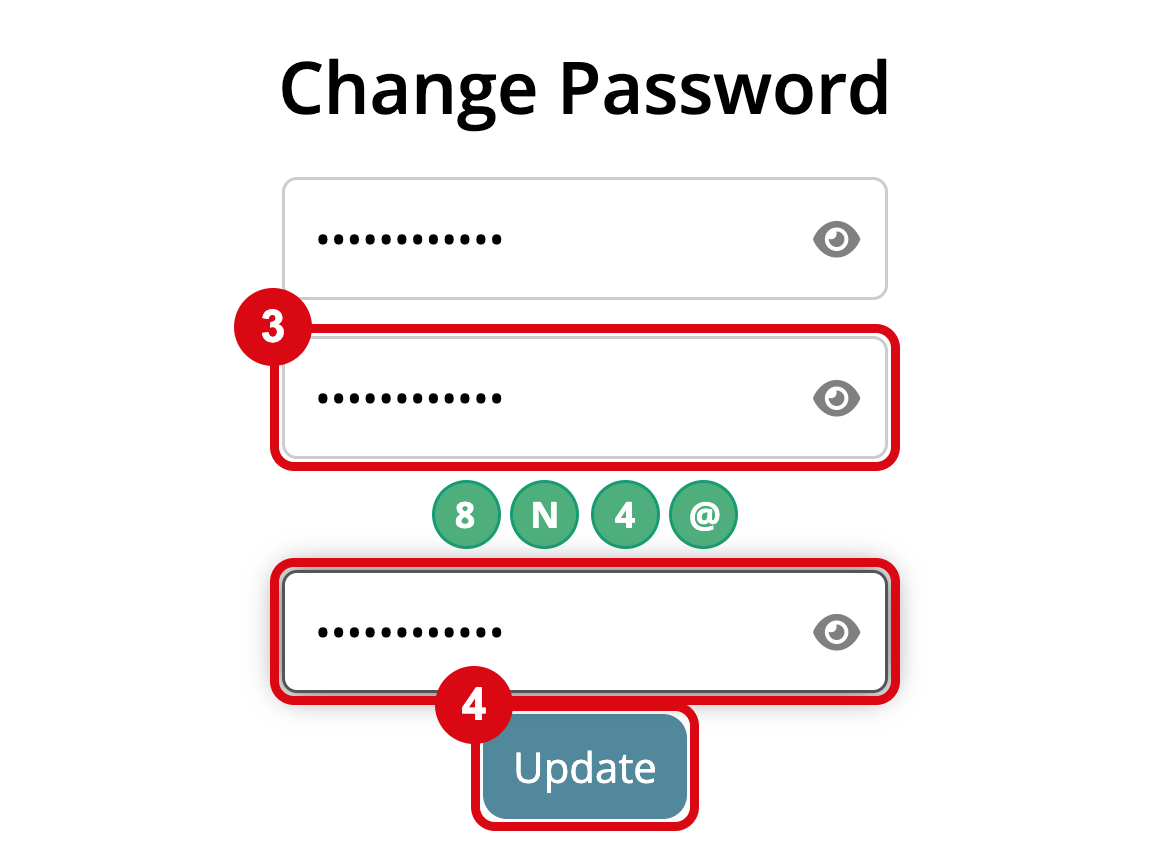
You're then logged out of your other devices, so log in again with your new password.
Complete your profile so you're paid right
When you first log in, Complete your profile asks for the details your employer needs to pay you: your date of birth, tax file number declaration, address, tax file number, bank account and super. It may also ask for your emergency contact, your availability and anything else your employer needs.
- Tap Continue Onboarding.
- Fill in each step. The bar shows how far you've got.
- Keep going until you see Thanks, your onboarding is complete!
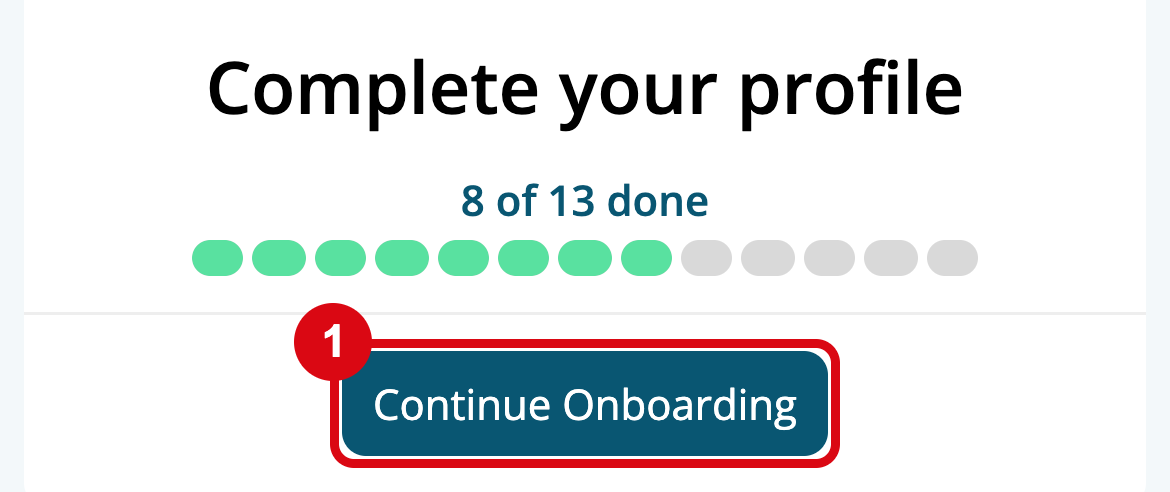
The card shows about how long is left. Have your tax file number, bank details and super fund ready. If you need to stop, tap Skip or Later, and pick up where you left off next time you log in.
Check your bank details carefully before you confirm them: your pay goes to that account.
Get the Microkeeper app
Download Microkeeper from the App Store or Google Play, and log in with your username and new password. Allow notifications when it asks: the app needs them to log you in, and they tell you when your roster is ready or you have a message.
See Microkeeper App.
What's next
- See your shifts. See Your Roster and Availability.
- Clock on and off at work, if your employer uses it. See Clocking On and Off.
- Complete any skills or documents your employer asks for. See Your Skills and Documents.
- See your payslips once you're paid. See Your Payslips and Details.
Getting started questions
Guides related to getting started
- Employee Console
- Microkeeper App
- Onboarding, for managers