Set Up Your Own Pay Agreement
If your staff are paid under your own pay agreement, such as an enterprise agreement, Microkeeper can pay it automatically. You turn each clause of the agreement into a pay rule: the rates into Rate Rules, the penalties and overtime into Shift Rules and Weekly Rules, and the allowances into Extra Rules. Every pay run then works out the agreement for every shift.
This guide works through a made-up agreement, the Harbour Cafe Enterprise Agreement 2026, from its clauses to a checked pay run. Use the same steps with your own agreement's rates and times.
| Required plan | All plans |
|---|---|
| Required access | Settings and Payroll - Full Access |
Before you set up your pay agreement
- Your agreement, with its pay rates, penalties, overtime, allowances and breaks.
- Each employee's Employment Type and date of birth on their profile, and the level they're paid at. See Employees.
- Each full and part time employee's Contracted Hours, so public holidays and leave are paid. See How Leave Works.
If only some of your staff are on the agreement, put them in a Group, and choose that Group on each rule instead of ALL. See Groups.
Match each clause of your agreement to a pay rule
Read through your agreement and note which rule pays each clause:
| The agreement says | Set it up with |
|---|---|
| Pay rates for each level or classification, and junior rates | Rate Rules |
| Casual loading, weekend and evening penalties, daily overtime, minimum shift lengths | Shift Rules |
| Overtime after a number of hours a week, or averaged over a few weeks | Weekly Rules |
| Rates for working a public holiday | The Worked PH tab of Shift Rules. See Public Holidays |
| Unpaid meal breaks | Break Rules |
| A spread of hours, and split shifts | Max Spread Rules |
| Allowances, such as laundry, tools, meals or first aid | Extra Rules |
| Rostered days off, or time off instead of overtime | Time in Lieu and RDOs |
| Leave loading | Annual Leave Loading on each profile. See Shift Rules |
The Harbour Cafe's agreement says:
- Rates: Level 1 $28.00, Level 2 $30.00 and Level 3 $32.50 an hour. Staff under 18 are paid 75%.
- Casuals: a 25% loading, and a 3 hour minimum shift.
- Weekends: Saturday 125% and Sunday 150%. Casuals get Saturday 150% and Sunday 175%.
- Evenings: an extra $3.00 an hour from 9pm to midnight, Monday to Friday.
- Overtime: after 10 hours in a day or 38 hours in a week, 150% for 2 hours, then 200%.
- Public holidays: 250%, with a 4 hour minimum.
- Meal break: 30 minutes unpaid on shifts of 5 hours or more, 3 hours in.
- Split shifts: all work within 12 hours of starting, with $5.00 for each split shift.
- Allowances: $5.00 a week laundry, and an $18.00 meal allowance when a manager asks someone to work past 10 hours.
Step 1: Create a Rate Rule for each level
Navigate to Menu > Settings > Payroll Rules > Rate Rules. Create a Rate Rule for each level, with a clause for adults and one for juniors:
| Rate Rule | Age 18 and over | Under 18 (Age 0) |
|---|---|---|
| Cafe Level 1 | 28.00 | 21.00 |
| Cafe Level 2 | 30.00 | 22.50 |
| Cafe Level 3 | 32.50 | 24.38 |
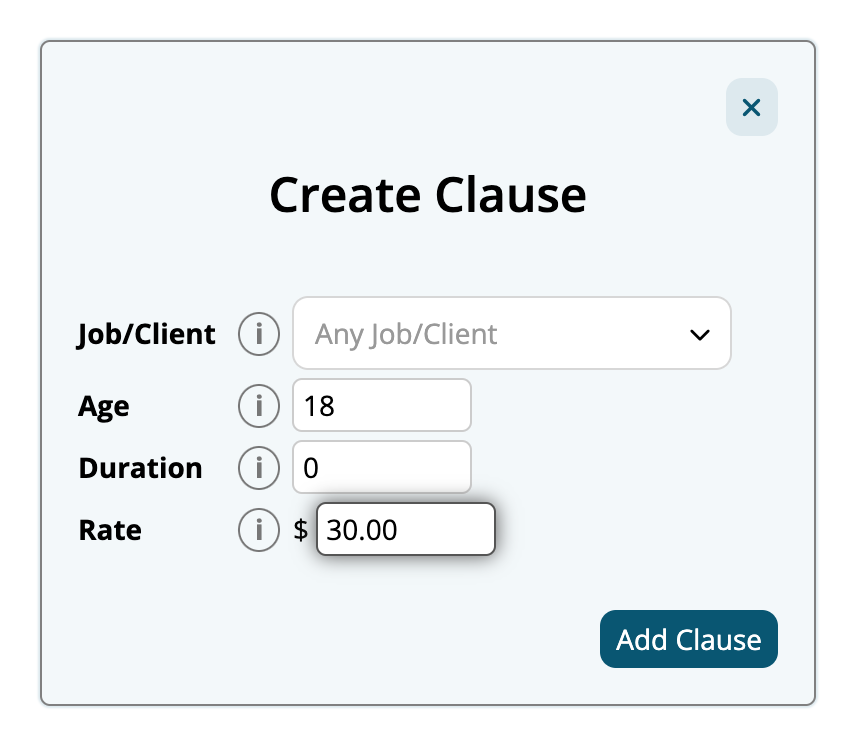
Then choose each employee's level under Rate Rule on their profile. See Rate Rules.
Step 2: Add Weekly Rules for overtime after 38 hours
Navigate to Menu > Settings > Payroll Rules > Weekly Rules, and add two, each with Hours set to OTE Hours - All days and Classification Overtime:
| Title | Trigger hours | Duration | Multiplier |
|---|---|---|---|
| Cafe Weekly OT 1.5x | 38 | 2 | 1.5 |
| Cafe Weekly OT 2x | 40 | 200 | 2 |
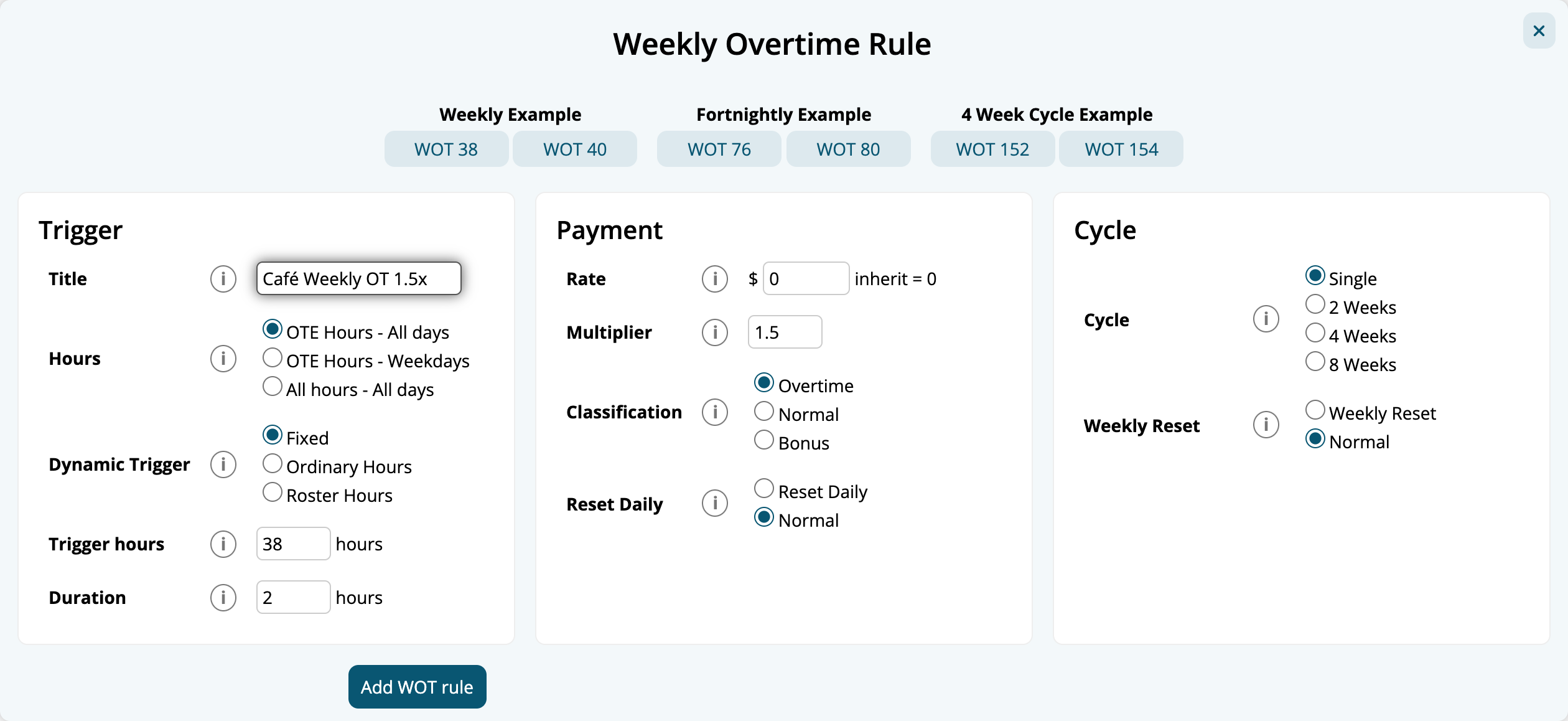
You'll add them to the ordinary hours Shift Rules in the next step. See Weekly Rules.
Step 3: Add Shift Rules for loadings, penalties and overtime
Navigate to Menu > Settings > Payroll Rules > Shift Rules. On the Normal Rules tab, add these rules in this order, each with Priority set to Bottom, Group/Employee ALL and Type Hours Breaks Removed:
| Title | Employment Type | Day | Period | Multiplier | Class | WOT Rule |
|---|---|---|---|---|---|---|
| Overtime 2x | All | Every Day | 12:00 to 24:00 | 2 | Overtime | |
| Overtime 1.5x | All | Every Day | 10:00 to 12:00 | 1.5 | Overtime | |
| Casual Sunday | Casual | Sunday | 00:00 to 10:00 | 1.75 | Normal | Both |
| Casual Saturday | Casual | Saturday | 00:00 to 10:00 | 1.5 | Normal | Both |
| Casual Ordinary | Casual | Every Day | 00:00 to 10:00 | 1.25 | Normal | Both |
| Sunday | All | Sunday | 00:00 to 10:00 | 1.5 | Normal | Both |
| Saturday | All | Saturday | 00:00 to 10:00 | 1.25 | Normal | Both |
| Ordinary | All | Every Day | 00:00 to 10:00 | 1 | Normal | Both |
The order does the work. The first rule that matches pays each hour, so:
- Overtime comes first, so hours after 10 are paid as overtime before any other rule takes them.
- Casual rules come before the rules for everyone, so casuals get their loading.
- The weekend rules come before the Every Day rules, so a Saturday is paid by the Saturday rule, and Every Day pays the weekdays left over.
Give Casual Ordinary, Casual Saturday and Casual Sunday a Min Shift Length of 3, for the 3 hour minimum. Under WOT Rule, "Both" means choose Cafe Weekly OT 1.5x and Cafe Weekly OT 2x.
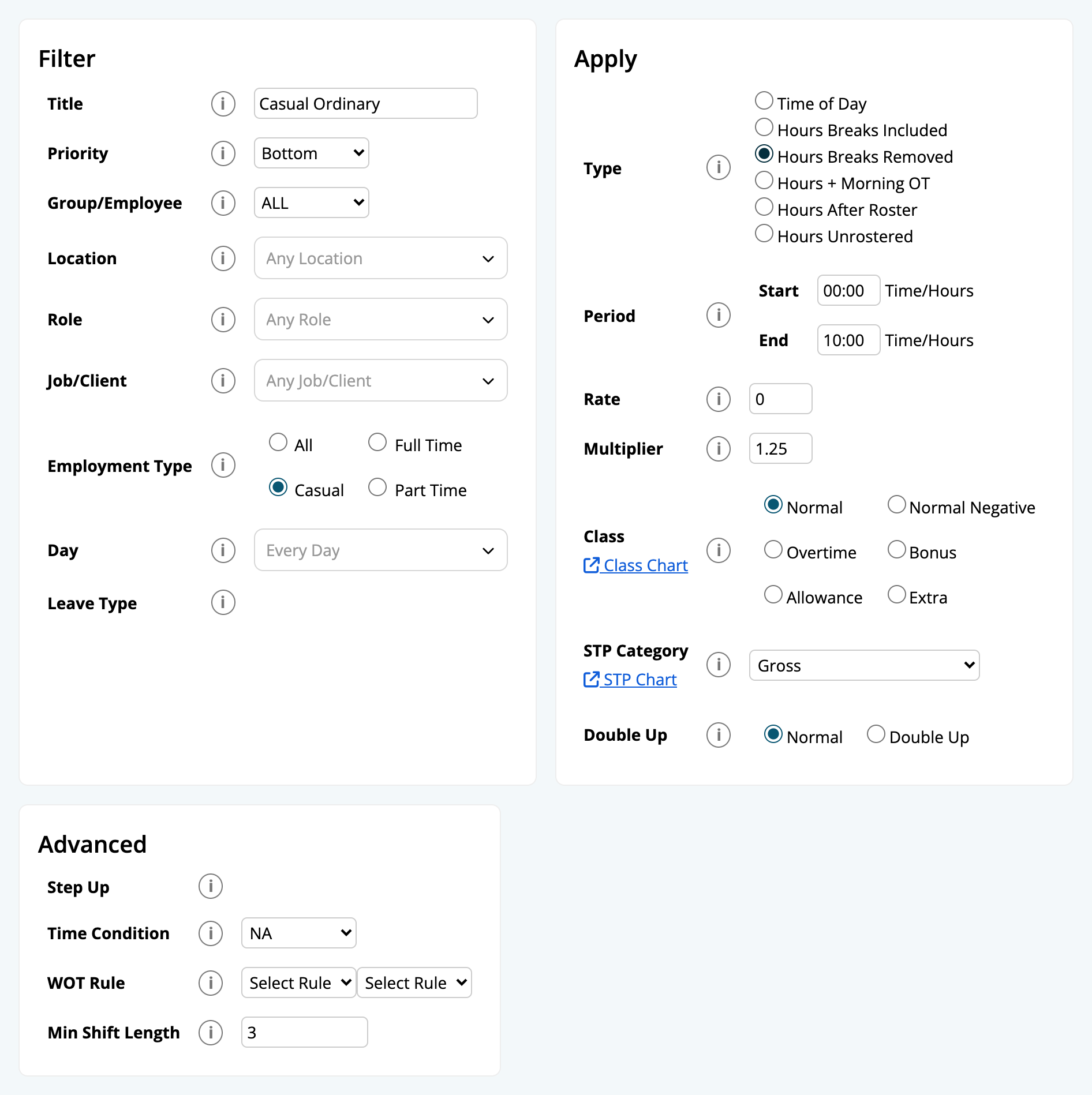
Then add the evening penalty, which is paid on top of the hours: Title "Evening", Type Time of Day, Day Monday to Friday, Period 21:00 to 24:00, Rate "3.00", Multiplier "1", Class Bonus and Double Up.
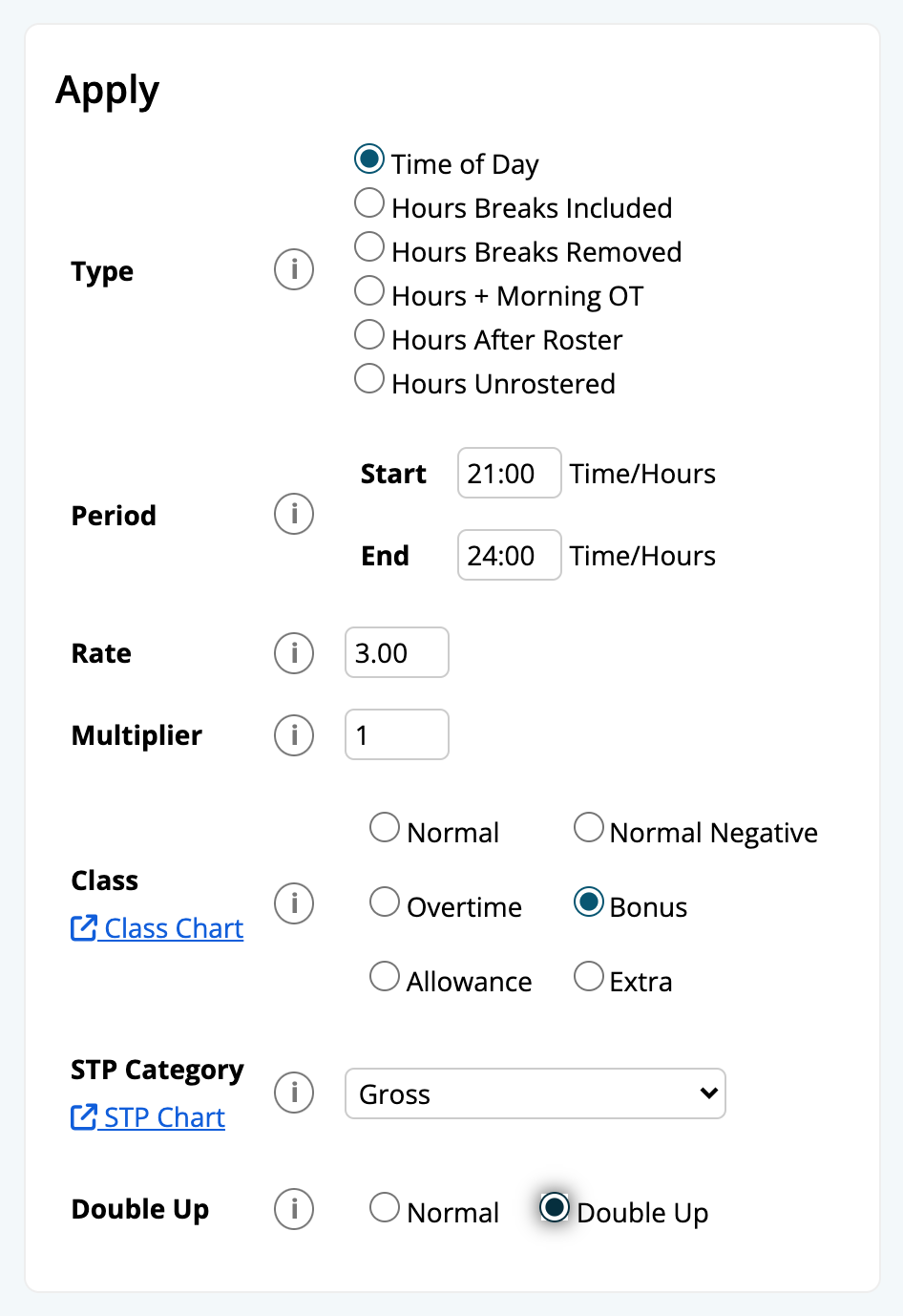
See Shift Rules.
Step 4: Add the public holiday rate
On the Shift Rules Worked PH tab, click Add Worked Public Holiday and add "Public Holiday" with Type Hours Breaks Removed, Period 00:00 to 24:00, Multiplier "2.5", Class Normal and Min Shift Length "4". Full and part time staff who don't work a public holiday are paid it automatically. See Public Holidays.
Step 5: Add the meal break
Navigate to Menu > Settings > Payroll Rules > Break Rules, click Create Break Rule and then Standard 30 min: an unpaid 30 minute break on shifts of 5 hours, 3 hours in. Name it "Cafe meal break" and click Save Break Rule. See Break Rules.
Step 6: Add the allowances
Navigate to Menu > Settings > Payroll Rules > Extra Rules, and add each with Staff ALL, Fixed and Class Allowance:
| Title | Method | Value | STP Category |
|---|---|---|---|
| Laundry | Based on shifts worked, if 1 or more shifts are worked | 5.00 | Laundry |
| Overtime Meal | Selected on the timesheet, Access Manager only | 18.00 | Overtime Meal |
| Split Shift | Split shift, Per Split Shift | 5.00 | See the STP chart |
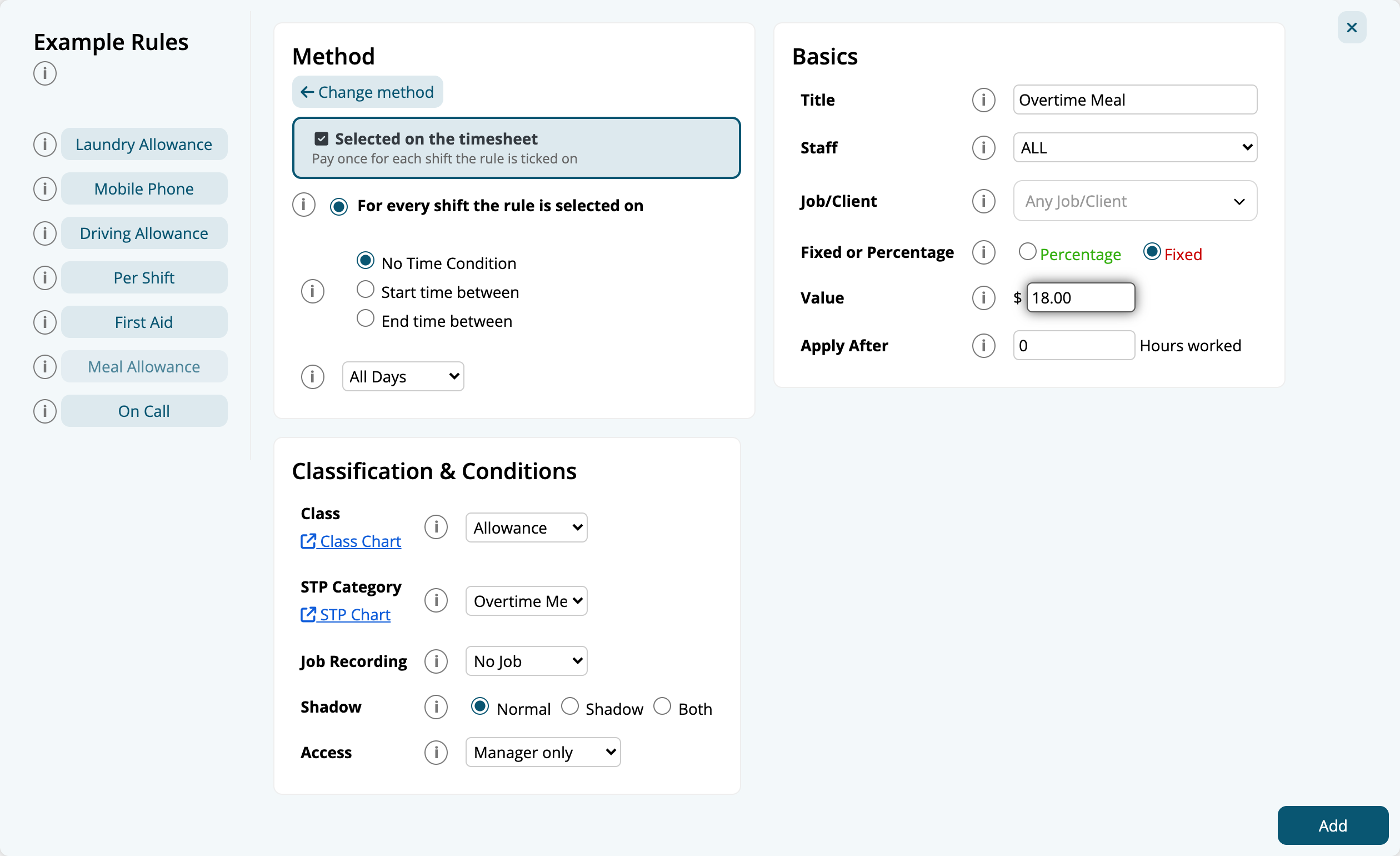
A manager ticks the meal allowance on the shift in Timesheets. See Extra Rules.
Step 7: Join split shifts within 12 hours
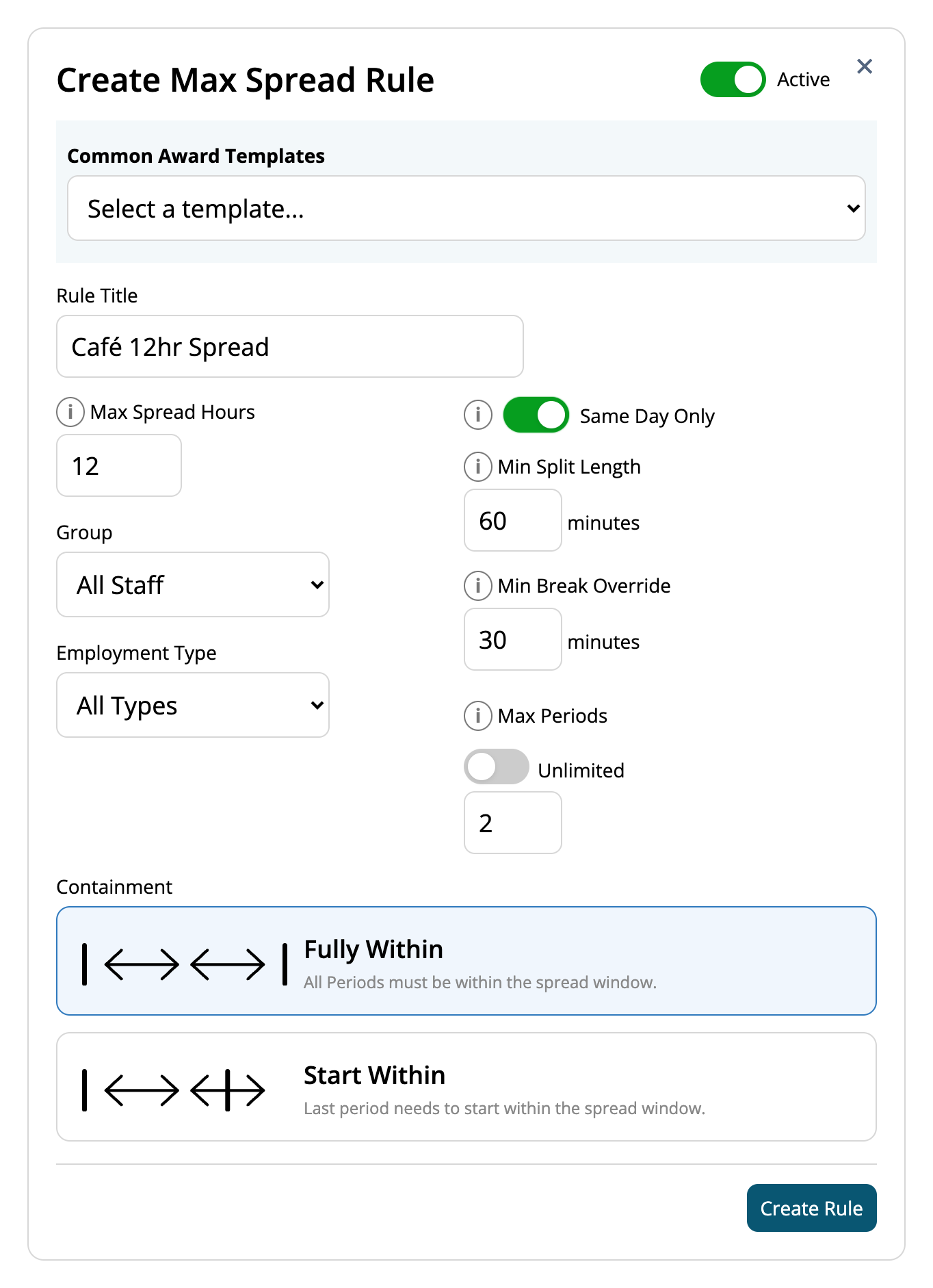
Navigate to Menu > Settings > Payroll Rules > Max Spread Rules, click New Max Spread Rule, and add "Cafe 12hr Spread" with Max Spread Hours 12, Group All Staff, Same Day Only on, Max Periods 2 and Containment Fully Within. Click Create Rule. The Split Shift allowance is only paid on days this rule joins. See Max Spread Rules.
Check your pay agreement before the first pay run
Open the Free Award Pay Calculator while you're logged in. It uses your own rules. Try shifts from your agreement and compare each line with what it should pay. For a Level 2 casual, with Base Rate 30.00:
| Shift | Expected lines |
|---|---|
| Saturday, 9:00 to 13:30 | Casual Saturday: 4.5 hours at $45.00, $202.50 |
| Tuesday, 18:00 to 22:30 | Casual Ordinary: 4.5 hours at $37.50, $168.75 Evening: 1.5 hours at $3.00, $4.50 |
| A public holiday, 10:00 to 12:00 | Public Holiday: 4 hours, the minimum, at $75.00, $300.00 |
Then try a long day, a week over 38 hours and a split shift. Process your first pay run, and check a few payslips line by line before you pay it.
Keep your pay agreement up to date
When the agreement's rates change, update before you process the first pay period they apply to:
- Each Rate Rule clause's Rate.
- Any Shift Rule with a fixed Rate, such as the evening penalty.
- The Value of each allowance in Extra Rules.
Multipliers don't change when rates rise, as they're a share of the base rate.