Onboarding Review
Onboarding Review shows which new staff have finished onboarding, what's still missing, and which steps hold staff up most. Use it to follow up staff, check they're ready for payroll, and send welcome letters.
| Required plan | All plans |
|---|---|
| Required access | Settings, or Employees - Add/Edit or Employees - Edit |
This guide covers how to:
- Choose which staff to review.
- Follow up staff, and find the steps holding them up.
- Check staff are ready for payroll.
- Send welcome letters and export the results.
For how onboarding works for staff, see Onboarding.
Open Onboarding Review
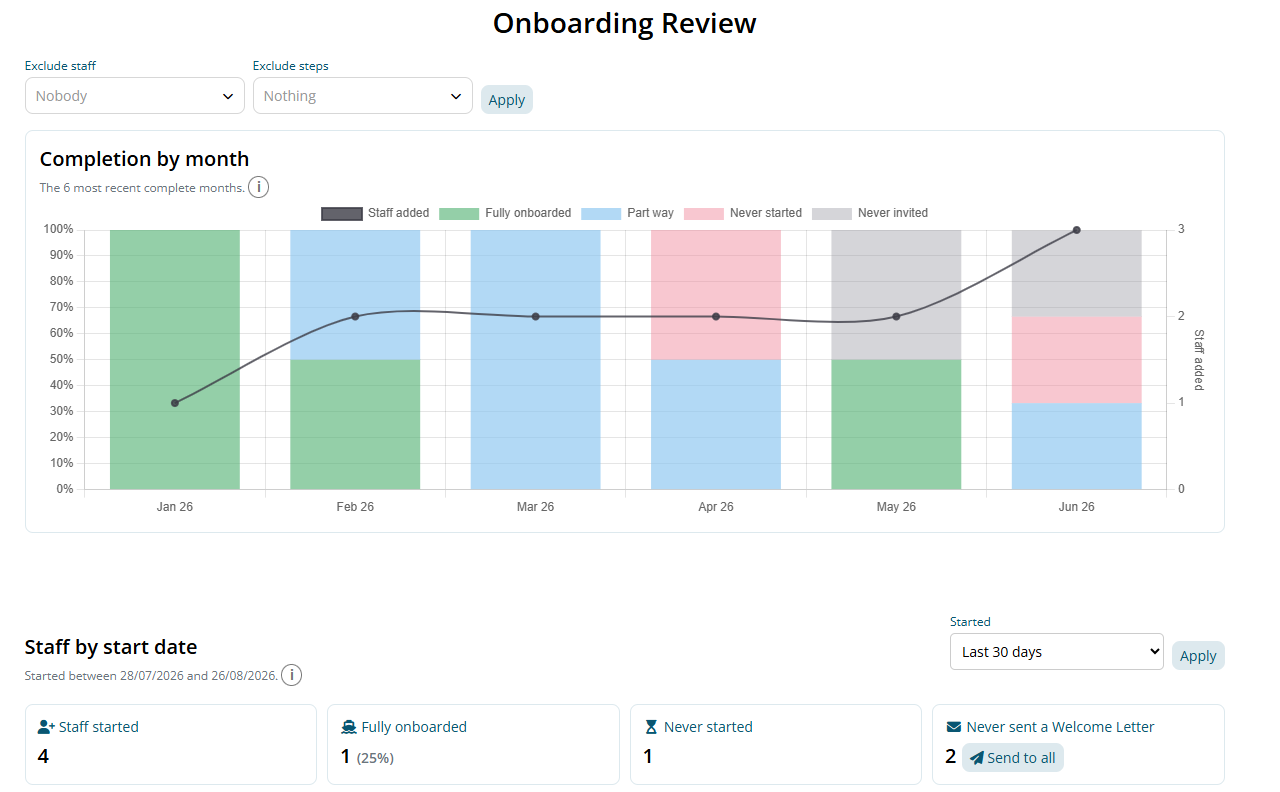
Navigate to Menu > Settings > Employees and click the Staff Added box, which shows how many staff were added in the last 30 days.
A manager limited to their own Locations only sees the staff they manage.
Choose which staff to review
Under Staff by start date, choose a Started period and click Apply. Staff are grouped by their start date, not when their profile was last changed.
- Last month, which the page opens on.
- Yesterday, Last 4 days, Last 7 days, Last 30 days or Last 3 months.
- Starting in the next 30 days, to prepare for upcoming starters.
- Everyone still outstanding: everyone who hasn't finished, whenever they start.
- Custom: enter a From and To date.
At the top, you can also narrow the report to a Group, or to staff Added by one person. Then click Apply.
Exclude staff or steps
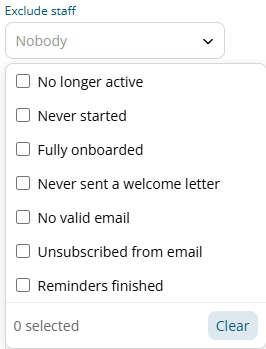
Exclude staff leaves people out of the tables, totals, graph and CSV: No longer active, Never started, Fully onboarded, Never sent a welcome letter, No valid email, Unsubscribed from email or Reminders finished. Tick as many as you need, then click Apply.
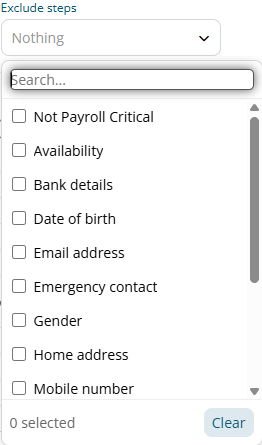
Exclude steps leaves onboarding steps out of the progress and percentages, such as a profile picture you don't need. It doesn't remove the step from what staff are asked. Not Payroll Critical, at the top of the list, leaves only the steps payroll needs. Type in Search to find a step.
Read the summary and completion graph
- Staff started: the staff in the period you chose, after exclusions.
- Fully onboarded: how many, and what percentage, have no steps outstanding. With Everyone still outstanding, this shows Steps outstanding instead: the total number of unfinished steps.
- Never started: staff with every step still outstanding.
- Never sent a Welcome Letter: active staff with an email address who haven't had their letter. This counts everyone you manage, whatever period you chose, because Send to all sends to all of them.
Completion by month shows, for each of the last six complete months, how many staff were added (the line) and what share of them are Fully onboarded, Part way, Never started, or Never invited because they haven't been sent a welcome letter. It ends two months back, to give recent starters time to finish, and ignores the period you chose.
Follow up staff with By Employee
By Employee lists each employee, with the most steps outstanding first. Each row shows their Start date, who added them, the Days since they started, their Progress, the steps still Outstanding, and which Reminder email they're up to, such as "3 of 12".
Tags under an employee's name show which of the Exclude staff groups they're in, such as #not_started or #nudges_done once their reminders have finished. To find one employee, type in Search.
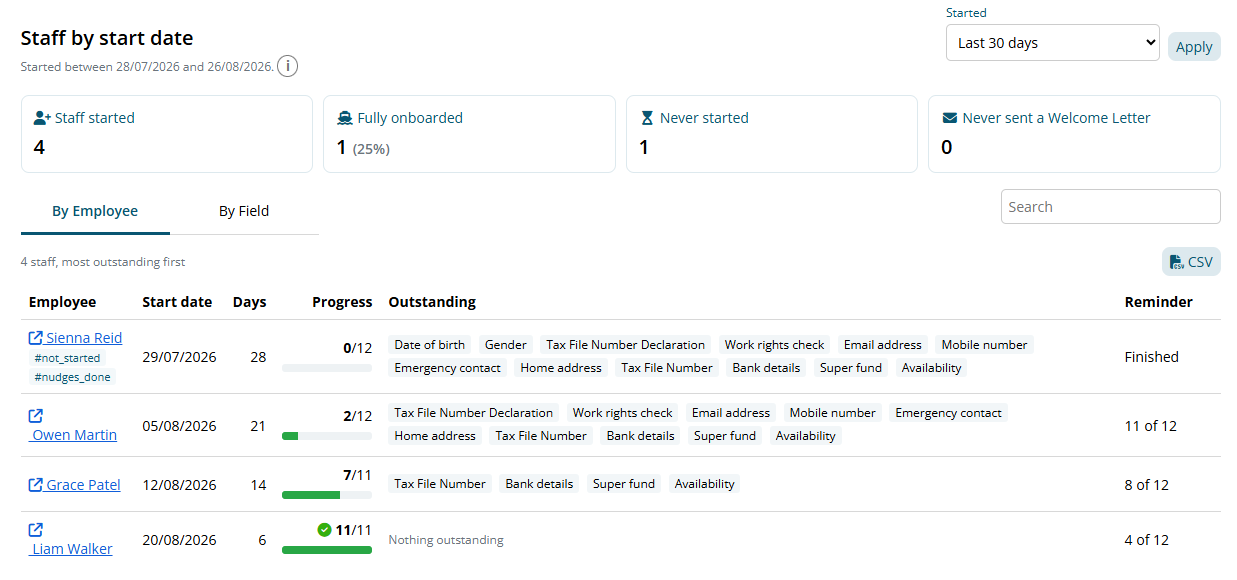
Microkeeper sends staff who haven't finished a reminder email every second day for 24 days from their start date, so a row showing "Finished" won't get more. Follow them up yourself.
To send one employee their welcome letter, click Welcome on their row.
Find the steps holding staff up with By Field
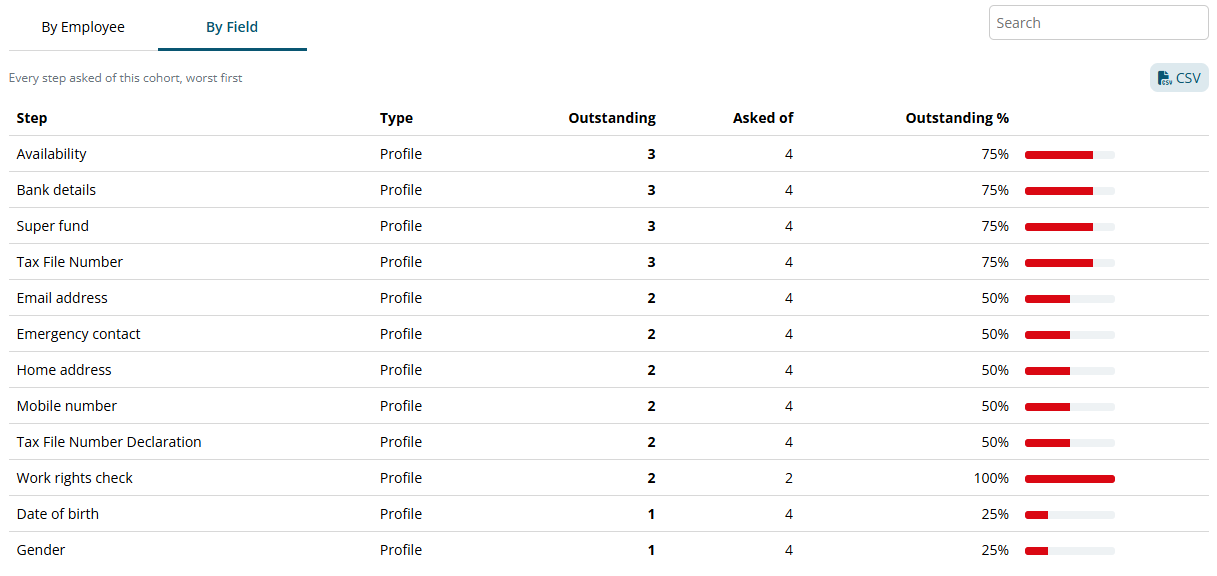
By Field lists each onboarding step asked of the staff you're reviewing, with how many still have it Outstanding, how many it was Asked of, and the Outstanding %, worst first. Some steps are only asked of some staff: a work rights check, for example, is only asked of staff who need one.
A step near the top for many staff, such as the super fund, is worth explaining to new starters before they begin.
By Manager groups the staff by who added them, so you can see which managers' new starters need follow-up.
Check staff are ready for payroll
- Under Exclude steps, choose Not Payroll Critical.
- Under Started, choose Everyone still outstanding.
- Click Apply.
Anyone still listed is missing something payroll needs: their date of birth, address, tax file number declaration, tax file number, bank account, super fund or member number.
This view leaves out gender, but super payments are rejected for staff without one. Also check each employee has a gender on their profile.
Send welcome letters and export results
Next to Never sent a Welcome Letter, click Send to all, then OK. Letters go to up to 250 staff at a time; click it again if you have more.
To export, click CSV on By Employee or By Field. The file follows the filters you've applied.