Accounting Export
The Accounting Export puts each pay run into your accounting system: its wages, allowances, super, deductions, PAYG withholding and net pay, each against the account you choose. Microkeeper sends it straight to Xero or Reckon, and makes an import file for other systems.
| Required plan | All plans |
|---|---|
| Required access | Report and Payroll |
| To choose the accounting system and set up the Chart of Accounts | Settings |
This guide covers how to:
- Choose the accounting system for each ABN.
- Map each line of a pay run to an account.
- Break the export down by cost centre.
- Send or export each pay run.
Accounting systems Microkeeper works with
| Accounting system | How each pay run gets there | Guide |
|---|---|---|
| Xero | Sent to Xero as a bill | Xero |
| Reckon | Sent to Reckon as an invoice | Reckon |
| MYOB | A Transaction Journal file you import into MYOB | MYOB |
| QuickBooks | A journal CSV file you import into QuickBooks | QuickBooks |
| Microsoft Business Central | A general journal Excel file you import into Business Central | Business Central |
| Pronto | A journal CSV file you import into Pronto | Pronto |
| Companion Software | A journal CSV file | Below |
| Spreadsheet, or Other / Undecided | A journal CSV file for any other system | Below |
Choose the accounting system for each ABN
Each ABN has its own accounting system, Chart of Accounts and mapping, so two businesses in one Microkeeper account can use different systems.
- Navigate to Menu > Settings > General > Global, then click ABN and Pay Cycles.
- Click the pencil beside the ABN.
- In the Update ABN window, choose the system in Accounting.
- Click Update ABN.
The ABN then shows its accounting system, and a Connect to Xero or Connect to Reckon button if it sends directly.
Before you've set up any pay cycles, you can choose it instead in Menu > Settings > General > Global > System Settings, under Accounting Suite. Once there are pay cycles, that setting shows Change Accounting Suite, which opens ABN and Pay Cycles.
Set up your accounts before the first export
The accounts you map pay run lines to come from the ABN's Chart of Accounts. For Xero and Reckon, connect and sync them from your accounting system. For every other system, add the accounts you post payroll to, using their codes from your accounting system. See Chart of Accounts.
Map each pay run line to an account
- Navigate to Menu > Payroll > Payruns and open the pay run.
- Click Complete Payrun, then 3. Export.
- Under Assign Costs, give each line a Description, the words that appear on the journal line, and choose its Account. Choose a tracking category too, if the ABN has any.
- Click Save Settings.
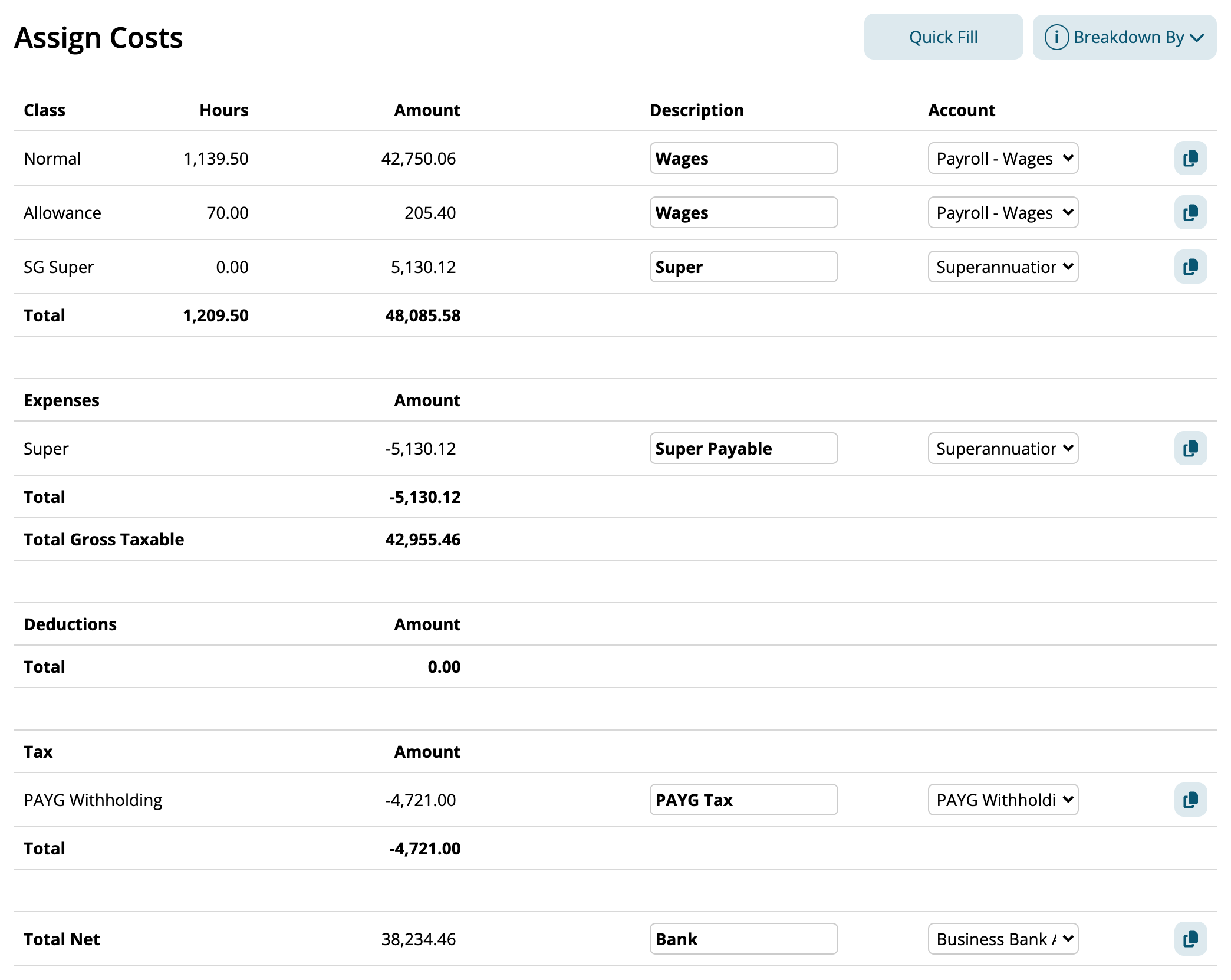
Assign Costs lists the pay run in sections:
- Total: the payments, split by Class, such as Normal, Allowance and SG Super.
- Expenses: super and other costs you owe for your staff rather than pay them, usually mapped to a payable account such as super payable.
- Deductions: amounts taken from pay, such as child support.
- Tax: PAYG Withholding.
- Total Net: what's paid into staff bank accounts, usually mapped to your bank account. Xero and Reckon don't take this line: you pay the bill or invoice from your bank.
The first time you open 3. Export, Microkeeper fills in the mapping for you from your account names, such as wages to your wages account. Check each line, change what's wrong, and click Save Settings.
Your mapping is saved for the next pay run. When a pay run has a line the mapping hasn't seen, such as a new allowance, that line is blank. Fill it in and save before you send.
Fill in many lines at once
Click Quick Fill to give lines the same Description, Account or tracking category. Choose Fill All or Fill Empty, tick what to fill, choose the values, and click Fill Fields.
To copy one line to another, click the copy button at the end of the line, then the paste button on each line to copy it to.
Break the export down by cost centre
Click Breakdown By and tick how to split each section into lines:
- Title: each payment title on the payslips.
- Date: each day.
- Location, Role or Job: each cost centre.
- Class: each Class, such as Normal or Allowance. This is the default.
Each line then gets its own Description, Account and tracking category, so you can post each Location's wages to its own account or tracking category. Class alone is enough for most businesses. Date adds a line for every day, which you'd check each pay run, so leave it off unless you need it.
Breakdown By applies to every ABN. To split by Location, Role or Job, pay runs need to keep them. See Cost Centre Reporting.
Send or export each pay run
Once the mapping is saved, the button for your accounting system shows at the top of 3. Export:
- Send to Xero or Send to Reckon sends the pay run to the connected organisation or book.
- MYOB Export downloads a Transaction Journal, in Legacy (v19 or earlier) or Current (2015+) format.
- Quickbooks Export, Microsoft Business Central Export, Pronto Export, Companion Software Export, Spreadsheet Export or Other Export downloads a file to import.
Each line is dated the pay run's Payment Date. Send or export a pay run once it's locked, so its amounts don't change after you've posted them.
Export for Companion Software or a spreadsheet
Companion Software Export downloads a CSV with the columns GL ACCOUNT, DATE, DETAILS, QUANTITY, DR, CR and BAS.
Spreadsheet Export, and Other Export for an ABN set to Other / Undecided, download a CSV journal for any other system, with the columns Date, Journal Name, Description, Account Number, Account Name, Debit Amount, Credit Amount, Amount and a column for each tracking category.