Record and Approve Timesheets
This is step 6 of Quick Start. Timesheets are the hours your staff actually worked, and they're what Microkeeper pays from.
By the end of this step you'll have:
- Chosen how timesheets are approved.
- Let your staff clock on and off from their own device.
- Approved a week of timesheets.
Before you record timesheets
Finish Roster Your First Week first. Clocked shifts take their Location, and Role if you use them, from the roster.
Choose how timesheets are approved
Navigate to Menu > Settings > General > Global, then click Timesheet Settings.
- Under Shift Approval, choose Tick Approval if managers should approve each shift, or Visual Approval if one person looks over all the timesheets, with nothing to tick.
- With Tick Approval, under Auto Shift Approval, you can choose Auto approve shifts that match roster so shifts worked exactly as rostered are approved for you.
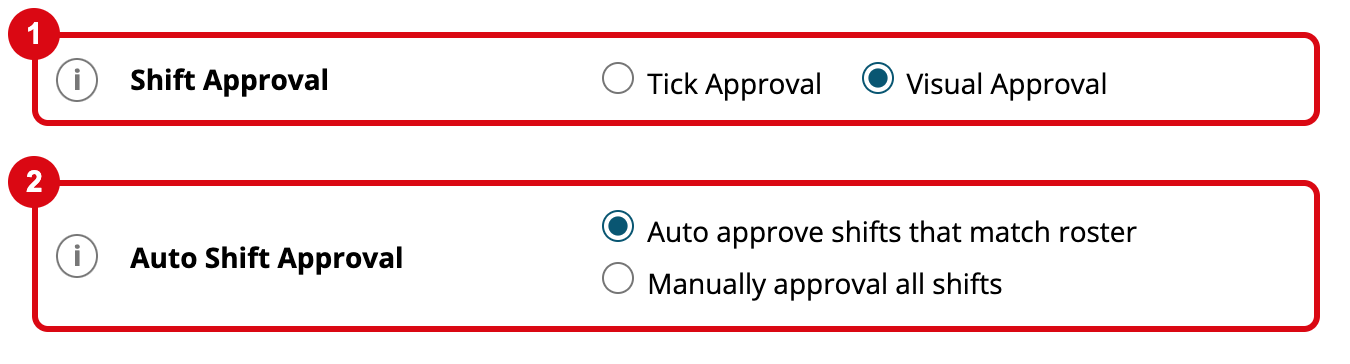
The setting saves as soon as you choose it, and Saved appears.
Warning
With Tick Approval, shifts that no manager has approved are left out of the pay run, and nothing on the pay run says so. Approve every shift before you run payroll.
Let your staff clock on from their own device
Staff you add one at a time start on NFC / Fingerprint clocking, which needs a scanner. To let them clock on from their phone or computer, change each employee's clocking.
Navigate to Menu > Settings > Employees and open the employee's profile.
- Go to the Employee Clocking section.
- Choose Any internet device. It saves as soon as you choose it.
The change takes effect the next time the employee logs in. For kiosks, fingerprint scanners and other options, see Clocking Options.
How your staff clock on and off
Staff open the Employee Console, click Clock on when they start and Clock off when they finish. They can add their meal break from the Break list during the shift.
If you'd rather enter the hours yourself, add them on the Timesheets page or generate them from the roster. See Timesheets and Timesheet from Roster.
Approve the week's timesheets
With Tick Approval, each manager approves their own staff's shifts before payroll.
Navigate to Menu > Rosters > Timesheet.
- Choose the week.
- Click Pending to list the staff with shifts waiting for approval.
- Open an employee and check their shifts against the roster.
- Click Approve All to approve the employee's week. Approved shifts turn green.
- Repeat for each employee.
Check your timesheets are ready for payroll
On the Timesheets page for the week, each employee has a shift for each day they worked. With Tick Approval, the employee list shows 100% Approved.
Next step: set up your pay rules
Continue with Set Up Your Pay Rules so those hours are paid at the right rates.