Your Roster and Availability
Your roster shows the shifts your manager has given you, so you know where and when you're working. Your availability tells your manager when you can work, so they can roster you at the right times.
This guide covers how to:
- See your shifts.
- Accept or decline a shift.
- Pick up extra shifts.
- Add your roster to your phone's calendar.
- Tell your manager when you can work.
See your shifts
- Tap Roster.
- Use the arrows beside Week to move a week at a time. The right arrow turns blue once next week's roster is ready.
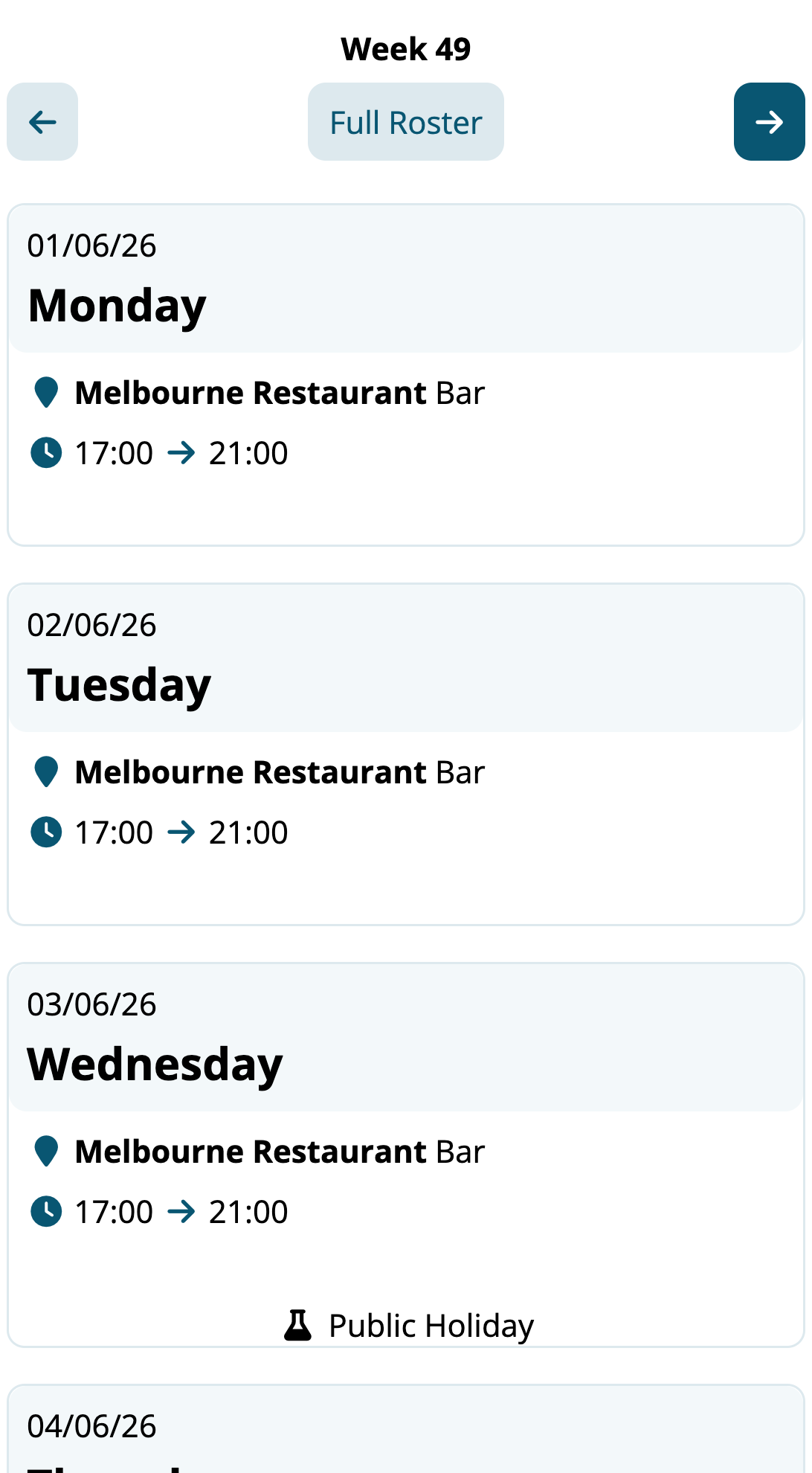
Each shift shows its day and date, where you're working and your role, your start and finish times, and any notes from your manager. A coffee cup shows when your break starts.
If you see Roster not set yet, your manager hasn't finished that week. Check back later, or look out for a notification.
To see who else is working, tap Full Roster, if your employer shows it.
Accept or decline a shift
Some employers ask you to confirm your shifts. If you see Accept and Decline on a shift, tap one so your manager knows you'll be there.
If you decline, your manager gets an email so they can find someone else. If you're unsure, talk to your manager before you decline.
Pick up extra shifts
When your employer offers spare shifts, they show on Home under Shift Bidding. Tap Bid on a shift you'd like, or Hide to skip it. If you get the shift, it shows on your roster.
Add your roster to your phone's calendar
- On Roster, under Want to display your roster on your smartphone or PC?, tap Learn more.
- Tap Copy beside the link.
- Add it to your calendar app as a new calendar subscription. See Calendar Feed for each calendar app.
Your shifts then show in your calendar, for the weeks your manager has finished.
Tell your manager when you can work
Your availability is the days and times you can usually work, each week. Your manager sees it when they write the roster.
- Tap Profile, and find Availability.
- Tap the pencil.
- For each day, choose from the list, such as All day, Morning or After school, or Not Mondays if you can't work that day. Tap Edit to enter your own times.
- Add a note if it helps, such as "Uni until 2pm".
- Tick Confirm your availability and tap Save.
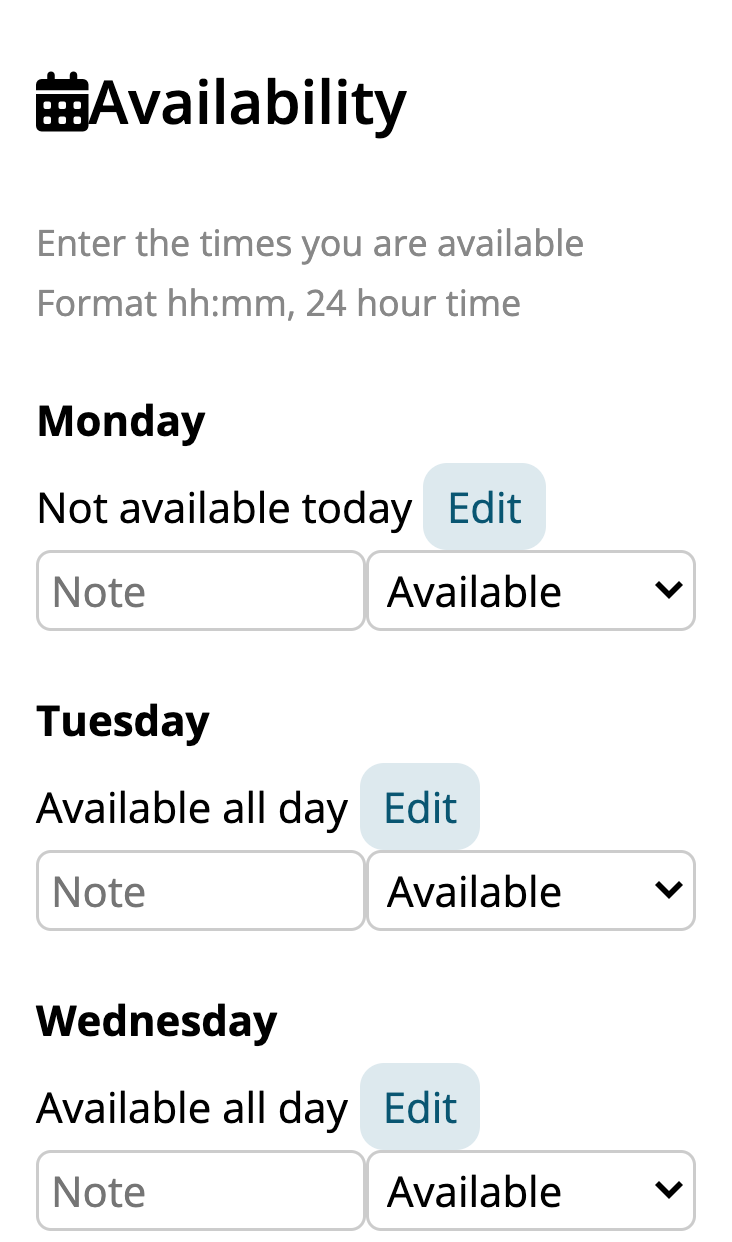
You can change it any time. It's the same every week: for a one-off day off, ask for leave instead. See Requesting Leave.
If there's no pencil, your employer looks after availability for you. Tell your manager when it changes.
Roster questions
Guides related to your roster
- Clocking On and Off
- Requesting Leave
- Roster Calendar, for managers