Xero
Microkeeper sends each pay run to Xero as a bill, with its wages, super and PAYG withholding against your Xero accounts. You pay the bill from your bank feed when wages go out.
| Required plan | All plans |
|---|---|
| Required access | Settings to connect and sync, and Report and Payroll to send pay runs |
This guide covers how to:
- Connect an ABN to your Xero organisation.
- Sync your Xero accounts and tracking categories.
- Send a pay run to Xero.
- Send a pay run again.
Before you connect Xero
- Set the ABN's accounting system to Xero. See Choose the accounting system for each ABN.
- Your Xero login needs Expenses (Admin) access in Xero to create bills. Check it in Xero under Settings > Users.
Connect an ABN to your Xero organisation
- Navigate to Menu > Settings > General > Global, then click ABN and Pay Cycles.
- On the ABN, click Connect to Xero.
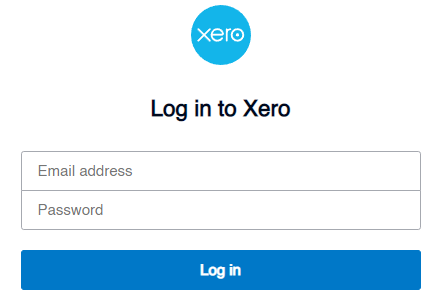
- Log in to Xero and allow Microkeeper access.
- If your login has more than one organisation, choose it in Select Organisation and click Connect.
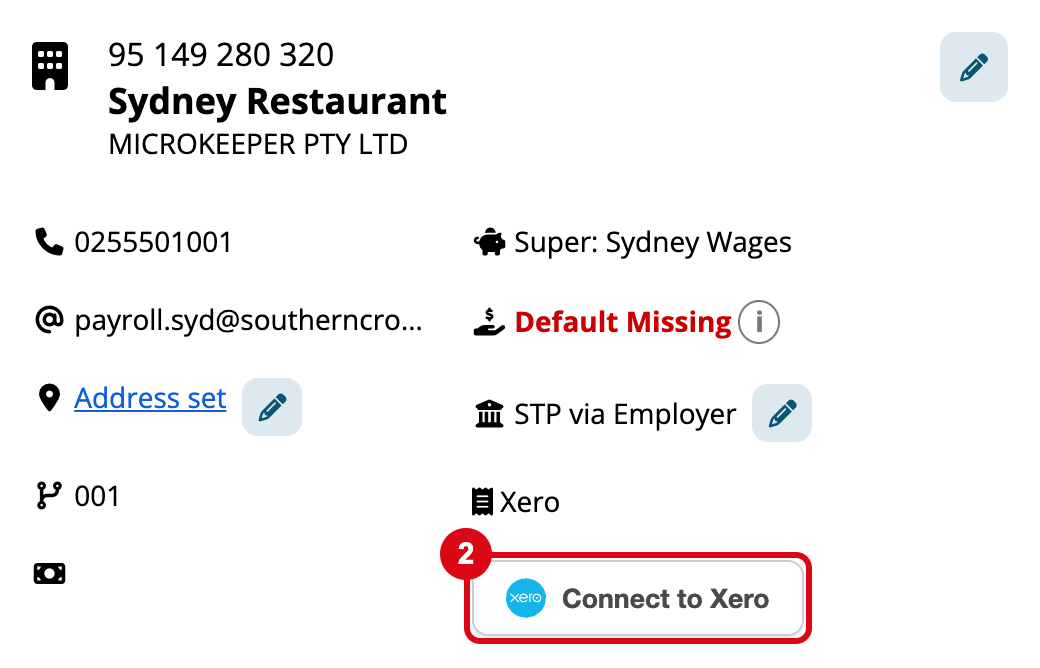
The ABN then shows the organisation's name beside the Xero logo. Connect to Xero is also on the ABN's Chart of Accounts and on a pay run's 3. Export.
Each ABN connects to one Xero organisation, and stays connected until you disconnect it.
Sync your Xero accounts and tracking categories
- Open the ABN's Chart of Accounts, from ABN and Pay Cycles.
- Click the Xero button with the cog.
- Click Sync Accounts to bring in your Xero accounts.
- If you use tracking categories, click Sync Tracking.
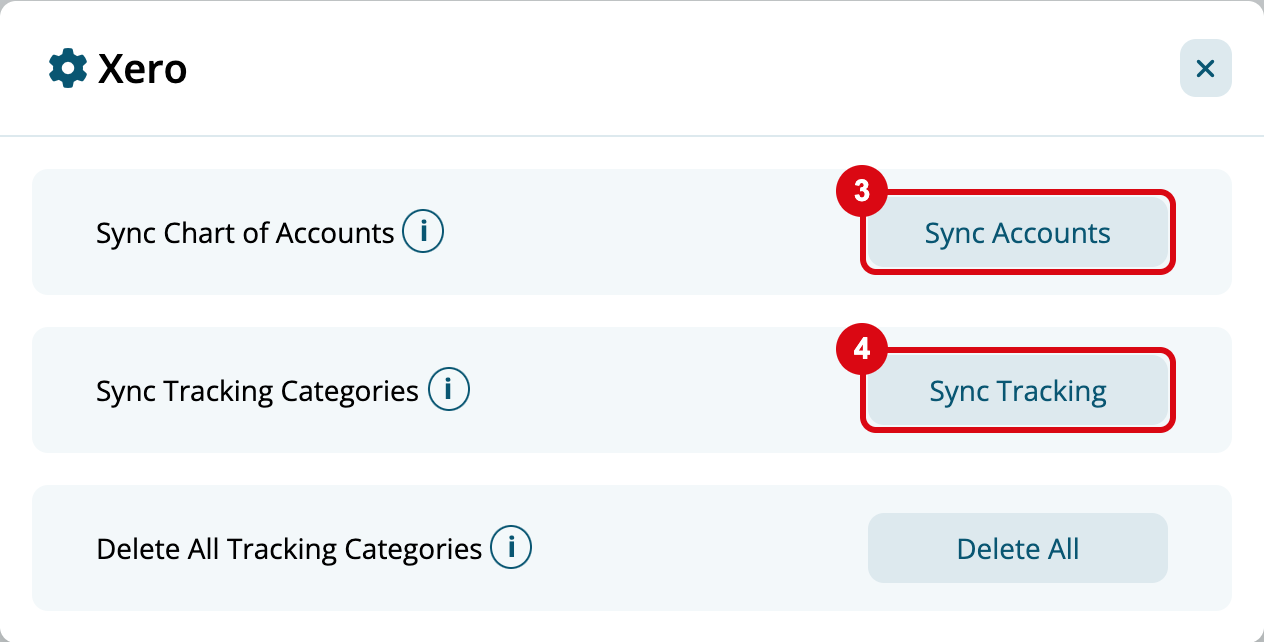
Sync again whenever you add, rename or remove an account or tracking option in Xero. Xero takes up to two tracking categories on each bill line, so have only the two you use active in Xero. See Sync accounts from Xero or Reckon.
Send a pay run to Xero
- Navigate to Menu > Payroll > Payruns and open the pay run.
- Click Complete Payrun, then 3. Export.
- Check each line's Description, Account and tracking category, and click Save Settings if you change anything. See Map each pay run line to an account.
- Click Send to Xero.
Microkeeper shows Payroll data added to Xero, with a View invoice in Xero link.
The payroll bill in Xero
- From: Microkeeper.
- Reference: Payrun-MK-PayCycle-, then the pay cycle's ID and the pay period, such as Year 2026 - Run 49.
- Date and Due Date: the pay run's Payment Date.
- Amounts are tax inclusive, at each account's default tax rate.
- It's Awaiting Payment, under Bills to pay.
When you pay wages with the ABA file, reconcile the payment in your bank feed against this bill.
Send a pay run to Xero again
To change a bill, correct the mapping or the pay run, then click Send to Xero again. Sending the same pay cycle and pay period again updates its bill rather than adding another.
Warning
Don't void a payroll bill in Xero. A voided bill can't be updated, so the next send for that pay run fails.
If Xero shows an error when you send again, for example because the bill was voided, choose v2 in the list beside Send to Xero and send again. This adds a new bill with v2 at the end of its reference. Use v3 to v5 only if the version before can't be updated either.
Xero troubleshooting
Guides related to Xero
- Accounting Export
- Chart of Accounts
- Import Staff, for importing staff from Xero