Dashboard
The Dashboard shows the staff you manage at a glance: who's clocked on, who's rostered today, who's on leave, and what's waiting for you to review. Each manager chooses which cards show on their own Dashboard, and in what order.
| Required plan | Standard Enterprise |
|---|---|
| Required access | Settings, Roster - Full Access or Roster - Read Only, Payroll - Full Access or Payroll - Medium Access, or Leave requests |
Navigate to Menu > Home > Dashboard.
This guide covers how to:
- Read the cards on your Dashboard
- Choose which Dashboard cards show and their order
- Work through the To Review list on the Dashboard
Read the cards on your Dashboard
The Dashboard is made of cards, with To Review on the left (at the top on a phone). Most cards have a button at the top right, such as Timesheets or Roster, that opens their page in a new tab.
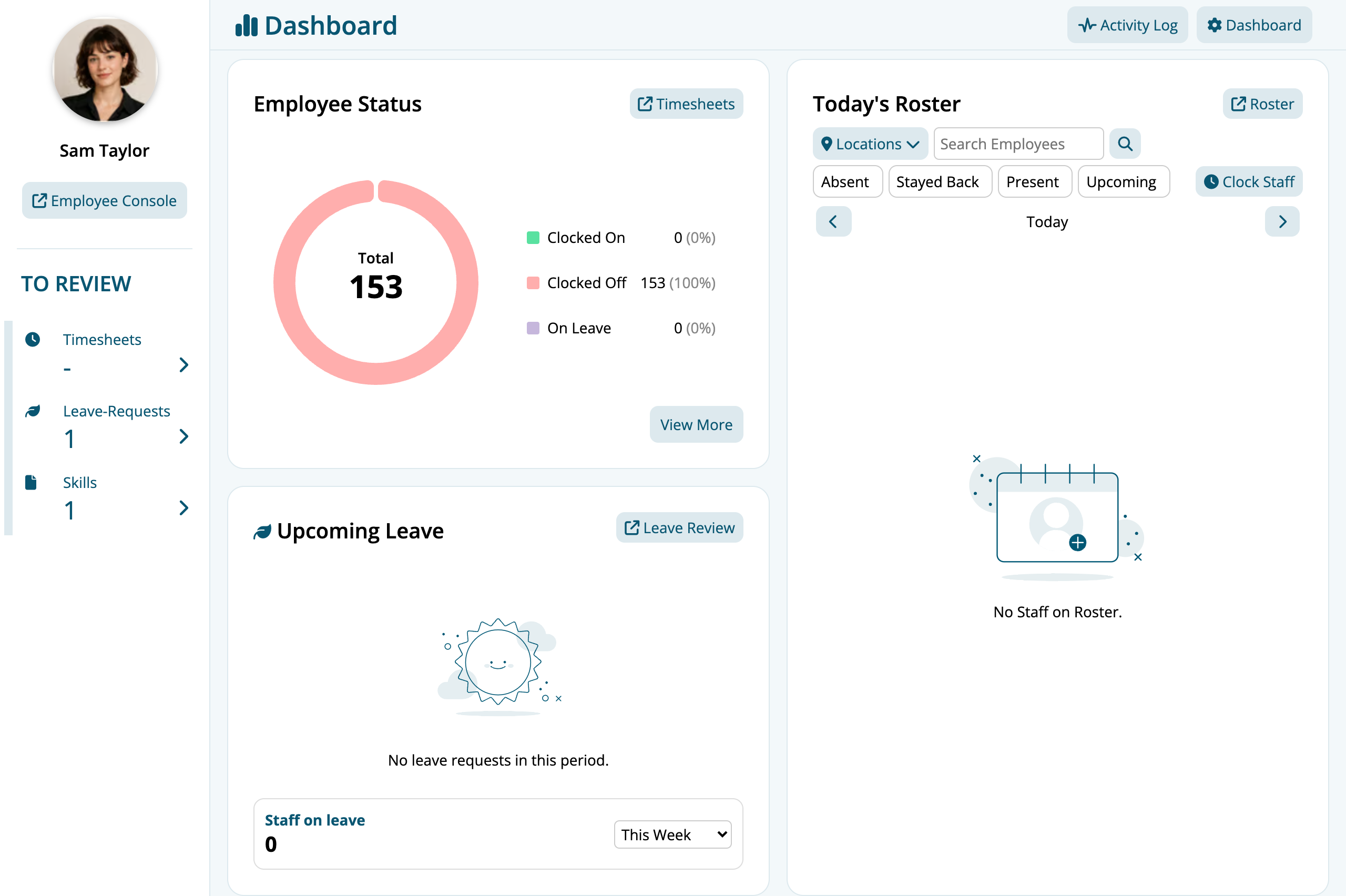
You see only the cards your access allows:
| Card | What it shows | Access you need |
|---|---|---|
| Employee Status | How many staff are Clocked On, Clocked Off and On Leave. View More lists them, with a Locations filter, a search and Export All. With Timesheet - Full Access you can clock staff on or off from here. | Settings, or any Timesheet, Roster or Payroll access |
| Today's Roster | Who's rostered today at the Locations you choose. Click Absent, Stayed Back, Present or Upcoming to show only those staff. The arrows move to other days. With Timesheet - Full Access, Clock Staff clocks several staff on or off at once. | Roster - Full Access or Roster - Read Only |
| Upcoming Leave | How many staff are on leave, pending or approved, in the period you choose, from This Week to Next Quarter, with a chart of when. | Leave requests |
| Weekly Hours | Timesheet hours against rostered hours for each day of the week, the Total Hours Worked, and how far that is above or below the roster. The arrows move between weeks. | Roster - Full Access, with Timesheet - Full Access or Timesheet - Read Only |
| Upcoming Birthdays | Staff with a birthday in the next 14 days. | Settings, Payroll - Full Access or Payroll - Medium Access, or Employees - Add/Edit or Employees - Edit |
| Live Roster Auctions | Your live shift auctions and their bids. | Roster - Full Access or Roster - Read Only |
Employee Status, Today's Roster, Weekly Hours and Upcoming Leave show only the staff at the Locations you manage, unless you have Location - All. Upcoming Birthdays shows all your active staff. See Which staff a manager manages.
With Activity Feed access, Activity Log at the top right opens a log of recent activity in your account.
Choose which Dashboard cards show and their order
Your layout is saved for your login only, so each manager can set up their own.
- Click Dashboard, the button with the gear at the top right. The Dashboard Settings panel opens.
- Tick a card to show it, or untick it to hide it. Clicking the card's name does the same.
- Drag a card by its grip handle, on the left, to move it up or down.
- Click Apply. The page reloads with your layout.
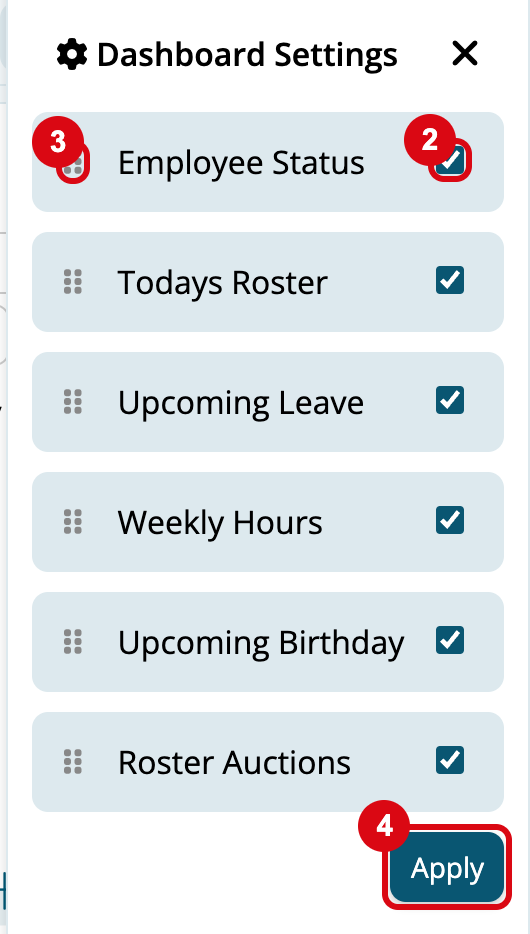
The panel lists some cards by shorter names: Today's Roster is Todays Roster, Upcoming Birthdays is Upcoming Birthday and Live Roster Auctions is Roster Auctions.
Work through the To Review list on the Dashboard
To Review counts what's waiting for you. Click an item to open its page, and the count goes down as you deal with each one.
- Timesheets: shifts this week that haven't been approved yet. It opens the Timesheets page, where you approve shifts. It shows a dash when your business uses Visual Approval, as there's nothing to tick. Needs Timesheet access.
- Leave-Requests: leave requests from your staff that are waiting for a decision, including requests to remove approved leave. It opens Leave Review filtered to Requiring Action, where you approve or decline them. Needs Leave requests access.
- Skills: skills and documents your staff have submitted that are waiting for approval. It opens Skill Review, where you approve or decline them. Needs Settings or HR - Config.
Leave-Requests and Skills count only the staff you manage, unless you have Location - All. Timesheets counts every shift in the business this week.